
When you start animating elements in CSS, it is very common to confuse animations with transitions, or to think that simply changing a property is enough to make "something animate." In practice, CSS animations work in a very specific way: the browser interpolates values over time following a sequence that we define.
In my case, when I started working with animations, the biggest mental click was understanding that I wasn't changing styles directly, but defining how those styles change over time. From there, everything starts making much more sense.
In this post about CSS, we will take the first steps with CSS animations; we will see how @keyframes are essential for creating animations, how to animate our elements, and some comparisons between animations and CSS transitions.
CSS Animations vs Transitions
Before diving in, it is worth clarifying a very common doubt among those starting with CSS.
CSS transitions are smooth changes between two states: an initial one and a final one. They need a trigger (:hover, :focus, a class added with JavaScript, etc.) and the browser takes care of interpolating the change between both ends.
For example, changing from a red background to a blue one in 4 seconds:
CSS animations, on the other hand, are not limited to two states. They work as a sequence of states distributed over time, and they can also start automatically without user interaction.
This is where I started to see the real difference: replicating an animation with several intermediate changes using only transitions often becomes an unnecessary challenge. With animations, that control comes built-in.
We could easily change from one color to another with JavaScript by directly accessing the value of the background property and changing the color; but these are not transitions, as they are sudden changes from one state to another, without interpolation in between.
What a CSS animation is and how it really works
A CSS animation is always made up of two blocks working together:
- The
@keyframesrule, where the different states of the animation are defined. - The
animationproperties, which specify how that animation is executed.
Without one of these two elements, the animation does not exist or simply will not be visible.
Conceptually, how it works is as follows:
- We define a total duration with
animation-duration. - We mark key points within that time using percentages or the
fromandtokeywords. - The browser automatically calculates the intermediate values between one point and another (interpolation).
In other words: we mark the milestones, and the browser does the heavy lifting.
The role of @keyframes in CSS animations
Two blocks make up CSS animations:
@keyframes are the heart of CSS animations. Here is where you define what happens at each relevant moment of the animation: which properties change and with what values.
A very simple example:
@keyframes cambiarColor {
  from { background: red; }
  to { background: blue; }
}
This block defines two states:
from(equivalent to0%): initial state.to(equivalent to100%): final state.
But the truly interesting part appears when we use percentages to define intermediate states.
Without both components working together, it is not possible to create an animation in CSS.
Just like CSS transitions, animations act directly on the properties of the HTML element over a given time interval to change from one state to another; however, with animations we have much more precise control over how and when each change occurs.
Getting started with CSS animations
Let's look at a simple animation to start understanding them. For now we will only focus on @keyframes, which allow creating frames to define each of the states of the animation; although on their own they are not enough to make an animation work.
This animation allows changing the background color (background) of an element; in this case, a <div> container:
@keyframes cambiarColorFondo {
	from { background: red;}
	to   { background: blue;}
}
Resulting in the following CSS animation:
We would also get the same result by structuring the animation with percentages instead of from and to:
@keyframes cambiarColor {
     0%   { background-color: red;}
     100% { background-color: blue;}
  }
How percentages work in a CSS animation
This is where many people get lost at first, and also where I truly understood how animations work.
Percentages in @keyframes do not represent isolated visual states, but portions of the total time of the animation. Each percentage indicates at what exact moment of the cycle those properties should be applied.
If an animation lasts 8 seconds:
25%corresponds to the first 2 seconds.50%reaches second 4.75%up to second 6.
For example:
@keyframes cambiarColor {
0% {
	background: #FF0000;
	width: 50%
}

25% {
	background: #FFAAAA;
	width: 80%;
}

50% {
	-webkit-box-shadow: inset 0px 0px 0px 10px #BB0000;
	-moz-box-shadow: inset 0px 0px 0px 10px #BB0000;
	box-shadow: inset 0px 0px 0px 10px #BB0000;
	border-radius: 200px
}

75% {
	width: 120px;
}

100% {
	background: #FF0000;
	width: 50%
}
}
The browser progressively interpolates values between each percentage. There are no sudden jumps: everything happens smoothly within the assigned interval.
When you understand this, you start thinking of animations as a timeline, not just simple individual style changes.
By using percentages instead of
from(initial displacement, equivalent to0%) andto(final displacement, equivalent to100%), it is possible to customize each frame of the animation much more. This is one of the clear advantages of animations over transitions: with@keyframesyou can define as many control points as you need over time.
Replicating the previous example using only transitions would be quite a challenge and, in most cases, practically impossible without resorting to JavaScript.
As you can see, being able to intervene at specific time intervals to modify properties is tremendously useful. In the previous example, where the overall time of the animation is 8 seconds (defined by the properties we will see in the next section):
The second value of @keyframes is 25%, which indicates that the styles defined there will be applied progressively between second 0 and second 2. That is, the background and width of the container will change in that interval; the same logic applies to the rest of the percentages:
@keyframes: essential for creating CSS animations
The @keyframes are nothing more than rules indicating how the behavior of the different frames of the entire animation will be; they are the heart of CSS animations. Mozilla Developer Network defines them as:
The@keyframesCSS at-rule controls the intermediate steps in a CSS animation sequence by establishing keyframes (or trajectory points) along the animation sequence that must be reached at specific moments.
Properties of CSS animations
We already have the animation defined with @keyframes; however, using only that rule is not enough to make the animation work. We still need to specify the behavior and customization of the animation, for which we use the animation properties detailed below:
animation-name | Indicates the name of the animation; in other words, the name of the @keyframes we want to execute. |
animation-duration | Defines the duration of a complete cycle of the animation, expressed in seconds (s) or milliseconds (ms). |
Although there are many more. Once the @keyframes are defined, we need to indicate how the animation is executed. For that, we use the animation properties.
The most important ones are:
animation-name- Indicates the name of the animation defined in
@keyframes. It must match exactly.
- Indicates the name of the animation defined in
animation-duration- Defines how long a complete cycle of the animation lasts (in seconds or milliseconds). If not specified, the default value is
0sand the animation will not be visible.
- Defines how long a complete cycle of the animation lasts (in seconds or milliseconds). If not specified, the default value is
animation-iteration-count- Specifies how many times the animation repeats. It can be an integer or the value
infiniteto repeat indefinitely.
- Specifies how many times the animation repeats. It can be an integer or the value
animation-direction- Controls the direction of the animation:
normal,reverse,alternate,alternate-reverse.
- Controls the direction of the animation:
animation-delay- Indicates the waiting time before the animation starts. Very useful for staggering multiple animations.
animation-timing-function- Defines the speed curve of the animation over time. The most common values are
linear,ease,ease-in,ease-out, andease-in-out. - In many cases, all these properties are grouped using the shorthand form
animation, with the format:animation: name duration timing-function delay iteration-count direction;
- Defines the speed curve of the animation over time. The most common values are
Example of animations vs transitions and a bit more
We can see a comparison between animations, transitions, and changes without any type of effect. Place the cursor over any of the <div> containers:
In addition, there are many other properties that allow customizing the final behavior of CSS animations even further, which will be covered in depth in subsequent posts:
animation-iteration-count | Specifies the number of times the animation will execute. The possible values are:
|
animation-direction | Specifies the direction of the animation: normal, reverse, alternate, or alternate-reverse. |
animation-delay | Specifies a waiting time in seconds or milliseconds before starting the animation. |
animation-timing-function | Specifies the speed curve of the animation over time. |
How to animate an element step by step
The mental process I usually follow is always the same:
- Decide what I want to animate (
color,width,transform…). - Think about how that property evolves over time.
- Define the key states with
@keyframes. - Adjust duration, repetitions, and rhythm with the
animationproperties.
For example, a complete animation applied to an element:
.elemento {
 width: 100px;
 height: 100px;
 background: grey;
 animation: cambiar-color 5s infinite;
}

@keyframes cambiar-color {
 from { background: red; }
 to { background: green; }
}
Here the animation starts automatically when loading the page, lasts 5 seconds, and repeats indefinitely without any user interaction.
Why CSS animations offer more control than transitions
The main advantage of CSS animations over transitions is that they allow:
- Defining multiple intermediate states with percentages in
@keyframes. - Controlling exactly when each change occurs within the cycle.
- Repeating animations automatically without the need for external events or JavaScript.
When you need something more than a simple :hover effect, CSS animations are almost always the best option.
When to use CSS animations
CSS animations are ideal for:
- Visual indicators (loaders, spinners, progress bars).
- Decorative effects (animated backgrounds, text entry effects, pulsing elements).
- Automatic animations that do not depend on user interaction.
- Small interactions without complex state logic.
If you need advanced logic or animations dependent on real-time calculations, JavaScript (or libraries like GSAP) might be a better tool. But for most common cases, pure CSS is more than enough and much performant.
Animating text and letters with animation-delay in CSS
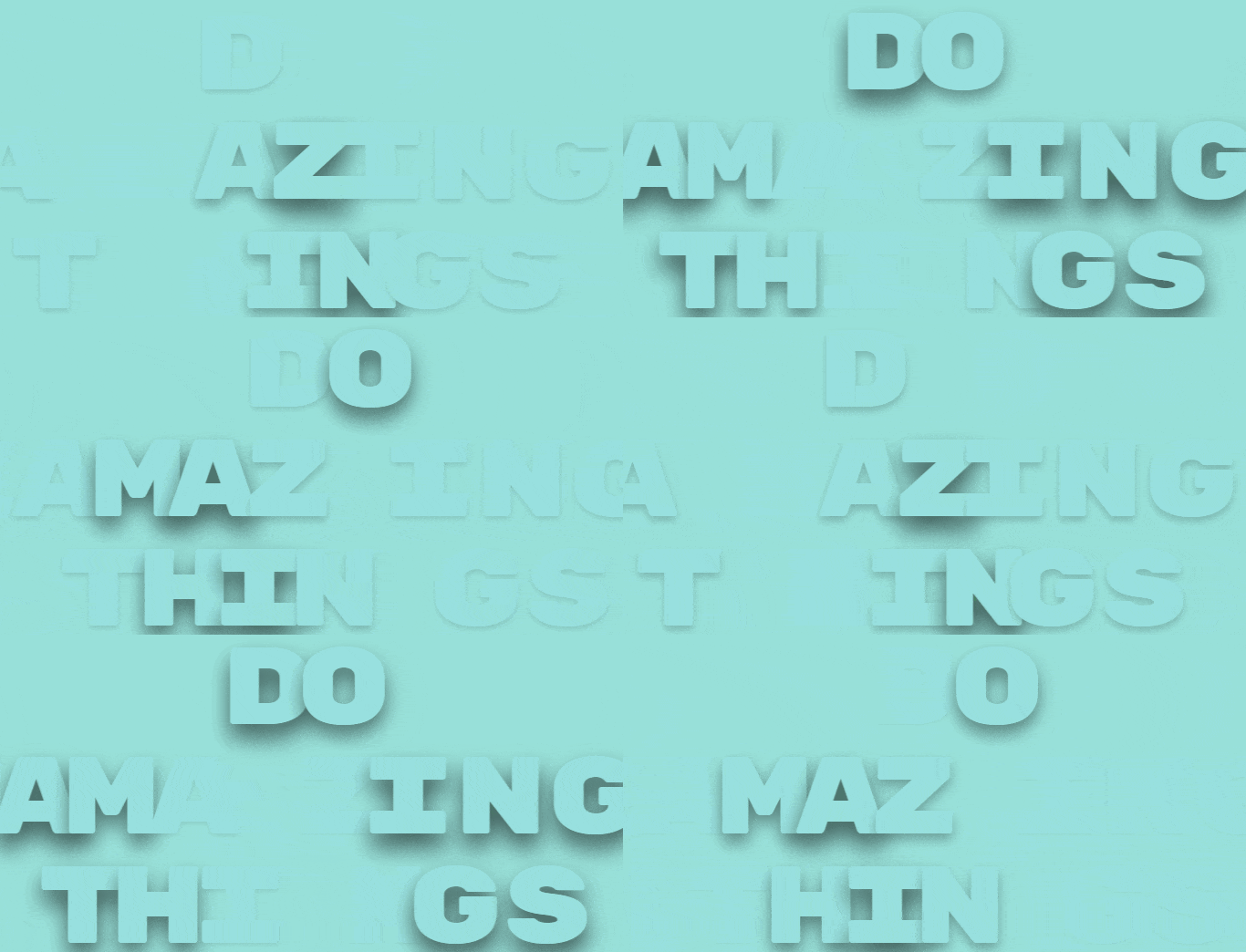
As we have seen in multiple posts about CSS, this technology serves us for practically everything we want to do on the front-end. The example I present below allows animating text very easily with very little code, but the achieved effect is quite polished and you will be surprised how easy it is to implement.
Many times we overlook these small details that truly make a difference. Entering a website and seeing that everything loads static can feel a bit cold, but a few simple text animations give the site a different touch, conveying dynamism and attention to detail. They can be applied at the paragraph level or letter by letter, depending on your needs. Here we bring you a basic idea to animate your texts with minimal CSS.
The trick is very simple: we only need a few lines of CSS and a good understanding of the animation-delay property.
Delayed animations in CSS with animation-delay: the big trick
The key lies in the animation-delay property, which allows delaying the start of the animation for each letter individually, achieving a staggered effect on the text. This delay is achieved by combining it with the :nth-child selector:
.words span:nth-child(2) {
  animation-delay: 0.4s;
}
.words span:nth-child(3) {
  animation-delay: 0.8s;
}
.words span:nth-child(4) {
  animation-delay: 1.3s;
}
The animation itself is very simple: it applies a horizontal displacement with the transform property:
@keyframes move {
  0% {
    transform: translate(-25%, 0);
  }
  50% {
    text-shadow: 0 15px 40px rgba(0, 0, 0, 0.6);
  }
  100% {
    transform: translate(33%, 0);
  }
}
Another key point is the use of text-shadow in the intermediate frame (50%). It adds a shadow when the letters are in motion, reinforcing the sense of depth and allowing the animation to restart cleanly when the letters go out of view.
As you can see, it is an effect based on CSS animations that looks really good in any application and does not require much effort, just a little ingenuity and knowing the available properties well.
Text shadow effect with CSS animations
In this other animation, we see a neon or luminous warning style text effect. The text-shadow CSS property is used in combination with the corresponding @keyframes:
The HTML is simply the text inside a <div> container:
<div class="area">
  Text
</div>
The CSS is where the magic happens. Two key points for the effect to work properly: the color of the text must be the same as the background color (in this case white), so that the text "appears" only through the shadow; and in the animation, text-shadow is defined multiple times with different intensities so that the luminous effect is more pronounced:
@import url(https://fonts.googleapis.com/css?family=Open+Sans);

body{
 background:url('http://subtlepatterns.subtlepatterns.netdna-cdn.com/patterns/noisy_net.png') repeat;
  font-family: "Open Sans",  Impact;
}
.area{
  text-align:center;
  font-size:6.5em;
  color:#fff;
  letter-spacing: -7px;
  font-weight:700;
  text-transform:uppercase;
  animation:blur 2s ease-out infinite;
  text-shadow:0px 0px 5px #fff,
      0px 0px 7px #ff0000;
}

@keyframes blur{
  from{
      text-shadow:0px 0px 10px #fff,
      0px 0px 10px #fff,
      0px 0px 25px #fff,
      0px 0px 25px #fff,
      0px 0px 25px #fff,
      0px 0px 25px #fff,
      0px 0px 25px #fff,
      0px 0px 25px #fff,
      0px 0px 50px #fff,
      0px 0px 50px #fff,
      0px 0px 50px #ff0099,
      0px 0px 150px #ff0099,
      0px 10px 100px #ff0099,
      0px 10px 100px #ff0099,
      0px 10px 100px #ff0099,
      0px 10px 100px #ff0099,
      0px -10px 100px #ff0099,
      0px -10px 100px #ff0099;
	  }
}
Conclusions on delayed animations in CSS texts
Nowadays, practically all modern browsers support CSS animations. With the amount of properties available, the possibilities are almost infinite. In the previous examples we only used a few —animation-delay, text-shadow, transform—; imagine combining them with changes in color, font-size, or opacity. The animation engine support in modern browsers is very mature, and you won't have trouble achieving eye-catching effects on your texts and letters, as seen in this section.
Bézier curves in CSS animations: Google Chrome case
Bézier curves are used in all types of digital image processing programs like GIMP or Photoshop to trace shapes; but also in 3D modeling and animation software like Blender. And, of course, they also have their application in CSS.
Applied to our topic: Bézier curves allow describing the speed of a CSS animation at each time phase through the value cubic-bezier(p1x, p1y, p2x, p2y) applicable to the animation-timing-function property (or transition-timing-function).
Bézier curve syntax in CSS
The value cubic-bezier(p1x, p1y, p2x, p2y) consists of four points that define the acceleration curve, as we can see below:
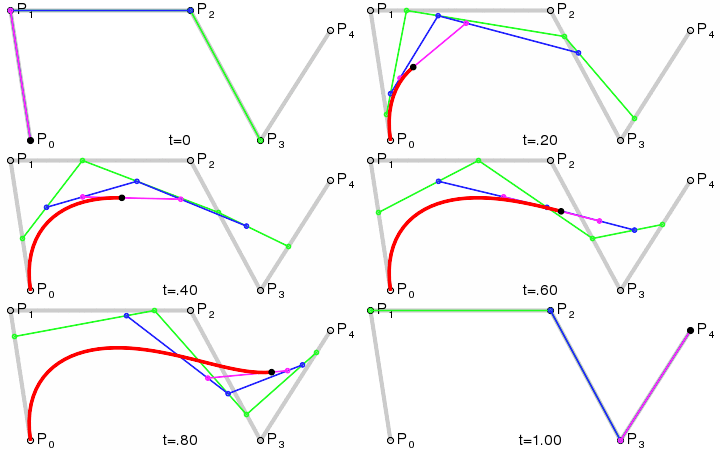
More information on Bézier curves at: Bézier curve.
In this post we will not delve into the mathematical construction of Bézier curves, but we will see how to use them practically in CSS.
Predefined values vs cubic-bezier in CSS
In this section, we will see some examples of Bézier curves and their equivalent with predefined values in CSS.
(ease) The animation starts slow, accelerates, and ends slowly: cubic-bezier(0.25, 0.1, 0.25, 1):
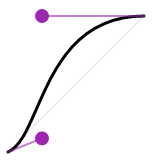
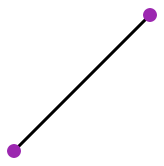
(linear) The animation maintains a constant speed from start to end: cubic-bezier(0, 0, 1, 1):
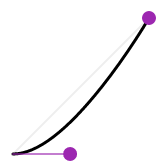
(ease-in) The animation starts slow and ends fast: cubic-bezier(0.42, 0, 1, 1):
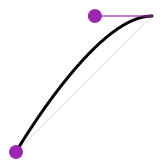
(ease-out) The animation starts fast and ends slow: cubic-bezier(0, 0, 0.58, 1):
You can get more information at the following link: CSS3 transition-timing-function Property.
With Bézier curves, you need to set values between 0 and 1 for the X axes, and sometimes it can be difficult to customize the behavior without visual help. For these cases, browser developer tools are your best allies.
Google Chrome and Bézier curves in CSS animations
Google Chrome, like other modern browsers, offers a significant number of developer tools that allow you to test and experiment with animations. One of the most useful for working with Bézier curves can be found directly in the DevTools Styles panel.
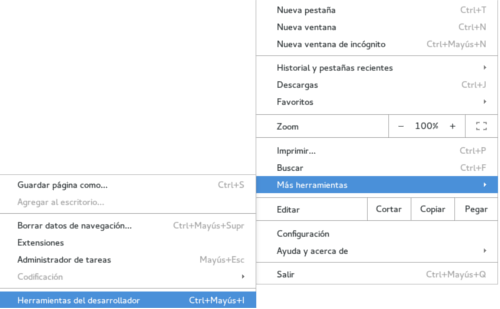
When selecting an element in DevTools that has the animation-timing-function or transition-timing-function property applied (in our example, a <span> element):
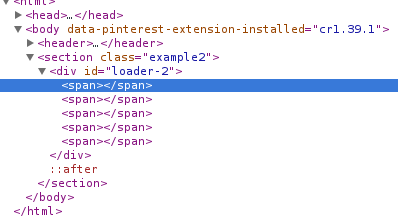
We will see a small icon in the Styles panel:

Clicking on it opens an interactive visual panel with the current curve:
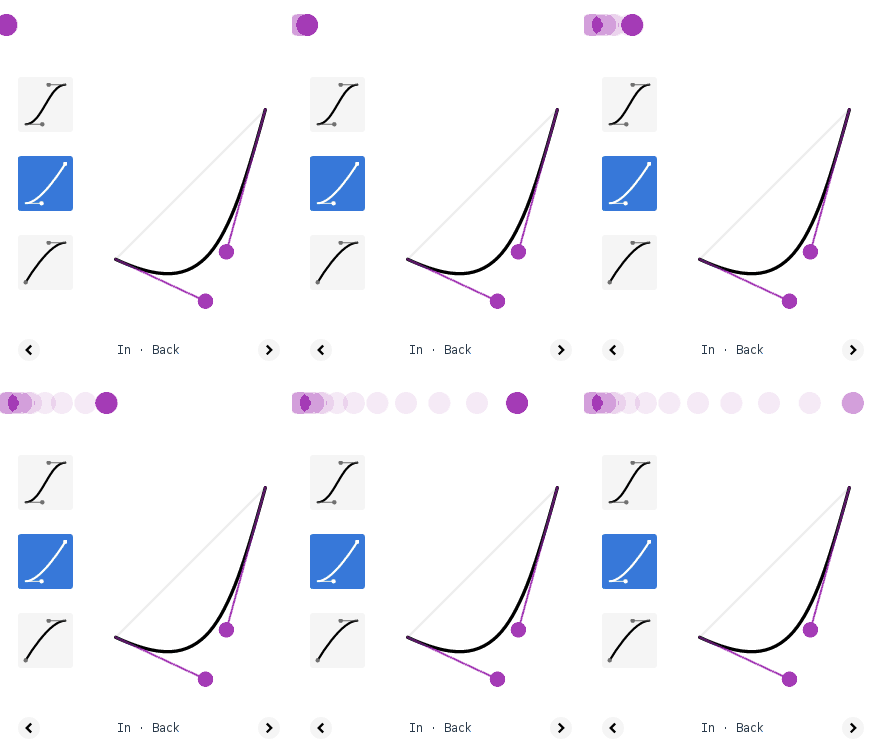
And by dragging the control nodes, we can alter the Bézier curve in real time, instantly seeing how it affects the animation speed in each phase:
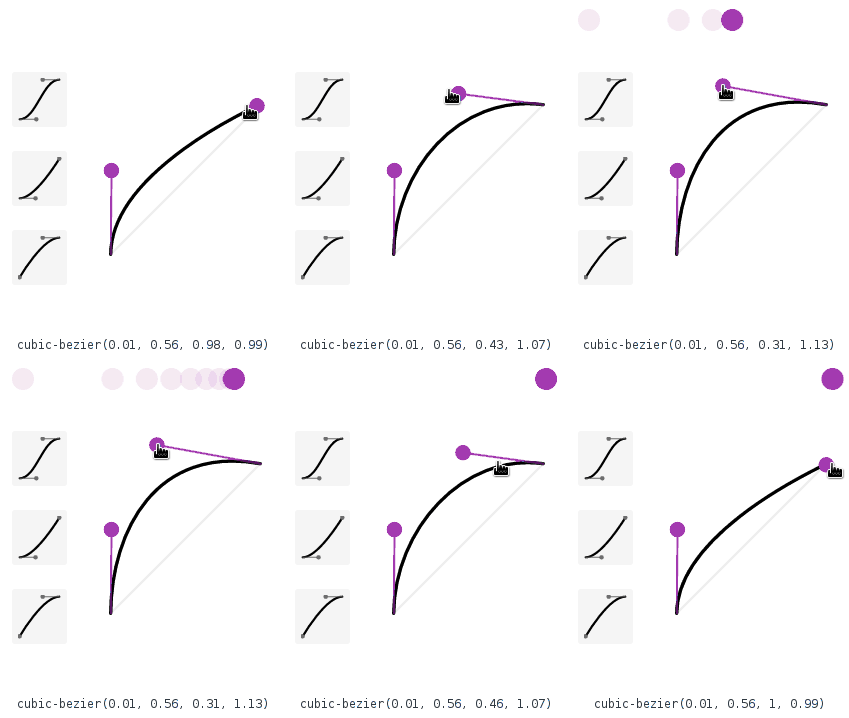
This is undoubtedly a great tool that allows you to "play" with different values and test various combinations until you find the Bézier curve that best suits the animation you are building.
Frequently asked questions about CSS animations
- Is JavaScript required to create CSS animations?
- No. CSS animations work natively in the browser without needing JavaScript.
- What is the difference between animations and transitions in CSS?
- Transitions only allow changing between two states and require a trigger. Animations allow defining multiple intermediate states with
@keyframesand run automatically.
- Transitions only allow changing between two states and require a trigger. Animations allow defining multiple intermediate states with
- What do percentages mean in
@keyframes?- They represent specific moments within the total animation time, not independent visual states.
- Can animations be repeated infinitely?
- Yes, using
animation-iteration-count: infinite.
- Yes, using
- Which property controls the speed of a CSS animation?
- The
animation-timing-functionproperty, which accepts values likeease,linear,ease-in,ease-out, or a custom curve withcubic-bezier().
- The
Conclusion
Animations in CSS work by defining what changes, when it changes, and for how long. The @keyframes set key points along the timeline, and the browser handles interpolating the rest smoothly.
When you start thinking of animations as a timeline —rather than simple style changes— everything becomes much clearer, predictable, and easier to debug.
Let's look at more practical CSS examples below.
Experiments and CSS animation examples for practice
Here is a series of ready-to-use experiments to practice CSS animations, ordered by difficulty level:
- CSS Ripple Effect
- Multiple Animated Backgrounds with CSS
- Animating Things with CSS: Creating Loaders
- Animating Things with CSS: Creating a Moon
- The :target Pseudo-Class in CSS to Highlight Linked Content
- How to Create a 3D Carousel or Slider with HTML5 and CSS?
- How to create a Web Loading Button (Button Loader Spinner) with CSS3 and JavaScript Animations
- Creating a diffused light container with CSS