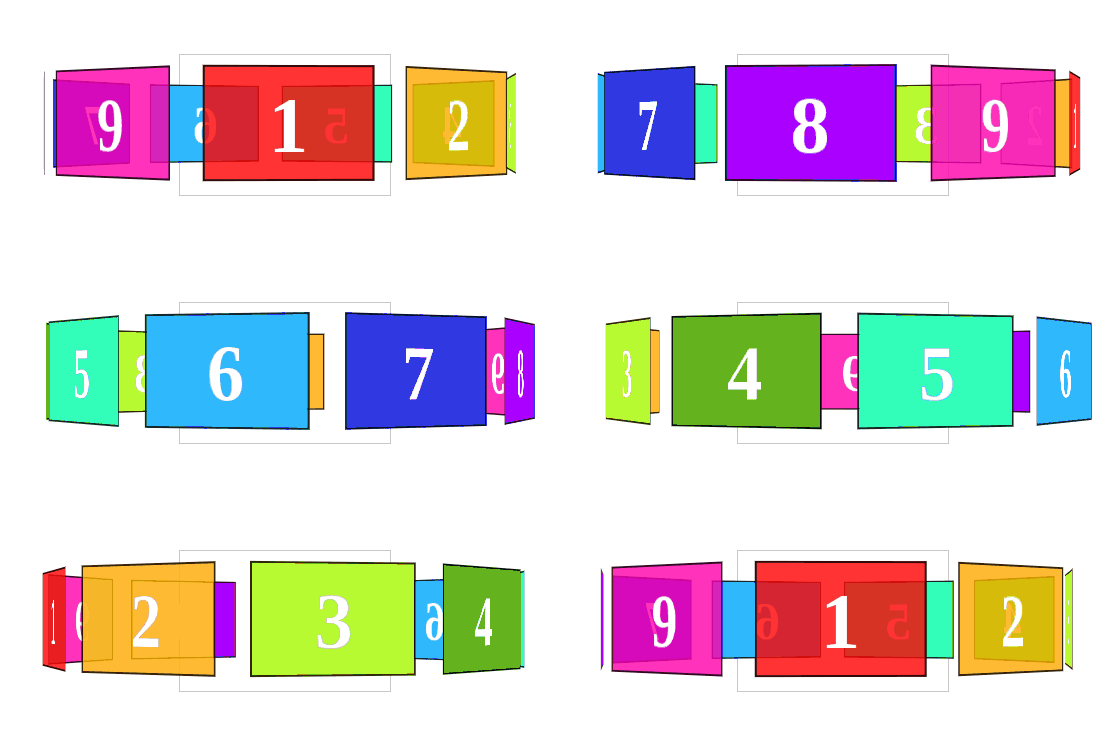
Carousels are very eye-catching and practical elements to present multiple images or contents in a reduced space. They have become a practically fundamental piece in any modern website: a good image carousel never goes unnoticed. In this entry we will see how to create a 3D carousel with HTML5, CSS, and JavaScript, like the following:
This is a rather unusual type of slider or carousel: it has 3D components, rotates on its own axis, and has a very polished look. In addition, you can vary its speed, pause it easily, and customize it with the colors or images you need.
We will see a couple more variations to exemplify the versatility of the presented code, using CSS Animations and JavaScript. We will create a carousel with panels and another with animated cards.
Defining perspective to give 3D depth to the carousel
As we explained in a previous post about UNDERSTANDING THE PERSPECTIVE PROPERTY IN CSS, this property allows varying the depth on the Z-axis. By placing a perspective with a value greater than 1000 pixels, we achieve a carousel that feels larger and with a greater sense of depth.
<style>
        .container {
            perspective: 1100px;
        }
</style>
<section class="container">
     <!-- Other HTML for the carousel - 3D items -->
</section>
We also define some additional CSS to style the container: its position, size, and a border that will serve as a visual frame to highlight the carousel item that is directly facing front at any given moment:
    .container {
      width: 210px;
      height: 140px;
      position: relative;
      margin: 0 auto 40px;
      border: 1px solid #CCC;
      perspective: 1100px;
    }
Positioning the carousel items in a 3D space
Inside our .container we will create another element that will allow its children (the carousel items) to be displayed in a 3D space. To do this, the transform-style property is used with the value preserve-3d. Without this property, child elements would render as flat (2D) elements, completely ignoring any applied 3D transformations.
    #carousel {
      width: 100%;
      height: 100%;
      position: absolute;
              transform: translateZ( -288px );
              transform-style: preserve-3d;
              transition: transform 1s;
} <section class="container">
<div id="carousel" style="transform: translateZ(-288px) rotateY(-360deg);">
<!-- 3D Child elements -->
</div>
</section>To understand how this property influences the construction of the 3D stage, let's see how the carousel would look if the transform-style property with the value preserve-3d were not applied:
As you can see, without that property all items end up overlapping, and the result is completely unusable. Don't worry, with a few lines of CSS we can solve it very simply.
HTML5: Defining the 3D carousel items
Now we define each of the items that make up our carousel. The CSS is fairly basic: a large font size, dimensions that cover almost the entire parent container, and a border to highlight each card. You can customize it as much as you want, though be careful with margins and paddings to prevent the cards or items from misaligning or overlapping each other:
    #carousel figure {
      display: block;
      position: absolute;
      width: 80%;
      height: 80%;
      left: 10px;
      top: 10px;
      border: 2px solid rgba(   0, 0, 0, 0.8 );
      line-height: 116px;
      font-size: 80px;
      font-weight: bold;
      color: white;
      text-align: center;
      margin: 0;
    }
We must place each carousel item in a way that they do not overlap, distributing them evenly across the 360 degrees of the Y axis. The formula is simple: divide 360° by the number of items. In this example with 9 items, each one is spaced 40° apart. You will have as many :nth-child rules as items in your carousel:
 #carousel figure:nth-child(1) {
              transform: rotateY( 0deg ) translateZ( 288px );
    }
    #carousel figure:nth-child(2) {
              transform: rotateY( 40deg ) translateZ( 288px );
    }
    #carousel figure:nth-child(3) {
              transform: rotateY( 80deg ) translateZ( 288px );
    }
    #carousel figure:nth-child(4) {
              transform: rotateY( 120deg ) translateZ( 288px );
    }
    #carousel figure:nth-child(5) {
              transform: rotateY( 160deg ) translateZ( 288px );
    }
    #carousel figure:nth-child(6) {
              transform: rotateY( 200deg ) translateZ( 288px );
    }
    #carousel figure:nth-child(7) {
              transform: rotateY( 240deg ) translateZ( 288px );
    }
    #carousel figure:nth-child(8) {
              transform: rotateY( 280deg ) translateZ( 288px );
    }
    #carousel figure:nth-child(9) {
              transform: rotateY( 320deg ) translateZ( 288px );
    }
Finally, the complete HTML for the carousel:
  <section class="container">
    <div id="carousel">
      <figure>1</figure>
      <figure>2</figure>
      <figure>3</figure>
      <figure>4</figure>
      <figure>5</figure>
      <figure>6</figure>
      <figure>7</figure>
      <figure>8</figure>
      <figure>9</figure>
    </div>
  </section>
HTML + CSS + JavaScript: Putting all the steps together and creating the rotating 3D carousel
By combining all the previous CSS and HTML we obtain the following result:
Infographic: Visual summary of the previous steps
You can see all the steps summarized in the following infographic:
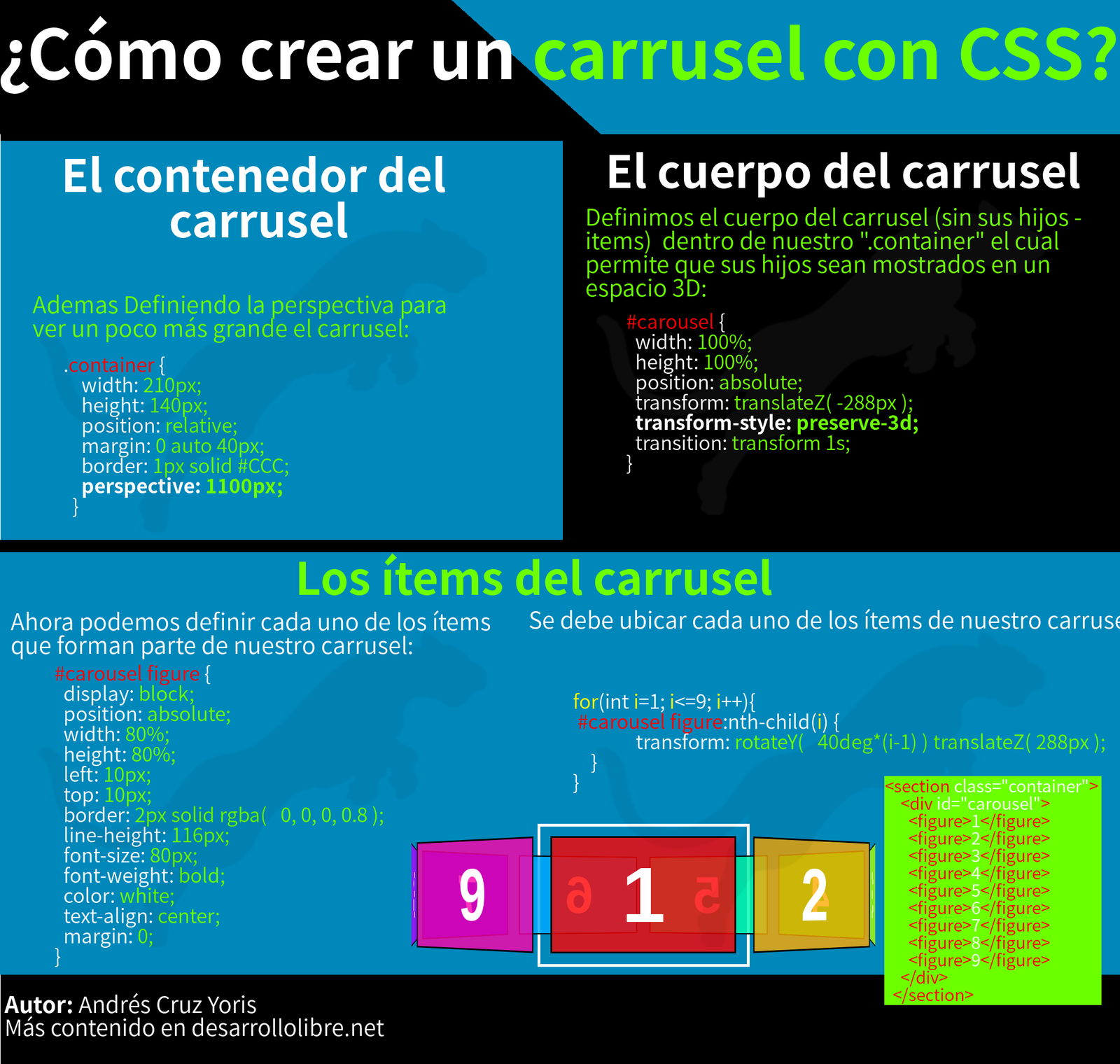
As you can see, the static carousel is already in place, but it lacks the most important part: movement. Fortunately, with CSS Animations we can achieve this with very few lines of code.
Slider rotation: Automatically animating the carousel with CSS
To make the carousel rotate automatically and infinitely, we use the @keyframes directive along with the animation property. Applying the following rules to the #carousel element is enough:
    #carousel {
        animation: rotateInY 10s infinite linear;
    }
    @keyframes rotateInY {
	0%   { transform: translateZ(-288px) rotateY(0deg);   }
	100% { transform: translateZ(-288px) rotateY(360deg);    }
    }
The infinite value causes the animation to repeat indefinitely, while linear guarantees a constant and uniform rotation, without acceleration or slowdowns. You can adjust the duration (10s) to control the spin speed.
An interesting variation is lengthening each of the items so they look like vertical panels instead of cards:
Moving the carousel manually with JavaScript
In this last experiment we will see how, with a bit of JavaScript tied to a pair of buttons, we can control the position of the carousel manually and navigate through each of its items one by one. The key is in calculating the accumulated rotation angle (theta) and applying it as a transform to the #carousel element:
    var init = function() {
      var carousel = document.getElementById('carousel'),
          navButtons = document.querySelectorAll('#navigation button'),
          panelCount = carousel.children.length,

          theta = 0,
          onNavButtonClick = function( event ){
            var increment = parseInt( event.target.getAttribute('data-increment') );
            theta += ( 360 / panelCount ) * increment;
            carousel.style.transform = 'translateZ( -288px ) rotateY(' + theta + 'deg)';
		console.log("theta: ",theta)
          };
      for (var i=0; i < 2; i++) {
        navButtons[i].addEventListener( 'click', onNavButtonClick, false);
      }
    };
    init();
The rotation angle per step is calculated by dividing 360 by the total number of panels (panelCount). Every time the user clicks a button, the carousel rotates exactly as much as necessary to display the next or previous item precisely:
How to create an image carousel with CSS? #Infographic
Visual summary of the complete process for creating the 3D carousel with CSS:
Variation: Animated carousel with CSS and card effect
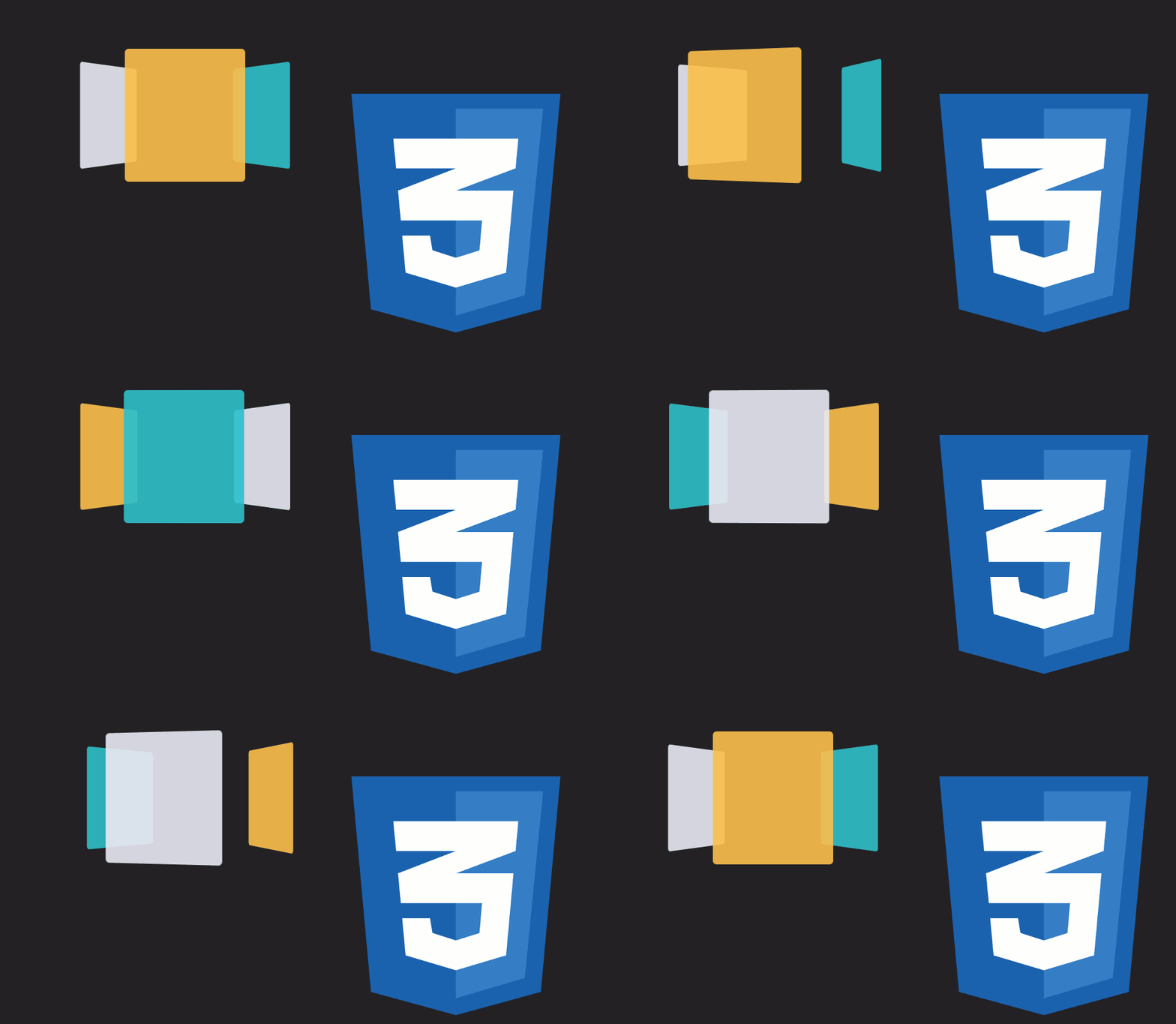
This variation uses the same 3D CSS foundations we already learned, but applied to a stacked card effect that rotates cyclically. It can be used to display images, icons, highlighted text, or any other HTML content.
We will make use of 3D CSS transformations, so we will find properties like perspective, which allows specifying the perspective of an object in pixels, and transform to perform translations and rotations on different axes. In this particular experiment, all the action occurs along the Y axis.
The HTML structure will be as follows:
<figure class="icon-cards">
	<div class="icon-cards__content">
		<div class="icon-cards__item"></div>
		<div class="icon-cards__item"></div>
		<div class="icon-cards__item"></div>
	</div>
</figure>
Now we define the CSS for the parent container .icon-cards__content:
.icon-cards__content {
	position: absolute;
	width: 100%;
	height: 100%;
	transform-style: preserve-3d;
	animation: carousel 10s infinite cubic-bezier(1, 0.015, 0.295, 1.225) forwards;
}
As you can see, we define transform-style: preserve-3d so that all CSS animations and transformations specified further down are displayed in real three-dimensional space.
cubic-bezier() function in CSS allows specifying the speed and rhythm of animations through four points that define a Bézier curve. It is a much more flexible alternative to predefined values like ease, linear, or ease-in-out.Now it's time to define the base CSS for our cards:
.icon-cards__item {
	position: absolute;
	top: 0;
	left: 0;
	width: 190px;
	height: 210px;
	border-radius: 6px;
}
.icon-cards__item:nth-child(1) {
	background: rgba(252, 192, 77, 0.9);
	transform: rotateY(0) translateZ(182px);
}
.icon-cards__item:nth-child(2) {
	background: rgba(49, 192, 204, 0.9);
	transform: rotateY(120deg) translateZ(182px);
}
.icon-cards__item:nth-child(3) {
	background: rgba(236, 233, 242, 0.9);
	transform: rotateY(240deg) translateZ(182px);
}
Nothing unusual: common CSS to define the base size of the cards, and specific rules using the :nth-child selector to vary the background color and position of each card, distributing them every 120° so they do not overlap.
Finally, the @keyframes animation orchestrating all the motion:
@-webkit-keyframes carousel {
	0%,  17.5% {
		transform: translateZ(-182px) rotateY(0);
	}
	27.5%, 45% {
		transform: translateZ(-182px) rotateY(-120deg);
	}
	55%, 72.5% {
		transform: translateZ(-182px) rotateY(-240deg);
	}
	82.5%, 100% {
		transform: translateZ(-182px) rotateY(-360deg);
	}
}
The animation rotates the container on the Y axis in increments of -120deg (one card at a time), pausing briefly at each position thanks to the @keyframes percentages being defined in pairs (for example, 0%, 17.5%). This creates that characteristic "step-by-step" effect seen in card carousels.
If you enjoyed working with advanced CSS effects, I invite you to read how to create a neon text effect using CSS only.