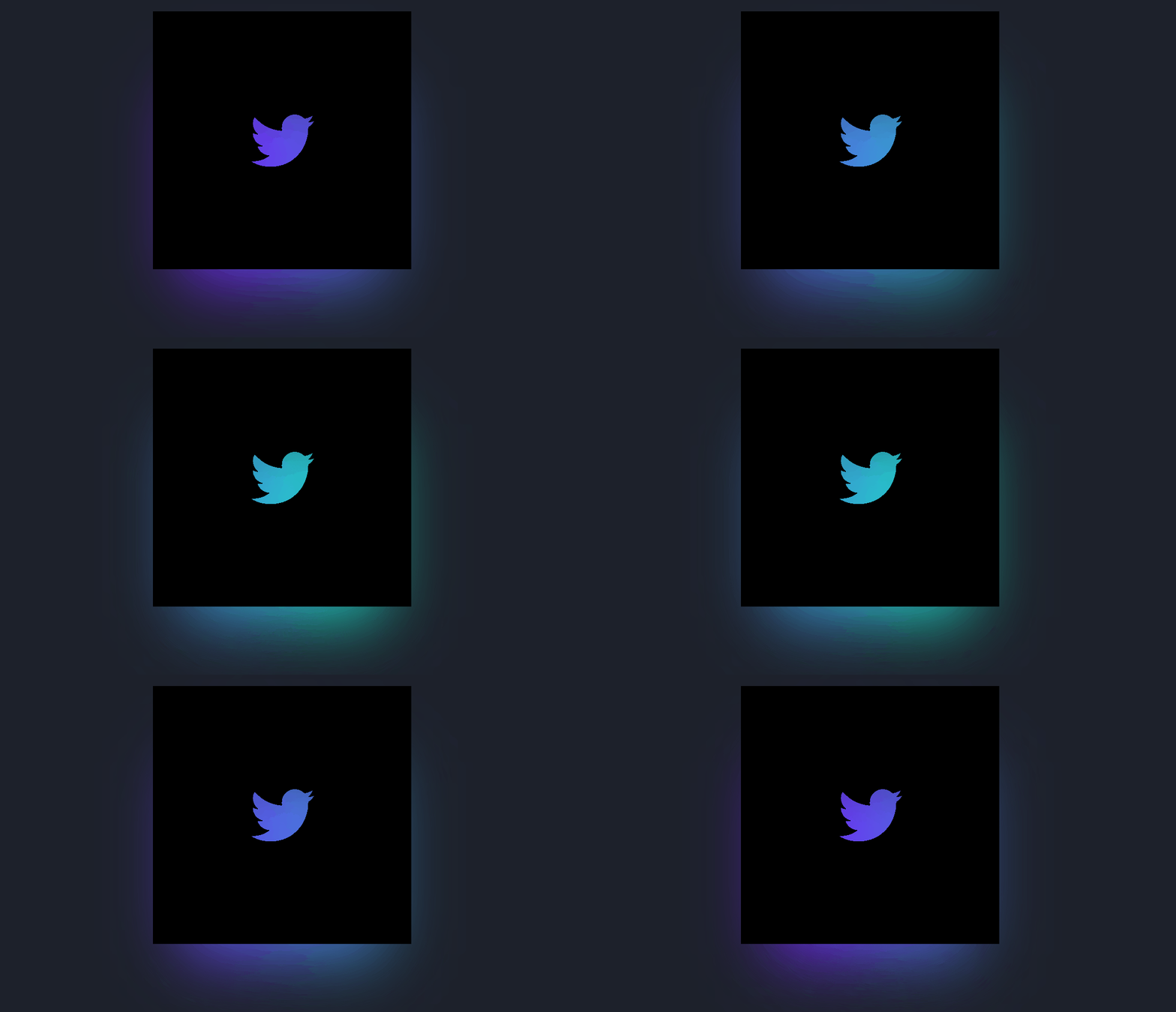
Today it's the turn of a kind of light box in the back area that the author called "Back Glow"; in short, it is a blurred border with CSS and gradients that we can use to promote texts, cards, logos, etc. The result looks quite good, as any progressive change with blurred colored lights is very eye-catching, as we can see in the presentation of this post; let's see how this experiment is composed step by step.
Creating a blurred container in CSS is one of those techniques that, when well-applied, elevates any interface without the need for images or external libraries. In one of my visual experiments, I wanted to recreate a kind of light box behind an element (what is usually called a back glow), and the result was a very striking animated blurred border, ideal for highlighting texts, cards, or even logos.
In this article, I am going to show you how to build that effect step by step, using only CSS: gradients, blur, pseudo-elements, and smooth animations with CSS.
What is a blurred container and when to use it
A blurred container is, basically, a visual element that appears surrounded or backed by a soft light, a blurry gradient, or a glow. Unlike a classic box-shadow, the blur is not a hard shadow, but a progressive effect.
This type of container is especially useful for:
- Highlighting cards or important blocks
- Drawing attention to promotional texts
- Framing logos or images
- Creating modern interfaces with a glow or neon aesthetic
In my case, I was looking for something more vivid than a simple shadow: a progressive change of blurred colors that would add dynamism.
The “back glow” effect: a light box created only with CSS
The idea of the back glow is simple: separate the real content from the visual effect.
The content stays sharp, while the blur lives on a lower layer.
After several tests, I discovered that not blurring the main container, but rather an independent pseudo-element, gave much more control over the final result.
Defining the light container with CSS: Blurred borders
As always, we start with the basics, which is defining the box that overlaps the blurred colors. For this, we create a container with the dimensions we want and define other aesthetic aspects such as text centering, background color, and the animation that we will create later; the CSS is as follows:
.back_light {
	position: relative;
	width: 500px;
	height: 500px;
	line-height: 500px;
	text-align: center;
	color: #252B37;
	background-color: #151823;
	animation: textColor 10s ease infinite;
}
This block acts as a reference for the pseudo-element we will create later. The position: relative is key so that everything fits correctly.
Defining the extra blurred container with ::after
We will create the CSS for the extra container, defining position, size, and scaling:
.back_light:after {
	position: absolute;
	content: "";
	top: 5vw;
	left: 0;
	right: 0;
	z-index: -1;
	height: 100%;
	width: 100%;
	margin: 0 auto;
	transform: scale(0.75);
}
Scaling the pseudo-element slightly helps the glow not to protrude aggressively, but rather to wrap the container in a more natural way.
Applying blur and gradients for the glow effect
And now we will give it some style. This container will serve to show the colors defined in the gradient (linear-gradient) progressively, applying blur filters with only CSS to make it blurred, and we will indicate the animation for the background position displacement:
.back_light:after {
	filter: blur(5vw);
	background: linear-gradient(270deg, #0fffc1, #7e0fff);
	background-size: 200% 200%;
	animation: animateGlow 10s ease infinite;
}
There are two important decisions here:
- The blur is applied to the gradient, not the content
- The enlarged background-size allows animating the color without abrupt cuts
This approach generates a much cleaner effect than overusing shadows.
Gradient animation for a dynamic effect
To prevent the blurred container from being static, we finally define the animations for the text color change and the position change of the extra blurred container. This creates a sensation of light in motion:
@keyframes animateGlow {
	0% {
		background-position: 0% 50%;
	}
	50% {
		background-position: 100% 50%;
	}
	100% {
		background-position: 0% 50%;
	}
}
@keyframes textColor {
	0% {
		color: #7e0fff;
	}
	50% {
		color: #0fffc1;
	}
	100% {
		color: #7e0fff;
	}
}
We get the following result:
Now, by making very few changes to the source code shown above (only removing the background color of the container and including the img tag), we can create experiments like the following:
Extra blurred container with X/Twitter logo
Container with extra blurred border with Apple logo
Variants of the blurred container in CSS
Blurred container without animation
If you prefer something more sober or lighter on performance, just remove the animation:
.back_light::after {
 filter: blur(4vw);
 background: linear-gradient(90deg, #0fffc1, #7e0fff);
}
Ideal for more minimalist interfaces.
Container with image or logo
One of the most interesting tests was using the glow to frame logos.
The only necessary change is to remove the background of the main container and include an image.
This works very well for:
- brand logos
- large icons
- visual headers
The effect adapts without touching the core of the code.
Blurred border vs. traditional box-shadow
Although box-shadow can simulate something similar, it has clear limitations:
- Harder shadows
- Less control over color
- Difficult animation
The approach with pseudo-elements and blur offers a real blurred border, not a disguised shadow.
Blur, box-shadow, and backdrop-filter: key differences
- filter: blur() Blurs the element it is applied to. Perfect for controlled glow effects.
- box-shadow Useful for quick shadows, but limited for complex light effects.
- backdrop-filter Blurs what is behind the element. Ideal for glassmorphism, not so much for external glow.
In this case, blur on a pseudo-element is the most flexible option.
Compatibility and performance of the glow effect
This effect works correctly in modern browsers. To improve performance:
- Avoid excessively fast animations
- Reduce the blur value on mobile devices
- Offer a version without animation as a fallback
Real use cases: cards, texts, and logos
I have used this pattern for:
- Featured cards
- Promotional blocks
- Containers with brand logos
With minimal adjustments, the blurred container adapts to any context.
Common mistakes when creating blurred containers
- Applying blur to the main container
- Using blur values that are too high
- Not separating layers with z-index
- Relying only on box-shadow
Frequently asked questions about blurred containers in CSS
- Can a glow effect be created without images?
- Yes, using gradients and blur as you have seen.
- Does it affect performance much?
- Only if you abuse animations or extreme values.
- Does it work in all browsers?
- In modern browsers, yes. For older versions, it is advisable to simplify the effect.
Conclusion
Creating a blurred container in CSS is not only possible without images, but it also offers enormous visual control. Separating the content from the effect, using animated gradients, and applying blur intelligently allows for modern, reusable, and very eye-catching results.
If you are looking for a more powerful alternative to box-shadow, this back glow approach is an excellent option.
Learn now how to create a Button Loader Spinner in CSS.