With just CSS, we can create quite complex effects on our HTML elements without the need to use Photoshop or Gimp; as we explained in a previous article CSS3 Filters.
When I started playing with CSS blur, we still had to fight with Internet Explorer 5.5 (yes, some traumas go that far back). Back then, we used the famous DXImageTransform to achieve a simple blur that we now solve with one line of CSS. And although the landscape is much friendlier today, there are still tricks, nuances, and compatibilities to consider.
In this guide, I show you all the modern and old ways to apply blur, when to use each method, how to prevent text from being blurry, how to improve readability, and how to take advantage of the glassmorphism effect without affecting performance.
In this article, we will look at a specific filter, blur; this filter, as its name indicates, allows us to apply a blur or soft focus to our HTML elements - Images, text, containers, among others -; in this article, we will see some of its possible uses of this particular filter.
What is the CSS blur effect and what is it used for?
The blur effect applies a Gaussian blur to an element or the area behind it. It is used extensively for:
- Creating "frosted glass" cards (glassmorphism).
- Blurring backgrounds to highlight text.
- Generating visual hierarchy in modals and overlays.
- Making smooth transitions or cleaner interfaces.
Unlike the old Photoshop-based approach, today we can achieve it directly from CSS with filter: blur() or backdrop-filter: blur(). When I first tried it, I was surprised how simple it was compared to the acrobatics we used to do to support IE.
How does the blur filter work?
This method applies the blur to the element itself. It is perfect for images, backgrounds, or entire sections you want to blur as is.
Recalling its function; the filter consists of using the given property, generally in pixels, to apply a blur to our element:
.elemento {
  filter: blur(6px);
}
Of course, there are many other filters, namely: grayscale, blur, sepia, saturate, opacity, brightness, contrast, hue-rotate, and invert; but in this article, the filter of interest is blur.
Let's start with the examples...
Blurring our images with the blur filter
The most obvious of all, consists of applying a blur or soft focus to our images:
img { filter: blur(6px); } 
Another possible use could be to activate the blur when hovering over the image in question; and we achieve this using the :hover selector.
img:hover { filter: blur(6px); }
Highlighting certain elements with the blur effect
This third example is a little more interesting; we will show you how to create a simple blur effect on text boxes (div tag with some content) which we will call 'items'; basically, the items will be scaled and the blur filter already seen in the previous examples will be applied; we will also use transitions to 'smooth' the change from one state to another and a jQuery code to apply the respective blur class to certain items.
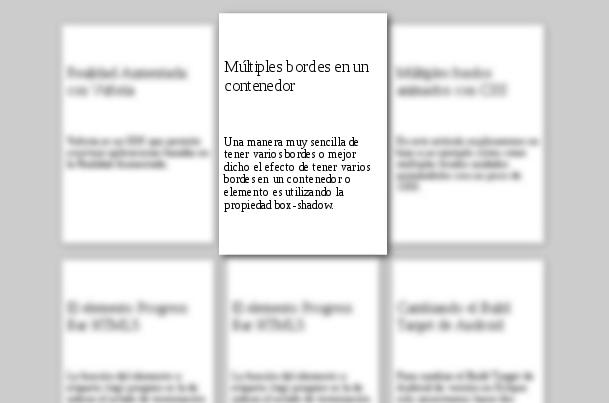
The general idea is to hover over an item, then this item will be scaled to a larger size; at the same time, we will blur all the other unselected items and scale them to a smaller size; this will give the sensation that the item overlaps the other elements and will help the user focus on the already selected item.
This is the final result:
Augmented Reality with Vuforia
Vuforia is an SDK that allows building applications based on Augmented Reality.
Multiple borders in a container
Multiple animated backgrounds with CSS
The HTML5 Progress Bar element
The function of the progress element or tag is to indicate the completion status of a task.
The HTML5 Progress Bar element
The function of the progress element or tag is to indicate the completion status of a task.
Changing the Android Build Target
To change the Android Build Target version in Eclipse, we only need to do two things.
Let's start!
Document Body (The HTML)
A traditional HTML; we have a main tag; inside this tag, we will have our items or text boxes with some interesting content.
    <main class="content">
        <article class="item">
            <a href="">
                <h6>Título</h6>
                <p>Texto.</p>
            </a>
        </article>
        <article class="item">
		<!-- Mas articulos -->
        </article>
    </main>
The Style (The CSS)
With this, we will create a container of no more than 500px wide and centered; we will also add a little more style, to maintain a presentation; this code is optional, but recommended as it favors the final effect.
.content{
  max-width:500px;
  width:80%;
  height:auto;
  padding:20px;
  background:#CCC;
  margin: 0 auto;
}
It forces the container to take the height of its content; that is, the items within it; for this, we use a small trick, which is to place some content (null -""-) before and after the main tag.
.content:before,
.content:after {
  content: "";
  display: block;
  clear: both;
}
Text Boxes (Items)
Continuing with the CSS, we arrive at one of the interesting parts of the example; we will create floating boxes or items positioned to the left, with a slight separation between each item; the truly important thing about this CSS are the transitions with three properties: shadow, scaling, and the blur filter respectively.
article.item{
  padding:5px;
  background:#FFF;
  width:150px;
  height:220px;
  margin:0 5px 5px 0;
  float: left;
  box-shadow: 1px 1px 10px rgba(0,0,0,0.4);
  transition:box-shadow 2s, transform 500ms, filter 500ms ease-in-out;
}
But; when are these transitions applied?; the first two (shadow and scaling) will be applied when positioning over an item of interest; that is; when the item gets the hover event.
article.item:hover{
  transform: scale(1.05);
  box-shadow: 3px 3px 10px rgba(0,0,0,0.6);
}
The last but no less important transition will be applied when the items NOT selected by the user (not hover) have the blur class added to them via JavaScript; in addition, a scaling will also be applied in this class, but this time to reduce their size slightly.
article.blur{
  filter: blur(3px);
  transform: scale(0.95);
}
The other styles are easy to understand and therefore we omit their explanation; now, the JavaScript.
The JavaScript
// *** jQuery
var item = $(".item");
// agrego la clase blur a todos los 'ítem' que NO sea al que le se le esta aplicando el evento 'hover'
item.hover(function() {
item.not($(this)).addClass('blur');
// al perder el foco, retiro la clase a todos los 'item'
}, function() {
item.removeClass('blur');
});
// *** JavaScript
// 1. Selecciona todos los elementos con la clase "item"
const items = document.querySelectorAll(".item");
const className = 'blur'; // Definimos el nombre de la clase para evitar errores tipográficos
// 2. Itera sobre cada elemento para agregar los escuchadores de eventos
items.forEach(currentItem => {
    // FUNCIÓN DE ENTRADA (hover IN / mouseover)
    currentItem.addEventListener('mouseover', function() {
        // Itera sobre todos los ítems de nuevo
        items.forEach(item => {
            // Comprueba si el ítem actual de la iteración NO es el ítem sobre el que está el cursor
            if (item !== currentItem) {
                // Agrega la clase 'blur' a todos los ítems que no son el actual
                item.classList.add(className);
            }
        });
    });
    // FUNCIÓN DE SALIDA (hover OUT / mouseout)
    currentItem.addEventListener('mouseout', function() {
        // Itera sobre todos los ítems y elimina la clase 'blur' de todos
        items.forEach(item => {
            item.classList.remove(className);
        });
    });
});
Yes, that's all the JavaScript we will need (the less the better!); this code is based on two stages explained below:
Upon gaining focus, the item selected by the user, this event will be triggered, which adds the blur class to all items that are not the one the user selected; for this, we use the
not()function.item.not($(this)).addClass('blur');Upon losing focus, we remove the blur class.
item.removeClass('blur');
By just adding and removing the blur class on the elements of our interest, the transitions already explained in the CSS section will be executed; resulting in an interesting transition.
When to use this method
- When you want to blur a specific element.
- If you don't need to affect the background behind the element.
- If you are looking for the best available compatibility.
It is the most robust method and, if you come from the old world like me, it will remind you of those times where putting filter: blur(3px) was an impossible dream in IE.
How to add the Blur effect on images in multiple browsers?

However, it is interesting and necessary to know how to use this Digital Image Processing Technique in multiple browsers including the infamous Internet Explorer.
As almost always in Web Development; Internet Explorer is a particular case, DX filter has been used since Internet Explorer 5.5, leaving it aside along with many other proprietary conventions and using CSS3 as an alternative starting from Internet Explorer 9.
Unfortunately, Internet Explorer does not have good CSS3 support so it is really annoying to achieve a simple filter like this in Internet Explorer; if you wanted to bring the Blur effect to modern versions you would have to use some JavaScript API that does the job or use Canvas.
The SVG file for Firefox
Finally, in the previous CSS code, we included an SVG file; but what are these files?
We can define SVGs as (taking an excerpt from the Official Firefox Documentation): "Scalable Vector Graphics (SVG) is an XML markup language for describing two-dimensional vector graphics. Basically, it is to graphics what XHTML is to text. SVG has been expressly designed to work in conjunction with other W3C standards such as CSS, DOM, and SMIL."
Some versions of Firefox do not incorporate the use of filters even using the -moz prefix; therefore we define an SVG to do the work:
filter: url(blur.svg#blur);The body of the file:
<svg version="1.1" xmlns="http://www.w3.org/2000/svg"> <filter id="blur"> <feGaussianBlur stdDeviation="3" /> </filter> </svg> This technique still works today as an advanced alternative.
Modern Alternatives (JS + Canvas)
When the blur must be dynamic or very heavy:
- Canvas 2D
- Libraries like StackBlur
- Pre-processing of images
It is more flexible, but less lightweight than the native browser blur.
Blur applied to the background with backdrop-filter
The star method for making glassmorphism-style designs. Unlike filter, this method blurs what is behind the element.
.card {
 backdrop-filter: blur(10px);
 background-color: rgba(255,255,255,0.2);
}
Glassmorphism Effect
The frosted glass trick is based on:
- 5–20px blur
- semi-transparent background
- soft or very light white border
When I discovered this, I realized that we could finally stop using PNGs simulating glass... and of course, stop hacking IE with SVG as I did years ago.
Advantages and Limitations
Advantages
- Does not touch the content of the element.
- Ideal for modals, overlays, and overlapping boxes.
- Produces modern aesthetic effects without extra images.
Limitations
- Does not work in Internet Explorer.
- In old Safari, it requires -webkit-backdrop-filter.
- Can affect performance with many blur pixels.
Practical examples ready to copy and paste
Blurry card to highlight text:
.wrap {
 padding: 2rem 3rem;
 color: #fff;
 border: 3px solid #fff;
 backdrop-filter: blur(10px);
}
Full code:
<div class="imagen"></div>
<div class="texto">
 Ejemplo de blur en CSS
 <p>Aplicando el desenfoque directamente a la imagen.</p>
</div>
.imagen {
 background-image: url('https://picsum.photos/id/16/1200/300');
 height: 500px;
 background-size: cover;
 filter: blur(5px);
}
This pattern matches what you described in your original example, only now it works without strange prefixes.
Blur on cards:
.card {
 padding: 20px;
 border-radius: 10px;
 backdrop-filter: blur(12px);
 background-color: rgba(255,255,255,0.15);
}
Blur on background images:
.hero {
 background-image: url('foto.jpg');
 background-size: cover;
 filter: blur(6px);
}
Blur on modals or popups:
.modal-bg {
 backdrop-filter: blur(8px) brightness(60%);
}
Best practices for blur that doesn't affect readability
Choosing the right intensity
- 2–6px: soft blur for light backgrounds.
- 8–12px: standard glassmorphism.
- 15–30px: strong blurs for modals.
Combining blur with semi-transparent colors
The trick:
background-color: rgba(255,255,255,0.2);Without this, the text often loses contrast.
Performance
Blur is expensive: use caution on mobile devices and long lists.
Avoid applying it to very large containers unless absolutely necessary.
Compatibility and Browser Support: The CSS for the Blur effect
In IE, in case you still use it, you can use filter:progid:
.blur {
-webkit-filter: blur(3px);
-moz-filter: blur(3px);
-o-filter: blur(3px);
-ms-filter: blur(3px);
filter: blur(3px);
filter: url(blur.svg#blur);
filter:progid:DXImageTransform.Microsoft.Blur(PixelRadius='3');
}
The prefixes of the most used web browsers are used:
- -webkit for Google Chrome and Safari.
- -moz for Mozilla Firefox.
- -o for Opera.
- -ms for Internet Explorer.
Although THEY ARE NO LONGER NECESSARY TO USE THEM:
.blur {
  -webkit-filter: blur(3px);
  -moz-filter: blur(3px);
  -o-filter: blur(3px);
  -ms-filter: blur(3px);
}
The filter is also used for old versions of Internet Explorer.
Legacy: Support for old versions of Internet Explorer
In case you are still interested in developing for Internet Explorer:
filter:progid:DXImageTransform.Microsoft.Blur(PixelRadius='3');Common errors when applying CSS blur
- Blur that affects the text
- Happens when blur is applied with filter to the entire container.
- Solution: apply backdrop-filter to an overlapping child.
- Filters that don't work in Firefox
- In older versions you needed an SVG.
- Today only problems if you use exotic combinations.
- Problems with backdrop-filter
- If the background is not semi-transparent, you won't see anything:
- Always use rgba() or opacity.
FAQs about CSS blur
- What is the difference between filter: blur() and backdrop-filter: blur()?
- Filter blurs the element. Backdrop-filter blurs what is behind it.
- How to make blur compatible with Internet Explorer?
- Using DX filters or SVG. In my case, for years I had to mix both methods depending on the version.
- Does it affect performance?
- Yes, especially with high values and large containers.
- Can I combine blur with other filters?
- Yes: grayscale, brightness, saturate, opacity, drop-shadow…
- How to prevent the text from being blurry?
- Applying the blur to a separate element and using a semi-transparent background.
Conclusions
And that's all; from this last example, we can create other types of elements for our website; for example, we can use it to create a main menu, or an image gallery; it is a matter of adapting it to the needs we have.