Nowadays, we are used to interfaces that respond visually to every action. When we press a button and something happens in the background (an Ajax request, a form submission, or a validation) we expect a clear signal that the system is working.
As we have seen in many posts, CSS serves us for practically any effect, transformation, or result we want to achieve; with CSS, we can create certain animate effects that we can use in Material Design, which has become quite trendy even in applications external to Google, the progenitor of this approach or design guide.
In this article, I am going to show you how to transform a rounded button from a normal state to a loading state using CSS, relying on a bit of JavaScript to control the state change. The result is an elegant button, inspired by Material Design, that changes shape, hides its text, and shows an animated loader without the need for extra HTML elements.
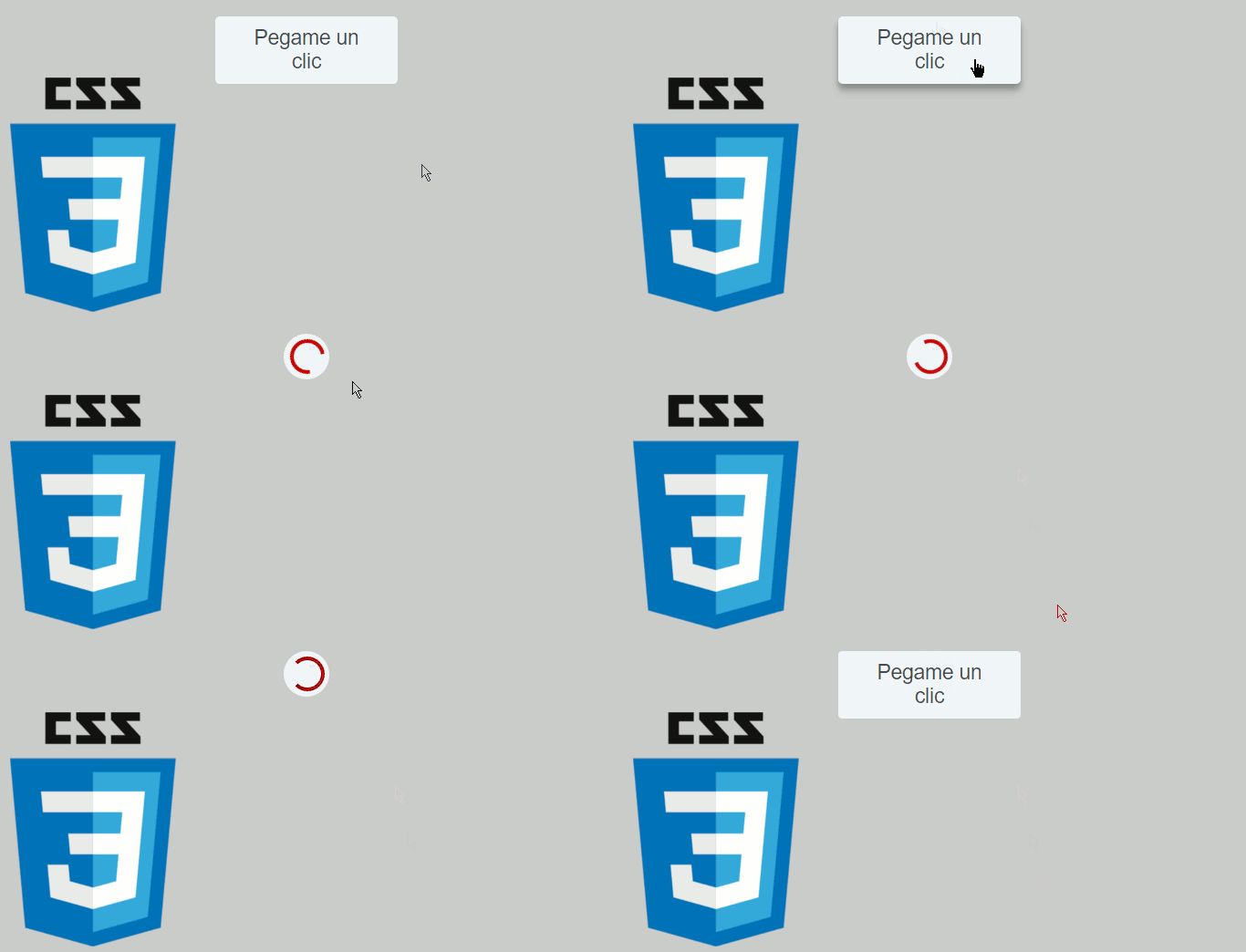
We will see how to create a simple button that transforms upon clicking for a set period and then returns to normal; as you can see in the promotional image, this rounded button is inspired by Google's Material Design, achieved with CSS and a bit of JavaScript, resulting in quite elegant behavior; the goal is to use it as a button during a loading phase.
Introduction: Why transforming a button improves user experience
A button that does not respond visually creates doubt:
- Was the form submitted? Do I need to click again? Is the application frozen?
When a button physically transforms (not just changes color), the user immediately understands that:
- Their action was registered
- The system is processing something
- They should not interact with it again
This pattern is very common in modern applications and can be easily implemented by combining HTML, CSS, and JavaScript.
HTML structure of the button and its state logic
To understand the idea, we first need to present the HTML of the experiment:
<button id="botonTransformer" class="botonTransformer card">
	<span>Click me</span>
</button>
As we see in the HTML above, it has a peculiar detail: within the button definition, it contains a span tag which will serve us to perform the transformation by hiding this span when necessary and showing the loading phase during that process:
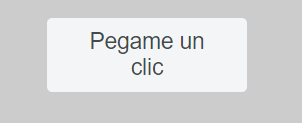
There is an important detail here: the button text is inside a <span>.
This is not by chance.
Why use an internal span instead of hiding the entire button
Instead of hiding the whole button during loading, we hide only the textual content. This allows:
- Maintaining the size and position of the button
- Inserting a loader on top without breaking the layout
- Animating the transformation smoothly
This approach has given me better results than hiding the entire button or replacing it dynamically.
Base styles of the rounded button
Now we define the initial style of the button, before any transformation.
Default rounded button: Button animation
Now it's the turn for the button we use by default, the button with rounded corners or edges and the CSS for the button itself and the span inside it:
.botonTransformer {
	display: flex;
	justify-content: center;
	align-items: center;
	margin: 20px auto 0px auto;
	border-radius: 5px;
}
Initial design and visual behavior
And the style of the internal text:
.botonTransformer span {
	display: inline-block;
	min-width: 150px;
	padding: 10px 20px;
	z-index: 2;
}
The magic starts when we change states.
Button transformation using CSS: hidden round button
In other words, when interacting with the button—which is to say, clicking the button—we simply hide this span instead of the entire button, and here we use a trick quite common in other posts: creating an extra container with the after and/or before selector respectively:
Using the ::after pseudo-element as a loader
.botonTransformer::after {
	content: " ";
	border: solid 4px rgb(204, 0, 0);
	border-right: solid 4px rgb(204, 0, 0);
	border-bottom: solid 4px rgb(204, 0, 0);
	border-left: solid 4px transparent;
	border-radius: 50px;
	position: absolute;
	top: 7px;
	right: 7px;
	bottom: 7px;
	left: 7px;
	margin: auto;
	width: 30px;
	height: 30px;
	opacity: 0;
	z-index: 1;
}
This pseudo-element will be our spinner.
By default, it is hidden (opacity: 0), and it will only appear when the button enters the loading state.
The button with the
spanis hidden and shown upon clicking to indicate the loading phase of a task.
Animations with @keyframes and opacity control
And this CSS is used when clicking the button; as we can see, we have a Loading class that is applied via JavaScript as we will see later, and we also indicate the animation to be performed:
.botonTransformer.Loading::after {
	animation: fadeIn .3s ease-in, spin 1.3s infinite ease-in-out;
	animation-fill-mode: forwards;
}
.botonTransformer.Loading {
	border-radius: 25px;
	max-width: 50px;
	max-height: 50px;
	cursor: default;
}
.botonTransformer.Loading span {
	opacity: 0;
}
And we define the animations:
@keyframes spin {
 0% { transform: rotate(0deg); }
 100% { transform: rotate(360deg); }
}
@keyframes fadeIn {
 from { opacity: 0; }
 to { opacity: 1; }
}
Button state change on click
In summary, when the button enters the .Loading state, we also transform its shape:
.botonTransformer.Loading {
 border-radius: 25px;
 max-width: 50px;
 max-height: 50px;
 cursor: default;
}
And we hide the text:
.botonTransformer.Loading span {
 opacity: 0;
}
Something key happens here: the button stops looking like a traditional button and becomes a status indicator. This visual change is much clearer than a simple spinning icon.
JavaScript for button transformation from one state to another
As you can imagine, the JavaScript simply captures the click event on the button and applies the Loading class for a certain amount of time, which could be the loading time of an Ajax method, but for our experiment, we simulate it with a simple setTimeout, which is the way we have in JavaScript to "sleep" or pause, or rather postpone, the execution of a function in milliseconds.
In this case, we are postponing the recovery of the button to its original state for 3 seconds, or 3000 milliseconds:
var botonTransformer = document.getElementById('botonTransformer');
var transformer = function () {
	botonTransformer.classList.add('Loading')
	window.setTimeout(function () {
		botonTransformer.classList.remove('Loading')
	}, 3000)
}
botonTransformer.addEventListener('click', transformer)
With this, we get the following result:
Load simulation with setTimeout
In this example, we simulate a 3-second load, but in a real case, this time could correspond to:
- An Ajax request
- A form submission
- A server-side validation
Best practices for production
In real projects, I usually:
- Disable additional clicks
- Return to the original state only when the task finishes
- Handle visual errors if something fails
Button variants and improvements
Floating button
To place a floating button so that it is not affected by scrolling, you should use position: fixed; and then use the bottom or top properties to position the floating button at the top or bottom, and the right or left properties to position it to the right or left; and that's it.
.float {
 position: fixed;
 bottom: 40px;
 right: 40px;
 box-shadow: 2px 2px 3px #999;
}
Loader customization
You can change:
- Spinner size
- Border colors
- Rotation speed
- Shape (round, square, bar)
Accessibility adjustments
- Add aria-busy="true" during loading state
- Use sufficient contrast
- Avoid overly fast animations
Conclusions
As you can see, it is a very curious and quite useful button; how many applications do we use today that have similar behavior? We can do it easily with HTML, JavaScript, and CSS. With our button, it will be easy for you to place it floating in a corner, to the left, right, or wherever you want.
Transforming a rounded button from one state to another with CSS is a powerful, elegant, and easy-to-implement pattern. It not only improves the user experience but also conveys professionalism and attention to detail.
In my case, this approach has been especially useful in:
- Forms
- Critical actions
- Interfaces with asynchronous loading
With very little code and a good structure, you can achieve modern behavior perfectly aligned with current web application design.