
CSS borders are fundamental properties that you can apply to virtually any HTML element: top, bottom, sides, with different styles and thicknesses. In this comprehensive guide, we cover everything you need to know: from how to use border-width, border-style, and border-color, to advanced techniques like multiple borders with box-shadow, transparent borders with rgba() + background-clip, and inner borders that don't affect the layout. If you want to review how to adjust images with CSS without distorting them, take a look at the object-fit property in CSS.
With the border property, it is possible to define the color, thickness, and style of each of the 4 sides that make up an element's box. Let's look at each sub-property:
border-width
Defines the width of the border. It can be controlled side by side using the following individual properties:
border-top-widthborder-right-widthborder-bottom-widthborder-left-width
Each property is self-explanatory: it accepts any valid CSS unit of measurement (px, em, rem, etc.).
If you want to set all borders at once, use the shorthand:
border-width
It accepts from one to four values, following the same pattern of top right bottom left as other box properties in CSS:
border-width: 4px 5px 6px 7px;top: top border 4pxright: right border 5pxbottom: bottom border 6pxleft: left border 7px
border-width: 4px 5px 6px;top: top border 4pxrightandleft: right and left borders 5pxbottom: bottom border 6px
border-width: 4px 5px;topandbottom: top and bottom borders 4pxrightandleft: right and left borders 5px
border-width: 4px;- All borders: 4px
border-style
Defines the visual style of the border. The available values are:
solid— continuous line, the most useddashed— dashed linedotted— dotted linedouble— double solid linegroove— 3D grooved effectridge— 3D ridged effect (inverse ofgroove)inset— border with inset lookoutset— border with outset look
It is also possible to define them side by side using individual properties:
border-top-styleborder-right-styleborder-bottom-styleborder-left-style
Or all together with the shorthand border-style. It works exactly the same as border-width: it accepts one to four values applying the same top right bottom left order.
border-color
Defines the color of the border. Accepts any CSS color format: English color name (red, blue), hexadecimal (#F00000), rgb(), rgba(), or hsl():
#border-color1 {
    border-color: #F00000;
}
You can also define it for each side:
border-top-colorborder-right-colorborder-bottom-colorborder-left-color
Its behavior follows the same pattern as border-width.
Examples of border types in CSS
border-style and border-color:
Shorthand border — border-style, border-color, and border-width in a single property:
It is also possible to define all properties at the same time using the shorthand border, which accepts thickness, color, and style in any order:
Both declarations produce the exact same visual result; the only difference is the amount of code lines. In real projects, I usually prefer the shorthand border when all four sides are equal, and reserve individual properties when I need asymmetric configurations.
Multiple borders in a container with CSS
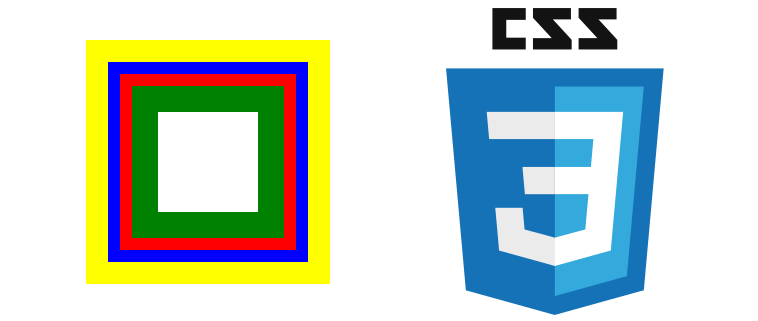
The border property only allows one border per element. If you need to simulate multiple borders, the trick lies in the box-shadow property: it accepts a comma-separated list of shadows, and when configured without offset or blur, they visually act like stacked borders.
Syntax of the box-shadow property
box-shadow: x y blur spread color inset;| Value | Description |
|---|---|
x | Required. Horizontal offset of the shadow. |
y | Required. Vertical offset of the shadow. |
blur | Optional. Blur radius. At zero, the border has a sharp edge. |
spread | Optional. Expansion radius (spread). Controls how much the shadow grows outward. |
color | Optional. Color of the shadow. |
inset | Optional. If present, the shadow appears inside the element instead of outside. |
Creating multiple borders with box-shadow
The key is to use only the spread parameter to control the thickness of each border, leaving x, y, and blur at zero:
box-shadow: x y blur spread color;With this, we create two borders of 2px each; the first one green and the second one red:
box-shadow: 0 0 0 2px green, 0 0 0 4px red;We can also vary the size of each border independently:
box-shadow: 0 0 0 2px green, 0 0 0 6px red;Or stack as many borders as we want in the same container:
box-shadow: 0 0 0 2px green, 0 0 0 4px red, 0 0 0 6px blue, 0 0 0 8px yellow; Important considerations
- The first three values of
box-shadow(x,y, andblur) must be set to0. This keeps the shadow centered and symmetrical relative to the container, and the resulting border is solid — without blur or offset. Each subsequent border must have a larger
spreadthan the previous one; otherwise, the inner border overlaps the outer one. For example, this declaration produces only a green border because both have the same size:box-shadow: 0 0 0 3px green, 0 0 0 3px red;The red border remains hidden underneath the green one because they have the same spread radius. The solution is to increase the value of each successive border so that the multiple borders effect becomes visible.
CSS Trick: transparent borders with rgba() and background-clip
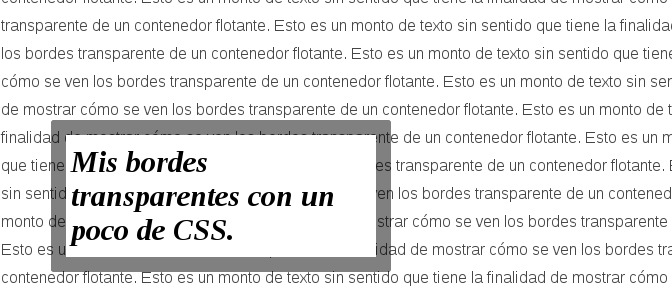
If you've ever tried to set a "transparent" border in CSS and discovered that it looked gray or completely opaque, don't worry: it has happened to all of us. The good news is that the trick to achieving truly transparent borders is simple once you know the secret ingredient.
I had to learn it while designing a custom button, the kind where you want the interface to look modern without cluttering it. That's when I discovered that border transparency doesn't depend solely on rgba(), but on how the background behaves underneath.
In this guide, I'll tell you exactly how to do it, why it works, and how to apply useful variations to buttons, cards, and UI components.
What are transparent borders in CSS and what are they used for?
In CSS, a transparent border is simply a border whose color includes an opacity channel. This is achieved with rgba() or hsla().
The beauty is that the container "lets you see" what is underneath: it can be a solid color, an image, or a gradient.
They serve to:
- Create smoother, more modern components.
- Buttons with a glassy effect (I use them a lot in minimalist designs).
- Cards where you want a visible yet subtle border.
- Glassmorphism style UI effects.
However, for the border to actually look transparent —and not gray or "dirty"— you need to understand a detail of the CSS box model.
We will see a neat trick that allows the borders of our element containers or HTML tags to look transparent.
The main method: rgba() + background-clip
This is the method that works in all cases and the one you will see in any modern project:
.contenedor {
   background-color: white;
   border: 20px solid rgba(0, 0, 0, 0.5);
   background-clip: padding-box;
}
Why does the border look opaque even if you use rgba()?
This happens because, by default, the background extends beneath the border area.
When the background is white, that white blends with the border's transparency and makes it look gray instead of transparent.
This is precisely what I discovered the first time I tried to add transparency to a button: instead of an elegant border, I got an ugly gray. I thought the rgba was wrong… but no: it was the background getting where it shouldn't.
How background-clip: padding-box works
The key property that solves all of this is:
background-clip: padding-box;In simple terms:
border-box(default value): the background extends to the border edge → transparency is ruined.padding-box: the background is clipped before the border → the border looks just as it should.
Simple rule: if you want transparent borders, always use background-clip: padding-box.
Practical examples of transparent borders in CSS
Basic transparent borders with rgba()
.caja {
   background-color: white;
   border: 15px solid rgba(0, 0, 0, 0.5);
   background-clip: padding-box;
   padding: 20px;
}
Semi-transparent borders with rounded corners
.caja-redonda {
   background-color: white;
   border: 10px solid rgba(255, 0, 0, 0.4);
   background-clip: padding-box;
   border-radius: 12px;
   padding: 15px;
}
The trick works exactly the same with border-radius, regardless of the value.
Custom buttons with transparent border
I usually use transparent borders on buttons when I want a lighter look. For example:
.boton-transparente {
   padding: 12px 20px;
   background-color: white;
   border: 2px solid rgba(0, 0, 0, 0.3);
   background-clip: padding-box;
   border-radius: 8px;
   font-weight: bold;
   cursor: pointer;
   transition: 0.3s;
}
.boton-transparente:hover {
  border-color: rgba(0, 0, 0, 0.6);
}
I use it a lot when I want a custom button without resorting to the classic outline style: transparency softens everything and makes it more elegant.
Alternative techniques for achieving transparent borders
These variants allow you to play with more advanced styles or animations.
1. Using box-shadow as a border
.caja-shadow {
   background: white;
   padding: 20px;
   box-shadow: 0 0 0 5px rgba(0,0,0,0.3);
}
Advantages:
- You can achieve softer or blurred borders.
- Ideal for glassmorphism effects.
2. Using border-image with gradients
.caja-degradada {
   border: 6px solid transparent;
   border-image: linear-gradient(to right, transparent, rgba(0,0,0,0.4)) 1;
}
Perfect for "glowing" or stylized borders. Keep in mind that border-image is not compatible with border-radius, so use it when you don't need rounded corners.
3. Transparency + hover with animation
.efecto-hover {
   border: 4px solid rgba(0,0,0,0.2);
   background-clip: padding-box;
   transition: border-color 0.3s ease;
}
.efecto-hover:hover {
   border-color: rgba(0,0,0,0.6);
}
I use it on buttons when I want the border to seem to gradually "materialize" on mouse hover.
Transparent borders step by step
This trick is really simple; if we want to have transparent borders like the following in our boxes:
This is a lot of dummy text meant to show what transparent borders look like on a floating container. This is a lot of dummy text meant to show what transparent borders look like on a floating container. This is a lot of dummy text meant to show what transparent borders look like on a floating container. This is a lot of dummy text meant to show what transparent borders look like on a floating container. This is a lot of dummy text meant to show what transparent borders look like on a floating container. This is a lot of dummy text meant to show what transparent borders look like on a floating container. This is a lot of dummy text meant to show what transparent borders look like on a floating container. This is a lot of dummy text meant to show what transparent borders look like on a floating container. This is a lot of dummy text meant to show what transparent borders look like on a floating container. This is a lot of dummy text meant to show what transparent borders look like on a floating container. This is a lot of dummy text meant to show what transparent borders look like on a floating container.
Two steps to achieve the effect
- Select a color with an alpha channel using
rgba()instead of hex codes orrgb(). The fourth parameter ofrgba()controls opacity:0is fully transparent and1is fully opaque. - Apply the property
background-clipwith the valuepadding-box. This prevents the background color from extending underneath the border, preserving transparency.
Creating transparent borders
For a black border with 50% transparency, we apply the following rgba value:
rgba(0, 0, 0, 0.5);And the background-clip property to prevent the background color from ruining the effect:
background-clip: padding-box; The complete CSS rule would look like this:
border: 20px solid rgba(0, 0, 0, 0.5);
background-clip: padding-box;
Finally, we get the following effect:
This is a lot of dummy text meant to show what transparent borders look like on a floating container. This is a lot of dummy text meant to show what transparent borders look like on a floating container. This is a lot of dummy text meant to show what transparent borders look like on a floating container. This is a lot of dummy text meant to show what transparent borders look like on a floating container. This is a lot of dummy text meant to show what transparent borders look like on a floating container. This is a lot of dummy text meant to show what transparent borders look like on a floating container. This is a lot of dummy text meant to show what transparent borders look like on a floating container. This is a lot of dummy text meant to show what transparent borders look like on a floating container. This is a lot of dummy text meant to show what transparent borders look like on a floating container. This is a lot of dummy text meant to show what transparent borders look like on a floating container. This is a lot of dummy text meant to show what transparent borders look like on a floating container.
Want a semi-transparent red border? Simply change the first three values of rgba:
border: 20px solid rgba(255, 0, 0, 0.5);And we get:
This is a lot of dummy text meant to show what transparent borders look like on a floating container. This is a lot of dummy text meant to show what transparent borders look like on a floating container. This is a lot of dummy text meant to show what transparent borders look like on a floating container. This is a lot of dummy text meant to show what transparent borders look like on a floating container. This is a lot of dummy text meant to show what transparent borders look like on a floating container. This is a lot of dummy text meant to show what transparent borders look like on a floating container. This is a lot of dummy text meant to show what transparent borders look like on a floating container. This is a lot of dummy text meant to show what transparent borders look like on a floating container. This is a lot of dummy text meant to show what transparent borders look like on a floating container. This is a lot of dummy text meant to show what transparent borders look like on a floating container. This is a lot of dummy text meant to show what transparent borders look like on a floating container.
And that would be all. As you can see, using the same border property combined with rgba() and background-clip: padding-box you can vary the thickness (in these examples they are 20px) and color, obtaining a clean and truly transparent effect.
CSS Trick: inner borders with box-shadow inset
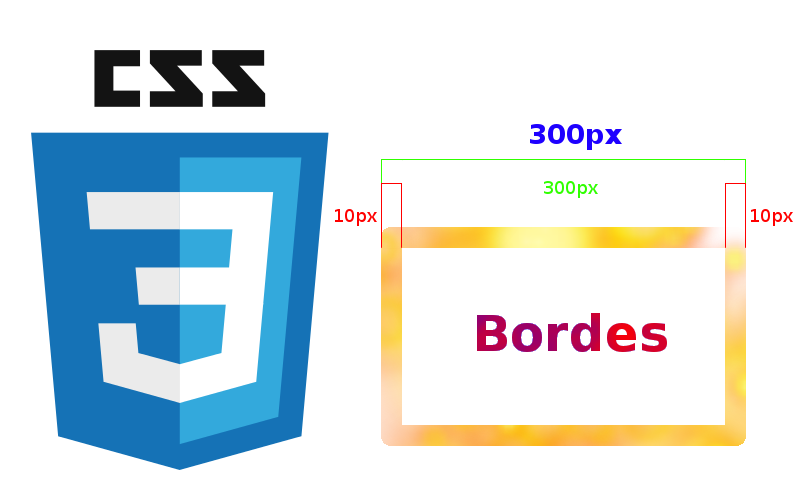
When you define padding, margin, or border on an element, these properties directly impact its total size. The classic box model calculation would be:
total_width = width + 2*border + 2*padding + 2*margin = 300px + 2*5px + 2*7px +2*5px = 334px;
total_length = height + 2*border + 2*padding + 2*margin = 150px + 2*5px + 2*7px +2*5px = 184px;
A visual aid of the above:

What are inner borders in CSS?
Inner borders are borders that do not affect the overall size of the container because they are drawn inside the element's area, not outside. This makes them very useful in fluid layouts where you need multiple elements to occupy an exact percentage of the available width without the border "pushing" them and breaking the row.
Try resizing your browser window.
As you may have noticed in the previous example, these three containers occupy 33% of the total container width. If the borders were traditional ones:
The third container could not align in the same row because the border adds to the total width.
Creating inner borders in CSS with box-shadow inset
The solution lies in the box-shadow property with the inset value. The complete syntax is:
box-shadow: inset offset-x offset-y blur-radius spread-radius colorinset: indicates that the shadow will appear inside the container instead of outside.offset-xandoffset-y: horizontal and vertical offset. Set them to0for symmetrical borders.blur-radius: blur degree. For a sharp border it must be set to0.spread-radius: controls the thickness of the inner border. This is the key parameter.color: border color in any CSS format (#08B,rgba(), etc.).
Individual side inner borders in CSS
To create a border only on a specific side, use offset-x or offset-y to "push" the shadow towards that side and leave the spread-radius at 0:
13-pixel top border:
box-shadow: inset 0 13px 0 0 #08B;13-pixel left border:
box-shadow: inset 13px 0 0 0 #08B;13-pixel right border:
box-shadow: inset -13px 0 0 #08B;13-pixel bottom border:
box-shadow: inset 0 -13px 0 #08B;Symmetrical inner borders in CSS
To apply the same border on all four sides at once, use 0 for offset-x, offset-y, and blur-radius, and set the desired thickness in spread-radius:
Symmetrical 3-pixel borders:
box-shadow: inset 0 0 0 3px #08B;Symmetrical 7-pixel borders:
box-shadow: inset 0 0 0 7px #08B;Symmetrical 13-pixel borders:
box-shadow: inset 0 0 0 13px #08B;Diagonal borders in CSS
By combining positive and negative values in offset-x and offset-y, you can create inner borders that affect only two opposite corners. These are the four possible cases for 13 pixels:
box-shadow: inset -13px -13px 0 0 #08B;box-shadow: inset 13px 13px 0 0 #08B;box-shadow: inset -13px 13px 0 0 #08B;Frequently Asked Questions about borders in CSS
- Can I make borders completely invisible?
- Yes, by using the
transparentkeyword as the color: border: 10px solid transparent;- Very useful for layout tricks using pseudo-elements or for reserving space without displaying the border.
- Yes, by using the
- Do transparent borders with rgba() work with background images?
- Yes, as long as you use
background-clip: padding-box, the effect works the same with any type of background: flat color, gradient, or image.
- Yes, as long as you use
- Can I use hsla() instead of rgba()?
- Absolutely. The transparency channel works identically in both formats:
border: 10px solid hsla(0, 0%, 0%, 0.3);
- Does border-radius work with box-shadow inset?
- Yes. The inner shadow respects the
border-radiusof the element, so you can combine both properties to create rounded inner borders without any issues.
- Yes. The inner shadow respects the
- Do inner borders with box-shadow affect the layout?
- No. Unlike
border, thebox-shadowproperty does not take up space in the document flow, so it does not alter the size or position of adjacent elements.
- No. Unlike
Conclusion
CSS borders are far more versatile than they appear at first glance. With the basic properties (border-width, border-style, border-color), you have complete control over each side of the box. And when you need to go further—multiple borders, transparent borders, or borders that don't affect the layout—the box-shadow property combined with background-clip: padding-box is your best ally.
Transparent borders in particular are easy to achieve once you understand the key trick: combining rgba() with background-clip: padding-box. This allows you to build more modern interfaces, cleaner buttons (I use them extensively in my own projects), and visual effects that do not clutter the design.
If you want to take them even further, try the box-shadow or border-image variants to achieve advanced styles without complications.
The next very interesting property to learn about is how you can create reflections on your images using pure CSS and webkit-box-reflect.