
Many times you want to adjust an image with CSS inside a parent container: you have a 1920x1080 container and you need the image to occupy all that space without distorting, and also to adapt according to screen resolution. For that, CSS has the object-fit property.
The object-fit property in CSS specifies how the content of a replaced element (such as an image) should be displayed and fitted when its width and height differ from the dimensions of its containing box. Its usefulness lies in being able to choose how we want the content to adapt to an assigned space whose aspect ratio does not match that of the element.
When you work with images in CSS, sooner or later you run into the same problem: you have a container with specific dimensions (for example, a hero at
1920×1080) and you need the image to take up all the space, adapt to different resolutions, and not warp. This used to happen to me constantly in responsive designs where the image had to scale according to the screen size without losing its proportion.For that scenario, there is a property designed for exactly that:
object-fit. In this article I explain what it is, how it works, and above all, when to use each value, with clear examples applicable to real projects.
As you can see, it is quite a curious property that works similarly to background-size: cover, a property with wide browser support that allows you to cover the entire background of a container with an image without distorting it. Same solution, different scenarios: object-fit acts on image elements and media inserted directly into HTML, not on backgrounds.
400x100 pixel space, the containing box for the image will be that assigned space of 400x100 pixels.Previously we saw how to use the perspective property to create a 3D environment with CSS.
What is the CSS object-fit property and what is it for
The object-fit property defines how the content of a replaced element should fit inside its own content box.
In CSS, the following are considered replaced elements:
- Images (
<img>) - Videos (
<video>) - Iframes (
<iframe>) - Embeds (
<embed>)
These elements do not behave like a normal <div>, since they have their own intrinsic size. And this is where the problem usually arises: that size doesn't always fit the container we use in the design.
With object-fit we can decide how that content adapts when we force a specific width and height using the width and height properties.
object-fit vs background-size: when to use each
If you've been using CSS for a while, you probably know background-size: cover. In fact, when I first started dealing with these problems, that was the usual solution for backgrounds.
The key difference is this:
background-sizeis used with background images (background-image).object-fitapplies directly to images and media inserted in HTML.
Both properties solve similar problems, but in different scenarios. If the image is part of the semantic content of the document (for example, an <img> that must be accessible, indexable, and responsive), object-fit is the right choice.
Aspect ratio and its impact on images
To properly understand object-fit, you first need to be clear about a fundamental concept: aspect ratio.
Aspect ratio is simply the proportion between the width and height of an image. Knowing this value is key to anticipating how the image will look when put inside a container with different proportions.
How to calculate the aspect ratio of an image:
For example, a 1200×675 px image:
- 1200 ÷ 16 = 75
- 675 ÷ 9 = 75
Since both values match, the image has a 16:9 aspect ratio.
What happens when the container and the image do not match in proportion
Imagine you place that image in a 400×100 px container. The container has a 4:1 aspect ratio, completely different from the original.
This is where object-fit values come into play: they will decide whether the image stretches, gets cropped, or leaves empty spaces to fit into that new frame.
Practice: how to fit an image to its container using only CSS?
This property has had great support in major modern browsers—including Chrome, Firefox, and Edge—for several years now. You can use it with total confidence to fit an image inside a <div> so that it auto-adjusts to the container without distortion.
Suppose we have the following image:
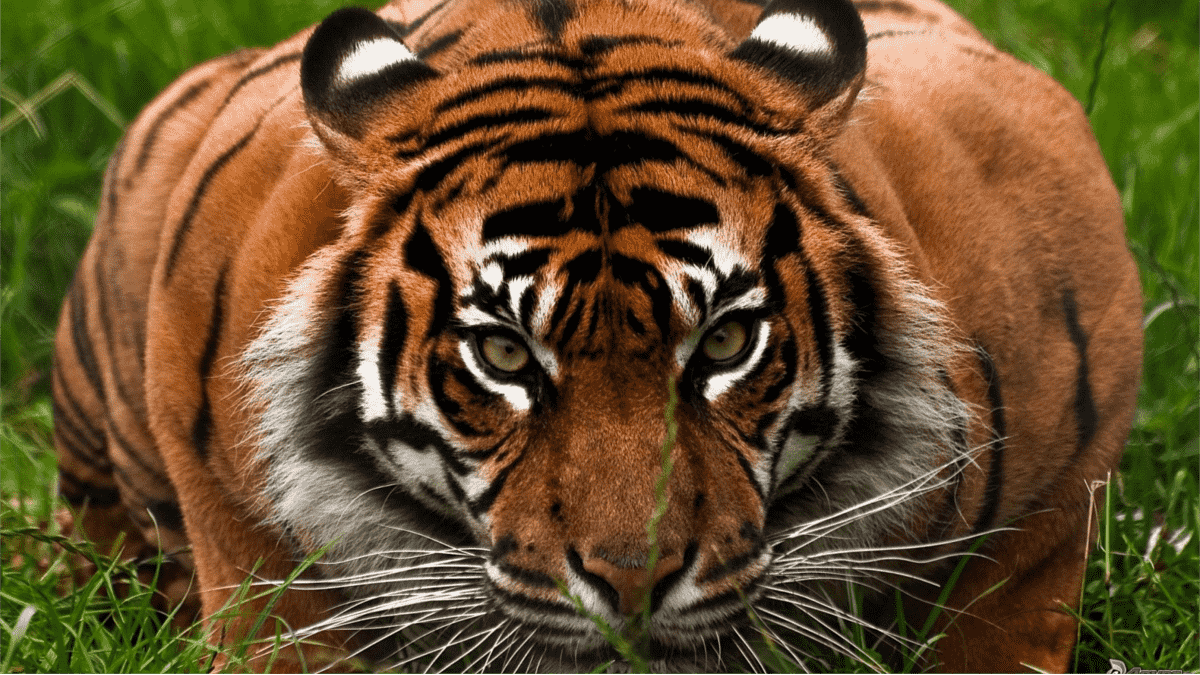
This image has an aspect ratio of 16:9, with dimensions of 1200x675 pixels:
1200 ÷ 16 = 75
675 ÷ 9 = 75
Both values are equal, which confirms that the aspect ratio is 16:9.
What should we do to adjust the image if we want to present it in a 400x100 pixel rectangle? In that container, the aspect ratio is 4:1, completely different from that of the image.
To answer that question, we must first learn the available values for this property and what each one means:
Values of the object-fit property explained one by one
fill | The content is sized to completely fill (fill) the dimensions of the box, so the aspect ratio is lost and no empty spaces remain. It is the default value. |
contain | The content is resized to fit as best as possible; unlike fill, the aspect ratio is preserved, but if the proportions of the content and the box differ, empty spaces will appear (similar to black bars in letterbox format). |
cover | The cover value has the same behavior as background-size: cover: the content is sized to completely fill its box while maintaining the aspect ratio, but clipping occurs at the edges to achieve the fit. |
none | The content is not resized; it is displayed at its original size. If it is larger than the box, it will be cropped. |
scale-down | The content is resized as if none or contain were specified, automatically choosing the smaller result. In practice, it only reduces the image if it is larger than the container; it never enlarges it. |
To better understand these values, let's see a series of examples using the same image:
Which has dimensions of 1200px by 675px and, therefore, an aspect ratio of 16:9.
When placing it in a 400x100 pixel container—with an aspect ratio different from that of the image—and applying each of the explained values, we get very different results.
We create as many <img> elements as values the object-fit property comprises, grouped in a container structure:
		<div class="example1">
			<div>
				<img class="uno" src="tigre.png">
				<span>object-fit: fill;</span>
			</div>
			<div>
				<img class="dos" src="tigre.png">
				<span>object-fit: contain;</span>
			</div>
			<div>
				<img class="tres" src="tigre.png">
				<span>object-fit: cover;</span>
			</div>
			<div>
				<img class="cuatro" src="tigre.png">
				<span>object-fit: none;</span>
			</div>
			<div>
				<img class="cinco" src="tigre.png">
				<span>object-fit: scale-down;</span>
			</div>
		</div>
The CSS defines a 400px by 100px box with a border, to facilitate visual comparison between the different values of object-fit:
.example1 img {
	width: 400px;
	height: 100px;
	border: 2px solid #fff;
}
.example1 img.uno {
	object-fit: fill;
}
.example1 img.dos {
	object-fit: contain;
}
.example1 img.tres{
	object-fit: cover;
}
.example1 img.cuatro{
	object-fit: none;
}
.example1 img.cinco{
	object-fit: scale-down;
}
Here you can see how the image adjusts with the different values of object-fit: from filling the container completely by stretching the image, to cropping it while maintaining proportion, or telling it to take up only the space it can without cropping or scaling. Below are the results:
object-fit: fill
This is the default value. The image fills the entire container even if it has to distort to do so. The aspect ratio is lost, so use it only when proportion doesn't matter.
object-fit: fill;object-fit: contain
With contain, the image is resized while maintaining its original proportion. It does not distort, but it can leave empty spaces if the container's aspect ratio differs from that of the image. It is ideal when you need to show the entire image without cropping, even if it doesn't cover the whole container.
object-fit: contain;object-fit: cover
This is the value I use the most in practice, and probably the most useful day-to-day. The image:
- Maintains its original proportion
- Completely covers the container
- May crop parts of the edges to achieve the fit
It works very similarly to background-size: cover and is perfect for banners, cards, or visual headers where covering the available space without distorting the image is what matters.
object-fit: cover;object-fit: none
The image is not resized; it is displayed at its original size. If it is larger than the container, it will be cropped at the edges. It is the least used value, but it can be useful in very specific cases where preserving the exact pixel size of the image is required.
object-fit: none;object-fit: scale-down
This value behaves like a combination of none and contain: the browser automatically selects the smaller result between the two.
- If the image is smaller than the container, it is not enlarged (behaves like
none) - If it is larger, it scales down while preserving proportion (behaves like
contain)
It is an interesting option when you want to prevent small images from enlarging and losing quality.
object-fit: scale-down;How to fit an image to its container using only CSS
Let's look at a brief practical example, similar to those I usually use in real projects. The HTML:
<div class="example">
 <img src="tigre.png" alt="Sample image">
</div>
CSS to adapt the image to the container without distortion:
.example img {
 width: 400px;
 height: 100px;
 object-fit: cover;
}
With this code, the image adapts to the container, covers the entire space, and maintains its proportion, even when the container size changes in responsive designs.
Browser compatibility and best practices
object-fit has had broad support in all modern browsers for years:
- Chrome
- Firefox
- Edge
- Opera
This means you can use it with complete peace of mind in any current project.
Best practices when using object-fit:
- Always define
widthandheighton the element; otherwise, the property has no visible effect. - Combine it with
object-positionif you need to control framing (for example, focusing on the top part of a person's photo instead of the center). - Avoid using
fillunless distortion is not an issue in your design.
When to use object-fit and common mistakes to avoid
Use object-fit when:
- You need responsive images without distortion
- You work with cards, galleries, or hero sections
- You want to control cropping precisely without JavaScript
Common mistakes when working with this property:
- Forgetting to define
widthandheighton the image element - Using
background-sizewhen the image should be a semantic<img> - Not considering the original aspect ratio when choosing the
object-fitvalue
Conclusion
The object-fit property in CSS is one of those tools that, once you understand it well, saves you many headaches. In my experience, it is the cleanest and most flexible solution for fitting images to containers without sacrificing design or proportions.
If you work with modern, responsive layouts, mastering object-fit is not optional: it is essential.
Next step, learn how to configure borders with CSS.