The Modern Approach: Room Persistence Library with Jetpack Compose
With the evolution of Android development, Google has introduced and promoted libraries that simplify and standardize common tasks. For local data persistence, the Room Persistence Library is now the de facto standard: it provides an abstraction layer over SQLite that reduces boilerplate code, verifies queries at compile time, and integrates seamlessly with other Jetpack libraries like LiveData, Kotlin's Flow, and, of course, Jetpack Compose for building the UI.
Room structures the database through three main elements: Entities (which represent tables), DAOs (Data Access Objects, which define methods for interacting with the database), and the Database class, which orchestrates the entire system.
Earlier we saw how to generate QR codes in Android Studio.
To install Room, always follow the official Android Developers guide, as versions are updated frequently:
https://developer.android.com/training/data-storage/room?hl=es-419#kts
https://developer.android.com/kotlin/multiplatform/room?hl=es-419
Note that the second link corresponds to the setup for Kotlin Multiplatform, not for standalone Android projects.
The first step is to load the ksp libraries—a plugin that processes annotations in your Kotlin code before compiling and automatically generates code from them—and the Room package, which acts as the abstraction layer over SQLite. In your libs.versions.toml file, the configuration looks like this:
[versions]
room = "2.8.4"
sqlite = "2.6.2"
ksp = "<kotlinCompatibleKspVersion>"
[libraries]
androidx-sqlite-bundled = { module = "androidx.sqlite:sqlite-bundled", version.ref = "sqlite" }
androidx-room-runtime = { module = "androidx.room:room-runtime", version.ref = "room" }
androidx-room-compiler = { module = "androidx.room:room-compiler", version.ref = "room" }
# Optional SQLite Wrapper available in version 2.8.0 and higher
androidx-room-sqlite-wrapper = { module = "androidx.room:room-sqlite-wrapper", version.ref = "room" }
[plugins]
ksp = { id = "com.google.devtools.ksp", version.ref = "ksp" }
androidx-room = { id = "androidx.room", version.ref = "room" }
As you can see, the file is divided into three sections delimited by brackets []: versions ([versions]), libraries ([libraries]), and plugins ([plugins]).
To get the exact value for ksp = "<kotlinCompatibleKspVersion>", check the official KSP releases repository:
https://github.com/google/ksp/releases
You will find versions in a format like 2.2.21-2.0.5, where each segment has its meaning:
2.2.21-2.0.5 → corresponds to the compatible Kotlin version.
2.2.21-2.0.5 → corresponds to the KSP plugin's own version.
With this configured, you can now move on to the next section, where you will see the structure to follow for defining your tables, queries, and the complete database with Room.
Defining an Entity (Table) with Room
An Entity is a data class that represents a table in the database. Each field in the class becomes a column, and Room annotations—such as @Entity, @PrimaryKey, and @ColumnInfo—tell the compiler how to map that class to the corresponding SQL structure:
import androidx.room.ColumnInfo
import androidx.room.Entity
import androidx.room.PrimaryKey
@Entity(tableName = "notifications")
data class Notification(
    @PrimaryKey(autoGenerate = true) val id: Int = 0,
    @ColumnInfo(name = "notification_id") val notificationId: Int,
    @ColumnInfo(name = "created_at") val createdAt: String,
    val proccess: String,
    val text: String,
    val operation: String,
    @ColumnInfo(name = "operation_id") val operationId: Int,
    @ColumnInfo(name = "user_id") val userId: Int,
    val avatar: String,
    @ColumnInfo(name = "user_name") val userName: String,
    @ColumnInfo(name = "user_surname") val userSurname: String,
    val username: String,
    @ColumnInfo(name = "paid_id") val paidId: String,
    @ColumnInfo(name = "product_id") val productId: String,
    val singer: String,
    @ColumnInfo(name = "dedit_from") val deditFrom: String,
    @ColumnInfo(name = "dedit_to") val deditTo: String,
    val cost: String
)
Defining a DAO (Data Access Object) with Room
The DAO is an interface where you declare the methods to interact with the database: insert, update, delete, and query. Room automatically generates all the necessary SQL code at compile time, eliminating query errors and drastically reducing boilerplate code. Functions marked with suspend run asynchronously in coroutines, while those returning Flow emit reactive updates whenever the data changes.
NotificationDao.kt (at the same level as MainActivity.kt):
import androidx.room.Dao
import androidx.room.Insert
import androidx.room.Query
import androidx.room.Update
import androidx.room.Delete
import kotlinx.coroutines.flow.Flow
@Dao
interface NotificationDao {
    @Query("SELECT * FROM notifications ORDER BY created_at DESC")
    fun getAllNotifications(): Flow<List<Notification>>
    @Query("SELECT * FROM notifications WHERE notification_id = :notificationId")
    suspend fun getNotificationById(notificationId: Int): Notification?
    @Insert
    suspend fun insertNotification(notification: Notification)
    @Update
    suspend fun updateNotification(notification: Notification)
    @Delete
    suspend fun deleteNotification(notification: Notification)
}
Configuring Room's Database Class
The main database class inherits from RoomDatabase and acts as the central point connecting Entities with DAOs. It is important to implement it as a Singleton to prevent multiple instances from being opened simultaneously, which could cause race conditions. The @Volatile annotation guarantees that the instance is immediately visible across all threads.
Additionally, Room allows you to pre-populate the database directly from an existing .db file located in the project's assets folder using the .createFromAsset() method. This is equivalent to the old SQLiteAssetHelper approach, but in a more integrated, Jetpack-supported way.
AppDatabase.kt (at the same level as MainActivity.kt):
import android.content.Context
import androidx.room.Database
import androidx.room.Room
import androidx.room.RoomDatabase
@Database(entities = [Notification::class], version = 1, exportSchema = false)
abstract class AppDatabase : RoomDatabase() {
    abstract fun notificationDao(): NotificationDao
    companion object {
        @Volatile
        private var INSTANCE: AppDatabase? = null
        fun getDatabase(context: Context): AppDatabase {
            return INSTANCE ?: synchronized(this) {
                val instance = Room.databaseBuilder(
                    context.applicationContext,
                    AppDatabase::class.java,
                    "my_database.db" // The name of your SQLite database
                )
                    // For pre-populated databases from assets
                    .createFromAsset("database/my_prepopulated_database.db")
                    .build()
                INSTANCE = instance
                instance
            }
        }
    }
}
Integration with Jetpack Compose and ViewModel
In a modern Jetpack Compose application, the recommended pattern is to use a ViewModel as an intermediary between the DAO and the UI. The ViewModel exposes data from the DAO as a StateFlow, which the UI observes reactively: whenever data changes in the database, the screen automatically recomposes without requiring a manual refresh.
NotificationViewModel.kt (at the same level as MainActivity.kt):
import androidx.lifecycle.ViewModel
import androidx.lifecycle.viewModelScope
import kotlinx.coroutines.flow.SharingStarted
import kotlinx.coroutines.flow.StateFlow
import kotlinx.coroutines.flow.map
import kotlinx.coroutines.flow.stateIn
import kotlinx.coroutines.launch
class NotificationViewModel(private val notificationDao: NotificationDao) : ViewModel() {
    val allNotifications: StateFlow<List<Notification>> =
        notificationDao.getAllNotifications().stateIn(
            scope = viewModelScope,
            started = SharingStarted.WhileSubscribed(5000),
            initialValue = emptyList()
        )
    fun addNotification(notification: Notification) {
        viewModelScope.launch {
            notificationDao.insertNotification(notification)
        }
    }
    // Other methods to update, delete, etc.
}
In your @Composable function, you observe the StateFlow using collectAsState(). Every time the notification list changes in the database, the composable recomposes automatically:
import androidx.compose.foundation.lazy.LazyColumn
import androidx.compose.foundation.lazy.items
import androidx.compose.material3.Text
import androidx.compose.runtime.Composable
import androidx.compose.runtime.collectAsState
import androidx.compose.runtime.getValue
import androidx.lifecycle.viewmodel.compose.viewModel
@Composable
fun NotificationScreen(viewModel: NotificationViewModel = viewModel()) {
    val notifications by viewModel.allNotifications.collectAsState()
    LazyColumn {
        items(notifications) { notification ->
            Text(text = notification.text)
        }
    }
}
Databases are an essential tool for keeping user—and overall application—data organized, secure, and accessible at all times. This last point is key: in the modern era, almost all apps connect to an external API or server to fetch and display data to the user. This works perfectly as long as there is an internet connection, but if that connection is lost, the app becomes unusable. A local database like SQLite solves that exact problem, allowing the app to work offline and sync when the connection is restored.
Databases in Android: From the Legacy Approach to Jetpack Compose with Room
Managing local databases in Android has evolved significantly over the years. What used to be handled directly with the Android SDK's SQLiteOpenHelper—writing SQL by hand and manually managing cursors—is now simplified with the Room Persistence Library, part of the Android Jetpack ecosystem. On top of this, the modern user interface is built with Jetpack Compose, which integrates seamlessly with Room via Flow and StateFlow to create reactive, efficient applications.
What Is SQLite and Why Does Android Use It as a Local Database?
SQLite is a lightweight, open-source relational database engine. Its main appeal is that it stores the entire database—structure and data—in a single, highly compact file, without requiring a running server, port configurations, or additional processes. This sets it radically apart from engines like MySQL or PostgreSQL, which require dedicated server infrastructure. For that reason, SQLite is not unique to Android: you will find it in desktop applications, web apps, browsers, embedded systems, and many other platforms where simplicity and portability are priorities.
Saving Data Locally in Android with SQLite (Legacy Approach)
Before Room existed, working with SQLite in Android meant interacting directly with the Android SDK using classes like SQLiteOpenHelper. This database is still a complete relational engine: you can run SELECT, INSERT, UPDATE, and DELETE queries just as in any other system. The difference is that you had to write that entire access layer by hand. Let's see how it was done.
Creating an SQLite Database in Android: The Helper (Legacy)
The first step is to create a class extending SQLiteOpenHelper. Inside it, you define your database structure: tables, data types, and primary keys. This class handles creating the database the first time the app runs and migrating it when you bump the version. Here is the Kotlin example:
import android.content.Context
import android.database.sqlite.SQLiteDatabase
import android.database.sqlite.SQLiteOpenHelper
class ListSQLiteHelper(
    context: Context, name: String,
    factory: SQLiteDatabase.CursorFactory?, version: Int
) :
    SQLiteOpenHelper(context, name, factory, version) {
    private val TABLE_NOTIFICATIONS =
        "CREATE TABLE notifications(id INTEGER PRIMARY KEY, notification_id INTEGER, created_at TEXT, proccess TEXT, text TEXT, operation TEXT, operation_id INT, user_id INT, avatar TEXT, user_name TEXT, user_surname TEXT, username TEXT, paid_id TEXT, product_id TEXT, singer TEXT, dedit_from TEXT, dedit_to TEXT, cost TEXT)"
    private val TABLE_OPERATIONS =
        "CREATE TABLE operations(id INTEGER PRIMARY KEY, operation_id INTEGER, province TEXT, location TEXT, province_id INTEGER, location_id INTEGER, place TEXT, created_at TEXT, proccess TEXT, day TEXT, user_id INT, user_name TEXT, user_surname TEXT, username TEXT, avatar TEXT, amount_to_paid TEXT, active TEXT)"
    override fun onCreate(db: SQLiteDatabase) {
        // Create the necessary tables
        db.execSQL(TABLE_NOTIFICATIONS)
        db.execSQL(TABLE_OPERATIONS)
    }
    override fun onUpgrade(db: SQLiteDatabase, arg1: Int, arg2: Int) {
        // Drop the previous DB version
        db.execSQL("DROP TABLE IF EXISTS notifications")
        db.execSQL("DROP TABLE IF EXISTS operations")
        // Recreate the tables
        db.execSQL(TABLE_NOTIFICATIONS)
        db.execSQL(TABLE_OPERATIONS)
    }
}
And its Java equivalent, applying the exact same logic with the language's syntax:
import android.content.Context;
import android.database.sqlite.SQLiteDatabase;
import android.database.sqlite.SQLiteOpenHelper;
public class ListSQLiteHelper extends SQLiteOpenHelper {
   final private String TABLE_PEDIDO = "CREATE TABLE pedido(pedido_id INTEGER PRIMARY KEY, creado DATETIME DEFAULT CURRENT_TIMESTAMP, procesado DATETIME, cliente_id INTEGER, establecimiento_id INTEGER, mesas_establecimiento_id INTEGER, token TEXT)";
   public ListSQLiteHelper(Context context, String name,
                           SQLiteDatabase.CursorFactory factory, int version) {
       super(context, name, factory, version);
   }
   @Override
   public void onCreate(SQLiteDatabase db) {
       // Create the necessary tables
       db.execSQL(TABLE_PEDIDO);
   }
   @Override
   public void onUpgrade(SQLiteDatabase db, int arg1, int arg2) {
       // Drop the previous DB version
       db.execSQL("DROP TABLE IF EXISTS pedido");
       // Recreate the tables
       db.execSQL(TABLE_PEDIDO);
   }
}
As you can see, both versions share the same key methods: onCreate(), which runs only once when creating the database, and onUpgrade(), which triggers when you increment the version number and need to migrate the existing structure.
To query a record by its ID, the legacy approach uses a Cursor to iterate through results. Here is a Java example showing how to retrieve a Pedido based on its identifier:
public static Pedido getById(int pedido_id, Context context) {
   Pedido pedido = null;
   ListSQLiteHelper taskSQL = new ListSQLiteHelper(context, TABLE_NAME,
           null, 1);
   SQLiteDatabase db = taskSQL.getReadableDatabase();
   Cursor cursor = db.rawQuery("SELECT " + selectData + " WHERE "
           + ID_NAME + " = " + pedido_id, null);
   if (cursor.moveToFirst()) {
       pedido = new Pedido();
       pedido.setPedido_id(cursor.getInt(0));
       try {
           if (cursor.getString(1) != null)
               pedido.setCreado(dateFormat.parse(cursor.getString(1)));
       } catch (ParseException e) {
           e.printStackTrace();
       }
       try {
           if (cursor.getString(2) != null)
               pedido.setProcesado(dateFormat.parse(cursor.getString(2)));
       } catch (ParseException e) {
           e.printStackTrace();
       }
       pedido.setCliente_id(cursor.getString(3));
       pedido.setEstablecimiento_id(cursor.getInt(4));
       pedido.setMesas_establecimiento_id(cursor.getInt(5));
       pedido.setToken(cursor.getString(6));
   }
   cursor.close();
   db.close();
   return pedido;
}
All application tables will be centralized within this Helper. The first section of each constant defines the table structure: columns, data types, and primary key. The onCreate() method creates that structure the first time, while onUpgrade() handles migrations—in this case, by simply dropping and recreating the tables.
Defining the Data Access Layer (DAO) in the Legacy Approach
Once the database is created, the next step is defining the data access layer: a dedicated file that centralizes all queries, inserts, updates, and deletes. In the legacy approach, this layer is built manually using ContentValues and Cursor. Although you could write these queries directly inside your activities, fragments, or adapters, centralizing everything in a DAO class is a good practice that keeps the code organized and reusable:
import android.content.ContentValues
import android.content.Context
import android.database.Cursor
import android.database.sqlite.SQLiteDatabase
import java.text.ParseException
import java.text.SimpleDateFormat
import java.util.*
import kotlin.collections.ArrayList
class NotificationDao {
   companion object {
       val TABLE_NAME = "notifications"
       val ID = "notification_id"
       val TEXT = "text"
       val CREATED_AT = "created_at"
       val OPERATION = "operation"
       val OPERATION_ID = "operation_id"
       val USERNAME = "username"
       val USER_NAME = "user_name"
       val USER_SURNAME = "user_surname"
       val USER_ID = "user_id"
       val AVATAR = "avatar"
       val PROCCESS = "proccess"
       var PAID_ID = "paid_id"
       var PRODUCT_ID = "product_id"
       var COST = "cost"
       var SINGER = "singer"
       var FROM = "dedit_from"
       var TO = "dedit_to"
       internal var dateFormat = SimpleDateFormat(
           "yyyy-MM-dd HH:mm:ss", Locale.getDefault()
       )
       private val selectData = (ID + ", " + TEXT + ", "
               + CREATED_AT + ", " + PROCCESS + ", " + USERNAME + ", " + OPERATION + ", " + OPERATION_ID + ", " + USER_ID + ", " + AVATAR + ", "
               + USER_NAME + ", " + USER_SURNAME + ", " + PAID_ID + ", " + PRODUCT_ID + ", " + COST + ", " + SINGER + ", " + FROM + ", " + TO + " FROM " + TABLE_NAME)
       fun getAllByOperationId(context: Context, id: Long): ArrayList<NotificationUser> {
           var notification: NotificationUser
           val notifications = ArrayList<NotificationUser>()
           val taskSQL = ListSQLiteHelper(
               context, TABLE_NAME,
               null, 1
           )
           // Fetch data from DB
           val db = taskSQL.getReadableDatabase()
           val cursor = db.rawQuery("SELECT $selectData WHERE $OPERATION_ID = $id", null)
           // Save data into an ArrayList
           if (cursor.moveToFirst()) {
               do {
                   var i = 0
                   notification = packOperation(cursor)
                   notifications.add(notification)
               } while (cursor.moveToNext())
           }
           cursor.close()
           db.close()
           return notifications
       }
       fun getAll(context: Context): ArrayList<NotificationUser> {
           var notification: NotificationUser
           val notifications = ArrayList<NotificationUser>()
           val taskSQL = ListSQLiteHelper(
               context, TABLE_NAME,
               null, 1
           )
           // Fetch data from DB
           val db = taskSQL.getReadableDatabase()
           val cursor = db.rawQuery("SELECT $selectData", null)
           // Save data into an ArrayList
           if (cursor.moveToFirst()) {
               do {
                   var i = 0
                   notification = packOperation(cursor)
                   notifications.add(notification)
               } while (cursor.moveToNext())
           }
           cursor.close()
           db.close()
           return notifications
       }
       fun getByID(context: Context, id: Long): NotificationUser? {
           var notification: NotificationUser? = null
           val taskSQL = ListSQLiteHelper(
               context, TABLE_NAME,
               null, 1
           )
           // Fetch data from DB
           val db = taskSQL.getReadableDatabase()
           val cursor = db.rawQuery("SELECT $selectData WHERE $ID = $id", null)
           // Save data into an ArrayList
           if (cursor.moveToFirst()) {
               notification = packOperation(cursor)
           }
           cursor.close()
           db.close()
           return notification
       }
       fun update(
           contentValues: ContentValues, id: Int,
           context: Context
       ): Long {
           // Open database in write mode
           val sqlHelper = ListSQLiteHelper(
               context, NotificationDao.TABLE_NAME,
               null, 1
           )
           val db = sqlHelper.writableDatabase
           return db.update(
               NotificationDao.TABLE_NAME, contentValues, NotificationDao.ID + "=?",
               arrayOf(id.toString())
           ).toLong()
       }
       fun deleteAll(
           context: Context
       ) {
           // Open database in write mode
           val sqlHelper = ListSQLiteHelper(
               context, NotificationDao.TABLE_NAME,
               null, 1
           )
           val db = sqlHelper.writableDatabase
           db.delete(
               NotificationDao.TABLE_NAME, "1",
               arrayOf()
           )
       }
       fun insert(contentValues: ContentValues, context: Context): Long {
           // Open database in write mode
           val sqlHelper = ListSQLiteHelper(context, TABLE_NAME, null, 1)
           val db = sqlHelper.writableDatabase
           return db.insert(TABLE_NAME, null, contentValues)
       }
       fun packOperation(cursor: Cursor): NotificationUser {
           var i = 0
           var notification = NotificationUser()
           notification.notification_id = cursor.getInt(i)
           notification.text = cursor.getString(++i)
           notification.created_at = cursor.getString(++i)
           notification.proccess = cursor.getString(++i)
           notification.username = cursor.getString(++i)
           notification.operation = cursor.getString(++i)
           notification.operation_id = cursor.getInt(++i)
           notification.user_id = cursor.getString(++i)
           notification.avatar = cursor.getString(++i)
           notification.user_name = cursor.getString(++i)
           notification.user_surname = cursor.getString(++i)
           notification.paid_id = cursor.getString(++i)
           notification.product_id = cursor.getString(++i)
           notification.cost = cursor.getString(++i)
           notification.singer = cursor.getString(++i)
           notification.dedit_from = cursor.getString(++i)
           notification.dedit_to = cursor.getString(++i)
           return notification
       }
       fun populateContentValue(notification: NotificationUser): ContentValues {
           var contentValues = ContentValues()
           contentValues.put(ID, notification.notification_id)
           contentValues.put(CREATED_AT, notification.created_at)
           contentValues.put(TEXT, notification.text)
           contentValues.put(USERNAME, notification.username)
           contentValues.put(OPERATION, notification.operation)
           contentValues.put(OPERATION_ID, notification.operation_id)
           contentValues.put(USER_NAME, notification.user_name)
           contentValues.put(USER_SURNAME, notification.user_surname)
           contentValues.put(USER_ID, notification.user_id)
           contentValues.put(AVATAR, notification.avatar)
           contentValues.put(PROCCESS, notification.proccess)
           contentValues.put(PAID_ID, notification.paid_id)
           contentValues.put(PRODUCT_ID, notification.product_id)
           contentValues.put(SINGER, notification.singer)
           contentValues.put(FROM, notification.dedit_from)
           contentValues.put(TO, notification.dedit_to)
           return contentValues
       }
   }
}
Analyzing the Code: Queries with Cursors
In query methods such as getAll() and getByID(), the key lies in the Cursors. A Cursor in Android is essentially a pointer to the query results: it points to the set of returned rows and allows you to iterate through them one by one via the moveToNext() method, which returns true as long as there are more records and false when done. It is important to always close the cursor using cursor.close() when finished to free up resources.
Analyzing the Code: Inserting and Updating with ContentValues
For write operations, the flow is straightforward: retrieve the database in writable mode using sqlHelper.writableDatabase and then perform the operation. The key aspect is the use of ContentValues: this object operates as a map of key-value pairs, similar to Kotlin's Pair, but designed specifically to map database columns with their values. It is used in both insert() and update():
Inserting a record in SQLite:
var id = NotificationDao.insert(
   NotificationDao.populateContentValue(notification),
   this@NotificationActivity
)
Updating an existing record in SQLite:
var contentValues = ContentValues()
contentValues.put(NotificationDao.AVATAR, noti.avatar)
contentValues.put(NotificationDao.PROCCESS, noti.proccess)
contentValues.put(NotificationDao.COST, noti.cost)
contentValues.put(NotificationDao.PAID_ID, noti.paid_id)
contentValues.put(NotificationDao.PRODUCT_ID, noti.product_id)
NotificationDao.update(contentValues, noti.notification_id, this@NotificationActivity)
With this, the data access layer is complete. It is recommended that all queries reside here and that activities or fragments only invoke this layer without being exposed to SQL details. To achieve this, implementing the DAO as a Singleton is the best strategy: in Java, this is done using static methods, and in Kotlin using a companion object, as shown in the previous example.
Using an External SQLite Database in Android (Legacy Approach)
One of SQLite's most interesting features is its portability: since the entire database resides in a single file, you can take a file generated in another application—whether a web app or a desktop application built with PHP, JavaScript, or another environment—and use it directly in Android. There is no need to read table by table or migrate data manually.
This is especially useful when you need to ship your app with preloaded data: a product catalog, a knowledge base, default settings, etc. SQLite is not an Android invention; it is a cross-platform technology found across browsers, embedded systems, mobile, and desktop applications alike.
SQLite Beyond Android
Many applications outside the Android ecosystem rely on SQLite as their persistence engine: from PHP applications to client-side JavaScript (via APIs like openDatabase and executeSql). It is very likely that at some point you will need to export a database from a web application or another platform and import it directly into your Android project, and SQLite allows you to do so seamlessly.
Importing an External SQLite Database in Android Studio (Legacy)
If you decide to import an external SQLite database, no complex manual migration process is required. You do not need to parse the file, manually recreate tables, or copy record by record. Simply copy the .db file into your project's assets/databases directory in Android Studio:
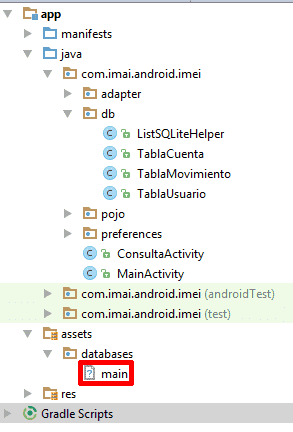
Once the file is copied there, create a class that extends SQLiteAssetHelper instead of the usual SQLiteOpenHelper:
public class ListSQLiteHelper extends SQLiteAssetHelper {
    private static final String DATABASE_NAME = "main";
    private static final int DATABASE_VERSION = 1;
    public ListSQLiteHelper(Context context, String name,
                            SQLiteDatabase.CursorFactory factory, int version) {
        super(context, DATABASE_NAME, context.getExternalFilesDir(null).getAbsolutePath(), null, DATABASE_VERSION);
        //super(context, name, factory, version);
    }
}
Important note: Although SQLiteAssetHelper is a valid solution for legacy projects, modern development recommends using the .createFromAsset() method from the Room Persistence Library, as shown in "The Modern Approach" section. Room offers a more robust integration, compile-time query verification, and is part of the official Jetpack architecture.
The key difference from SQLiteOpenHelper is that when using SQLiteAssetHelper, you do not need to override the onCreate(SQLiteDatabase db) or onUpgrade(SQLiteDatabase db, int arg1, int arg2) methods, since the database already exists and the library automatically handles copying it to the correct location on the device.
The DATABASE_NAME constant must match the exact name of the .db file you copied into assets/databases.
With this set up, your connection is ready, and you can query the external database in the exact same way as if it were a database created natively by Android.
You can check the official documentation at the following link: Android SQLiteAssetHelper.
Next step: learn how to configure Google Maps with Android Studio and Compose.