Content Index
The ideal process for upgrading an Unreal Engine project consists of migrating sequentially between consecutive versions (for example, from version 5.6 to 5.7, and from there to 5.8). Following this correlative order drastically minimizes the occurrence of critical compatibility errors in the code or in the game's assets. Therefore, it is a highly recommended practice to migrate projects periodically as Epic Games releases new stable versions of the engine.
1. Installation of the New Engine Version
The first step requires installing the most recent version of Unreal Engine to which you wish to migrate. From the Epic Games Launcher, head to the engine tab, click on the plus icon (+) and select the corresponding version from the dropdown list.
Before proceeding with the download, it is essential to verify that you have enough available space on your hard drive, as a standard installation of the engine usually requires an approximate minimum of 20 GB.
2. Preparation and Backup Management
Once the installation is complete, run the new version of the engine.
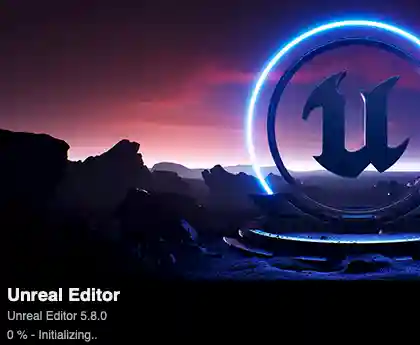
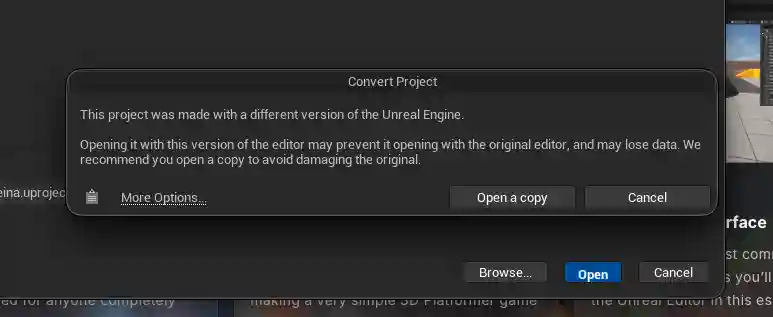
Although the Unreal Engine wizard itself offers the option to generate a backup copy automatically during the project opening process, it is an excellent engineering practice to secure the source code beforehand externally.
If the project is already synchronized with a version control system such as Git or hosted in a GitHub repository, you will have the necessary backup to revert any issues in case the compilation fails, allowing you to carry out the migration with complete safety.
3. Project Conversion Process
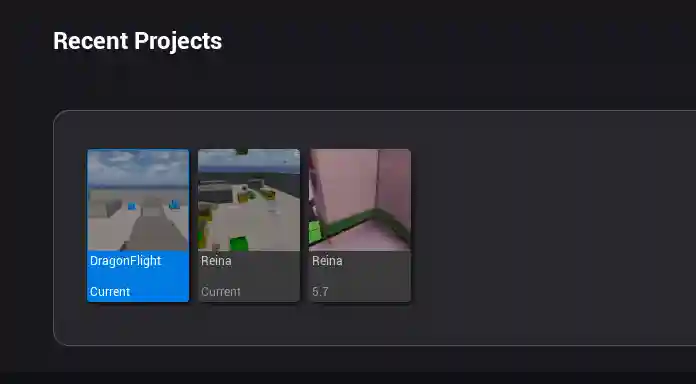
With the latest version of the engine launched, navigate from the Unreal Engine project browser to the location of your old project and select it. The engine wizard will detect the version mismatch and will automatically handle all the restructuring of the configuration files.
During this workflow, it is common for the system to display some windows with warnings related to obsolete functions or minor changes in the code. If these alerts do not stop the execution or block the loading process, the migration will continue smoothly until the project opens completely in the new editor, leaving it optimized and ready to continue with development.