
Content Index
I'm going to explain how you can add attenuation to your sounds, or, put another way, how you can implement localized sound in your project.
1. The Global Sound Problem (Default)
Here I have a Blueprint (which you can see on screen) that has a movement and plays a sound on a loop based on the actor's position.
Default Behavior: If I disable the attenuation setting, what we hear is that the noise plays at the same intensity regardless of where the player is located.
Cause: The sound is global; it behaves unnaturally because it doesn't take into account the distance between the emitting actor and the listener.
2. The Solution: Attenuation
In the real world, sound is heard louder the closer you are and weaker (or null) the further away you are.
Implementation: To replicate this effect, we must configure the Sound Attenuation in Unreal Engine.
I am going to configure the Blueprint with the attenuation option that I will show you next, as this is the essential setting to achieve localized sound.
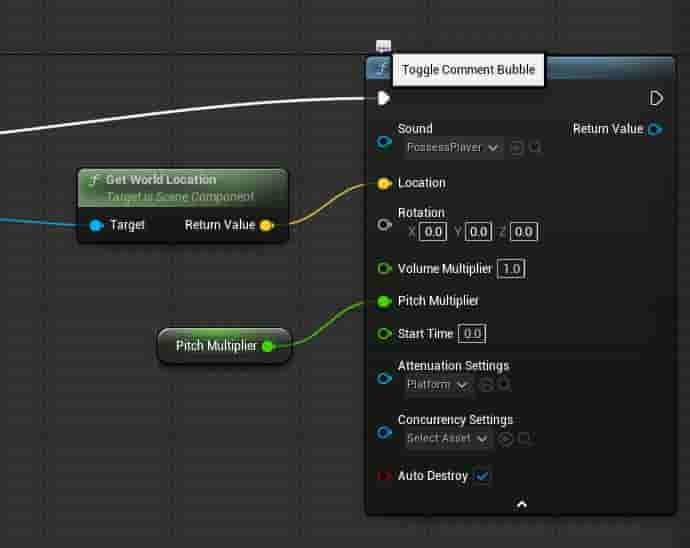
Attenuation Volume
Remember that if it doesn't appear, you can deploy it by clicking on this little arrow here. If we configure the attenuation here, we have to configure an attenuation setting, but what is this? Here I show you the one I have configured, specifically the 'platform' one:
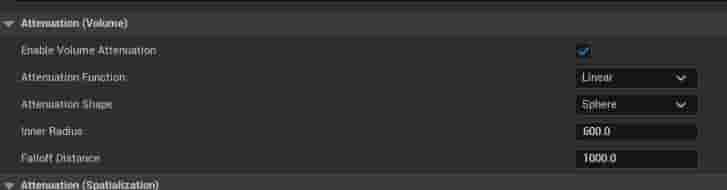
️ Sound Attenuation Settings Configuration
To achieve the localized sound effect, we must configure the parameters of the Attenuation Settings.
1. Main Parameters (Radii)
The most important parameters to configure are those that define the attenuation radius:
- Inner Radius 600 units Defines the limit within which the sound will be heard at full volume (100% intensity).
- Outer Radius 1000 units Defines the limit after which the sound is no longer heard. The attenuation (volume reduction) occurs between the inner radius and this limit.
Shape: The Shape of the attenuation is usually configured as a sphere, which works perfectly for most cases.
Logic: It is essential that the outer radius is the largest size, as it marks the point where the sound begins to attenuate and, finally, fades out completely.
2. ✅ Application and Result
Once an Attenuation Settings is created or selected (by searching for Attenuation Settings) and assigned to the sound, we can test the result:
- Distance: As you can hear, if I am outside the outer radius (1000 units), I hear nothing.
- Proximity: When I approach and enter the attenuation radius, the sound begins to be heard and gradually increases in volume until it reaches the inner radius.