
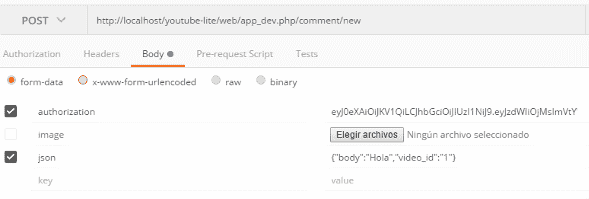
Postman is a program that can be installed via a Google Chrome extension (it's the simplest and least intrusive way) that allows you to perform tests, requests, and much more to our REST APIs and/or HTTP requests through a simple form like the following:
Although we can also install it via a separate application, which would be the most recommended way today:
Postman is a tool designed to interact with APIs. It allows you to send HTTP requests, inspect responses, test endpoints, and organize your requests into collections. If you've ever tried to test an API directly from the browser, you know how limited it is: only GET, no body, and no control over headers or parameters.
Postman as a tool for testing REST APIs
With Postman you can work with:
- GET to query information
- POST to create data
- PUT/PATCH to update it
- DELETE to delete it
And all in an interface that, if you come from the frontend world, feels as natural as a form.
Advantages over testing APIs from the browser or with code
- You don't depend on writing scripts or manually using an HTTP client.
- You can save your requests and repeat them as many times as you want.
- The response view shows you everything: body, status, response time, headers.
- It's perfect for quick testing while you develop.
How to install Postman and set up your first workspace
Step-by-step download and installation
Postman works as a desktop application. You can download it from its official website and it is available for Windows, macOS, and Linux.
Create a Workspace and organize your environment
The Workspace is your "work area." Here you save collections, environments, and everything you need to test an API without getting lost. For large projects, keeping it tidy is key.
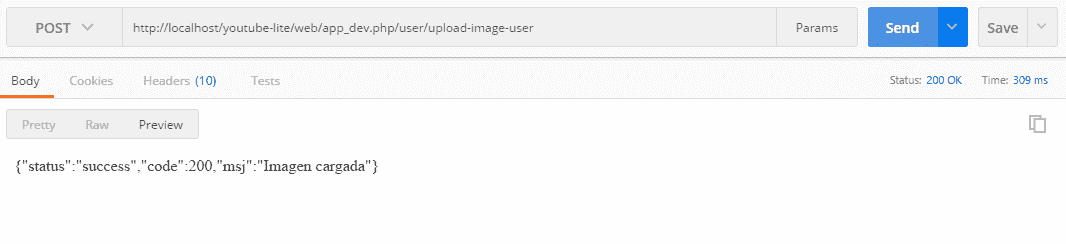
It allows you to perform tests on our API by composing parameters and sending them via POST, GET, etc., and seeing the results or the response body configured by our application:
The parameters supplied are not just text; as you can see in the first image, we can even create file type fields to include documents, files, images, etc.
As mentioned at the beginning, it can be installed in Google Chrome via the Chrome Web Store, the link for which you can find on the official Postman page.
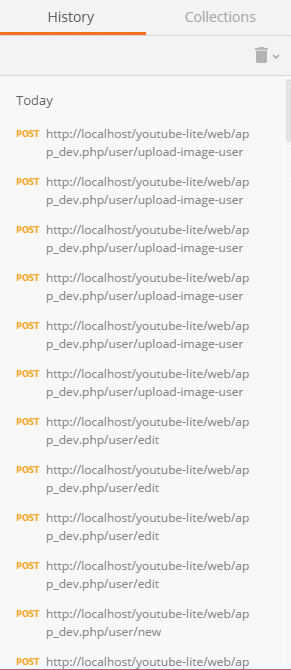
Postman is an excellent tool that includes features like a history of the requests made:
And it allows you to easily create new requests through a tab system very similar to that used by browsers like Google Chrome:

First steps: how to make your first request in Postman
When you open Postman, the first thing you'll see is a blank tab to send a request. I remember that the first time I set up a request, what struck me the most was how simple it was: choose method, paste a URL, and that's it.
Choose the HTTP method
In the dropdown menu on the left, you select: GET, POST, PUT, DELETE... the one you need.
Enter the endpoint URL
Example:
http://localhost:3000/products
Send and review the server response
Press Send and you will see:
- Response code (200, 400, 500...)
- Execution time
- Response Body
- Received Headers
This immediate feedback is pure gold when you're debugging.
How to send data in Postman: body, parameters, and files
This is where the tool gets really interesting. I used the form-data mode a lot, especially because it allowed me to send files from the same form without complication.
Send JSON with "raw"
Go to the Body tab → raw → JSON and write your object:
{ "name": "Producto X", "price": 15.99 }When to use "form-data" and how to upload files
The form-data mode is used to send:
- Files
- Images
- Documents
- Mix of text + files
Just as I did in my first projects: upload images and data in the same request without writing extra code.
Query parameters and headers
- In Params you add filters or queries
- In Headers you control Authorization, Content-Type, etc.
Working with collections: the professional way to organize your tests
Creating collections was one of those things that made me say: "Okay, this scales." You save requests, group them, and can run them whenever you want.
Create a collection and save requests
New Button → Collection and then save each request within it.
Use of history and tabs to speed up work
Here comes something that I still love about Postman:
The tabs work as if it were a browser. You can have several open, compare responses, close and open without getting lost.
Environment variables and best practices
- Variables for dev, stage, prod environments
- Reusable tokens
- Dynamic URLs
This prevents you from repeating data and saves you time.
Authentication in Postman: API Key, Bearer Token, and other methods
Many APIs require authentication. Postman supports:
- API Key
- Bearer Token
- Basic Auth
- OAuth
When to use each method
- API Key → Simple or public APIs with basic control
- Bearer Token → Modern APIs with robust security
- OAuth → Complex integrations (Google, GitHub, etc.)
Avoid common authentication errors
Check the Authorization header
Verify that the token has not expired
Avoid sending malformed JSON in the body
How to analyze responses in Postman
Status code, headers, and body
The response panel shows you everything you need to validate if your API is working.
Views: Pretty, Raw, and Preview
- Pretty: automatically formats JSON
- Raw: content as is
- Preview: useful for viewing rendered HTML or XML
Postman for API Testing
Basic test scripts (Tests)
In the Tests tab you can write scripts like:
pm.test("Status code is 200", function () { pm.response.to.have.status(200); });Automation with Collection Runner
- Allows you to run an entire collection automatically.
Export and import collections
- Ideal for sharing tests with your team or moving your configurations between environments.
Common problems when using Postman and how to solve them
- Connection errors and incorrect paths
- Verify the URL
- Make sure your server is up
- Problems with malformed JSON
- Check for double quotes
- Always use valid format
- Typical authorization failures
- Expired token
- Misspelled headers
Best practices for using Postman like a pro
- Collection organization
- Structure by folders, methods, and modules.
- Validation before sending requests
- Never send a request without checking the body. It saves you a lot of headaches.
- Tips based on real-world use
- When I worked with Postman as a Chrome extension, the history continuously saved me. If something failed, I'd go back, find the previous request, and compare parameters. I maintain that habit to this day.
Conclusion
Postman is an essential tool if you work with APIs. It doesn't matter if you're just starting out or if you've been programming for years: it makes it easy for you to test endpoints, send complex data, organize tests, automate scenarios, and keep your projects under control.
Once you understand the basic concepts —HTTP methods, body, headers, collections, and authentication— you can get the most out of it and work like a professional.