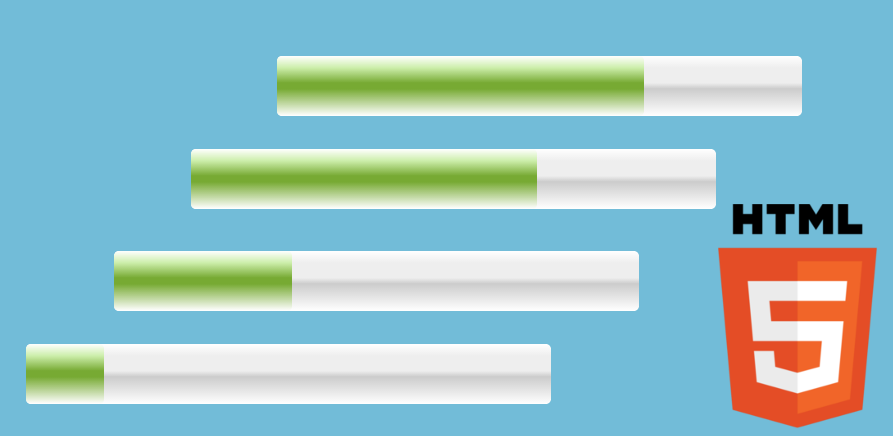
If you are learning HTML5 and want to fully master the <meter> element, this article takes you from the basics to advanced uses, including best practices, CSS styles, accessibility, and real-world examples that you can test directly in your browser.
Previously, we covered What is the br tag in HTML?
What is the <meter> element and what is it used for in HTML5
The <meter> element represents a scalar value within a known and bounded range. It is not an arbitrary HTML progress bar nor an indefinite progress indicator: it always requires a minimum value, a maximum value, and a current value. Unlike the <progress> element, which is used for ongoing tasks, <meter> communicates a specific measurement within predefined limits.
It serves to express:
- Levels with known limits (battery, disk storage, fuel)
- Intensities or continuous ranges (temperature, scores, result relevance)
- Measurable states within clearly defined limits
When I started working with progress bars in HTML, I began using <meter> because it visually fit what I needed. However, I soon discovered that it is not the best option to represent the progress of a task when the total is not defined in advance. Below, I explain exactly why, and what the correct alternative is.
When to use <meter> and when NOT to use it
Use <meter> when:
- The value is bounded and predictable
- There is a clear range with defined minimum and maximum values
- You need to communicate semantic states like "low / normal / high" using the
low,high, andoptimumattributes
Do not use it when:
- The values are not predictable or the total is unknown at runtime
- There is no defined maximum
- You need to show the actual progress of an ongoing task — that is what
<progress>exists for, which is specifically designed for that purpose and supports indeterminate mode
This aligns right with what happened to me: when using <meter> to represent the progress of a task whose total was not defined, I noticed that the component was "lying" to the user. Visually it looked like an HTML progress bar, but semantically it wasn't, which can confuse both screen readers and other developers reading the code.
Syntax of the <meter> element and explanation of each attribute
The function of the meter tag is to indicate a measurement within a range; that is, it must be bounded: it must have a well-defined start and end.
Its basic syntax is as follows:
<meter></meter>Like most HTML tags, it features an opening tag <meter> and a closing tag </meter>. The content between both tags acts as fallback text for browsers that do not support the element.
Attributes of the meter tag
value: A floating-point number representing the current value of the measurement. This value must be between the minimum value (min) and the maximum value (max).- Relationship:
min <= value <= max.
- Relationship:
min: Indicates the lower limit (lower bound) of the measurement range. Defines the minimum possible value for thevalueattribute. Must be less thanmax. If not specified, its default value is0.max: Indicates the upper limit (upper bound) of the measurement range. Defines the maximum possible value for thevalueattribute. Must be greater thanmin. If not specified, its default value is1.low: Represents the upper boundary of the low region of the measurement range. Must be greater thanmin, but less thanhighandmax(if specified). If not defined, or if it is less than the minimum value, it takes the value ofmin.high: Represents the lower boundary of the high region of the measurement range. Must be less thanmax, but greater thanlowandmin(if specified). If not defined, or if it is greater than the maximum value, it takes the value ofmax.optimum: Indicates the optimal or ideal value within the range. Must be betweenminandmax. When combined with thelowandhighattributes, the value ofoptimumdetermines which of the three regions is considered preferred. For example:min <= optimum <= low: the lower range is the preferred region (e.g., a low temperature is ideal).high <= optimum <= max: the upper range is the preferred region (e.g., a high score is ideal).
General rules for using the meter element
- All mentioned attributes can be floating-point numbers (e.g.,
0.5,75.3). - According to the definitions of each attribute, the following expressions must always hold true:
min <= value <= maxmin <= low <= high <= max(iflow/highare specified).min <= optimum <= max(ifoptimumis specified).
We should not use the meter tag to
- Indicate the progress status of a task or process; for that, the
<progress>tag exists, which semantically communicates that something is ongoing and may not have a defined upper limit. - Represent values where the total is arbitrary or cannot be reliably bounded.
CSS Styles for the meter tag
Like other HTML elements, we can apply standard CSS properties such as width, height, or display to control the size and behavior of the meter element. However, to style the internal bar (the fill), WebKit-based browsers expose specific pseudo-elements that allow you much more granular control:
| CSS Pseudo-element | Description |
|---|---|
::-webkit-meter-bar | Controls the background (container) of the meter element's bar. |
::-webkit-meter-optimum-value | Styles the fill when the meter is within the optimal range (low <= value <= high). The default color is green. |
::-webkit-meter-suboptimum-value | Styles the fill when the meter is outside the optimal range (low > value or value > high). The default color is yellow. |
::-webkit-meter-even-less-good-value | Applies when the value is in the furthest region from the optimum. The default color is red. |
Practical examples of using <meter> (real cases and common uses)
Example 1 — Basic meter with animation
This example shows the use of the fundamental attributes: value, max, and min. Additionally, we use a small JavaScript script to vary the value of the meter element at time intervals to observe its dynamic behavior.
Value: 1
To see the full code for this experiment, click here.
Example 2 — Meter with low, high, and optimum ranges
This example combines all the attributes covered: value, max, min, low, high, and optimum. Each sub-example applies one of the CSS pseudo-classes explained in the previous section, so you can see the color change in real time according to the range region where the value falls.
With the help of the previous script, we will see how to:
Change the background color (container) of the meter bar using
::-webkit-meter-bar:#meter2::-webkit-meter-bar { background: blue; }Value: 1
Change the fill color when the value is within the optimal range (
low <= value <= high) using::-webkit-meter-optimum-value:#meter3::-webkit-meter-bar { background: blue; } #meter3::-webkit-meter-optimum-value { background: green; }Value: 1
Change the color when the value is outside the optimal range using
::-webkit-meter-suboptimum-value:#meter4::-webkit-meter-bar { background: blue; } #meter4::-webkit-meter-suboptimum-value { background: yellow; }Value: 1
To see the full code for this experiment, click here.
Example 3 — CSS progress bar with gradients
We can also apply gradients to the meter element instead of solid colors, achieving a richer and more customized visual effect:
    #meter5 {
        width: 60%;
        height: 60px;
    }
    #meter5::-webkit-meter-bar {
        background: -webkit-gradient(linear, left top, left bottom, from(#FFF), to(#FFF), color-stop(0.20, #eee), color-stop(0.45, #eee), color-stop(0.55, #ccc));
        border-radius: 5px;
    }
    #meter5::-webkit-meter-optimum-value {
        background: -webkit-gradient(linear, left top, left bottom, from(#FFF), to(#FFF), color-stop(0.20, #cea), color-stop(0.45, #7a3), color-stop(0.55, #7a3));
        border-radius: 5px;
    }
    #meter5::-webkit-meter-suboptimum-value {
        background: -webkit-gradient(linear, left top, left bottom, from(#FFF), to(#FFF), color-stop(0.20, #ffc), color-stop(0.45, #db3), color-stop(0.55, #db3));
        border-radius: 5px;
    }
Value: 1
To see the full code for this experiment, click here.
Basic example with <label>
A good starting point to understand the complete syntax. Note the use of the associated <label> element, which is essential for accessibility:
<label for="nivel">Level:</label>
<meter id="nivel" value="50" min="0" max="100">50 of 100</meter>
Example simulating task progress (based on my experience)
Once I had to display how much a user had completed of a task. Although at first I used <meter>, I ended up switching to <progress> because the task could extend without a fixed limit. Here is how it would have looked with <meter> if the range had been known in advance:
<label for="m1">Task progress</label>
<meter id="m1" value="30" min="0" max="100">30%</meter>
And to update the value dynamically with JavaScript:
let m = document.getElementById("m1");
let v = 0;
setInterval(() => {
  if (v <= 100) {
    m.value = v;
    v++;
  }
}, 100);
Example with ranges and states (temperature)
This is one of the clearest use cases for <meter>: a temperature sensor with well-delimited low, normal, and high zones.
<label for="temp">Temperature level</label>
<meter id="temp" value="65" min="0" max="100" low="30" high="70" optimum="60">65°C</meter>
In this case, since optimum is 60 and the current value (65) is between high and max, the browser will interpret it as a sub-optimal state and render the bar in yellow by default.
Customization and CSS styles: how to change the design of <meter>
WebKit-based browsers (Chrome, Safari, Edge) allow you to customize the appearance of the HTML progress bar using specific pseudo-elements. I had to modify these styles when I wanted my meter to match the project's color palette, and it was easier than I expected.
Specific CSS pseudo-elements for the meter element:
meter::-webkit-meter-optimum-value {
    background: green;
}
meter::-webkit-meter-suboptimum-value {
    background: yellow;
}
meter::-webkit-meter-even-less-good-value {
    background: red;
}
Advanced styles with CSS gradients:
meter::-webkit-meter-bar {
    background: linear-gradient(to bottom, #fff, #ccc);
}
Keep in mind that Firefox does not support -webkit- pseudo-elements. To achieve a custom appearance consistently across all browsers, the most robust strategy is to hide the native <meter> with appearance: none and rebuild the bar using a <div> with pure CSS.
Accessibility of the <meter> element in HTML5
Accessibility is an often-overlooked aspect when using this element. To make a <meter> truly useful for users who rely on assistive technologies (such as screen readers):
- Always associate a
<label>using theforattribute pointing to theidof the<meter>. This allows screen readers to announce the purpose of the meter. - Include descriptive fallback text between the opening and closing tags, for example:
<meter value="70" min="0" max="100">70 of 100</meter>. This text is only displayed in browsers that do not support the element. - When heavily customizing the native element's style (especially if using
appearance: none), add the corresponding ARIA attributes so as not to lose semantics:aria-valuenow,aria-valuemin, andaria-valuemax.
Common errors and best practices when using <meter>
- ❌ Error: Using it for indefinite progress.
- Just what happened to me the first time. If the total for the task is not known, use
<progress>without amaxattribute to enable indeterminate mode.
- Just what happened to me the first time. If the total for the task is not known, use
- ❌ Error: Not explicitly defining
minandmax.- Although they have default values (
0and1), omitting them causes the component to lose semantics and can confuse other developers.
- Although they have default values (
- ❌ Error: Passing values outside the defined range.
- Some browsers ignore the meter or display unexpected behaviors when
valuefalls outside of[min, max].
- Some browsers ignore the meter or display unexpected behaviors when
- ✔ Best Practice: Displaying textual context alongside the meter.
- Don't limit yourself to the visual bar. Always accompany it with descriptive text, for example: "65% (high temperature)". This is especially useful for users who cannot distinguish the bar's color.
Frequently asked questions about the <meter> element
- ❓ Can I use
<meter>to display task progress?- Only if the final value is known and fixed. If the total can vary or is unknown at runtime, use
<progress>. That is the key semantic distinction between both elements.
- Only if the final value is known and fixed. If the total can vary or is unknown at runtime, use
- ❓ Can I customize the color and CSS style of the
<meter>?- Yes, but native customization is limited to
-webkit-pseudo-elements and does not work uniformly in Firefox. For total CSS control, useappearance: noneand rebuild the bar with a<div>.
- Yes, but native customization is limited to
- ❓ What happens if I don't define
minormax?- The browser's default values will be
0forminand1formax. If yourvalueis, for example,50, the meter will appear completely full because it exceeds the default maximum.
- The browser's default values will be
- ❓ What is the difference between
<meter>and<progress>?<meter>represents a static measurement within a known range (how much disk space you use).<progress>represents the progress of an ongoing task (how much of a download has completed). Confusing them is the most common semantic mistake in HTML progress bars.
Conclusion
The <meter> element is semantic, powerful, and very useful when you need to represent values within a bounded range. Understanding its attributes (value, min, max, low, high, optimum) and its visual states not only improves the accessibility of your interface, but also allows you to build more honest and communicative components. And as I confirmed when trying to show task progress with it, choosing correctly between <meter> and <progress> makes the difference between a semantically correct interface and one that confuses both the user and assistive technologies.
Learn now about the HTML5 progress bar tag