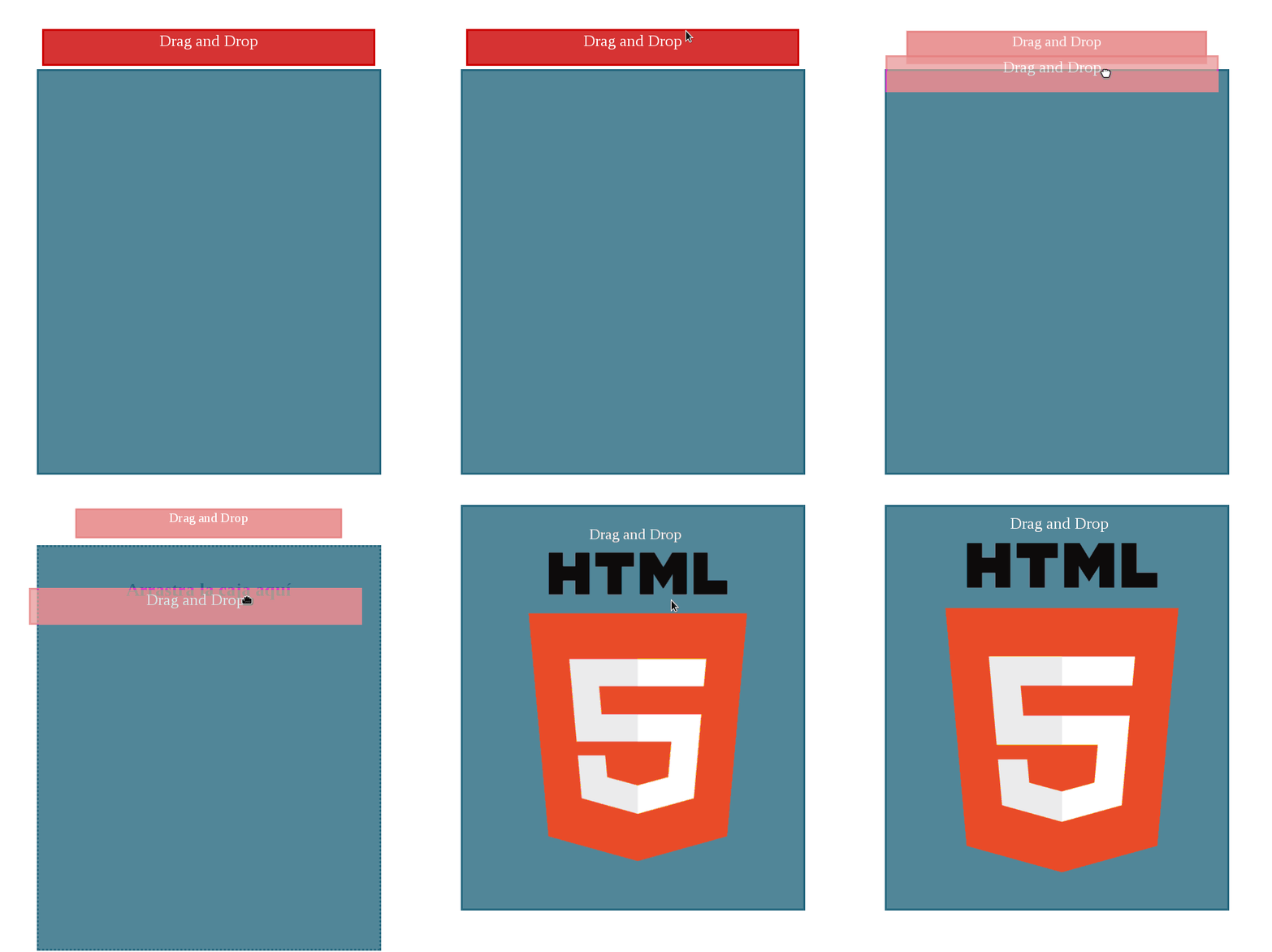
The Drag and Drop system is one of those features that, when well implemented, elevates the user experience without requiring external libraries. I've been using it for years in real projects — from reordering to-do lists to uploading files in interfaces connected to Laravel or Django backends — and I'm still amazed at how flexible it can be with just HTML5 and vanilla JavaScript.
What is Drag and Drop in HTML5? It is a user interface that allows moving elements from one place to another using the mouse or a finger. On the web, HTML5 makes it native through the
DataTransfer API, without the need for third-party libraries.
In this guide, I'll explain everything to you: from fundamental events to advanced, production-ready examples, so you can implement DnD in minutes and master it in hours.
Earlier, we saw how to generate files in JavaScript, as well as read and manipulate them.
What Drag and Drop is and why it remains so relevant
Drag and Drop allows grabbing an element, moving it, and dropping it somewhere else in the interface. Although it sounds simple, it is one of the most intuitive interactions for users because it exactly replicates what we do in the physical world: pick up an object and put it somewhere else.
How the drag and drop interaction works
The system relies on three key pieces that must always be present:
- Draggable element (
draggable): the DOM element that the user can grab and move. - Data to transfer (
dataTransfer): the payload of information that "travels" along with the element while being dragged. - Drop target (drop zone): the container that receives the element when dropped.
Actions are immediate and natural: you drag an element, drop it, and the interface reacts instantly.
Modern use cases for Drag and Drop
- Reordering Kanban boards or to-do lists.
- I regularly use this in my courses and books, implementing a backend with Laravel or Django to persist the new order in the database.
- Building Trello-style or Gmail-style interfaces.
- Uploading files by dragging them directly into a container (without
<input type="file">). - Moving images between galleries.
- Backoffice interfaces with repositionable blocks, such as page editors or form builders.
Drag and Drop events in JavaScript: clear, straightforward explanation
The drag and drop API uses seven key events — and that's it. With practice, you'll memorize them naturally. Let's look at them organized by their role:
- Events on the dragged element
dragstart: fires once when the user begins dragging. This is where you initialize data withdataTransfer.setData().drag: fires repeatedly while the element is being dragged. Useful for real-time visual feedback.dragend: fires when the user releases the mouse button, regardless of whether the element reached a drop target. Ideal for resetting styles.
- Events on the drop target
dragenter: the dragged element enters the target zone. Perfect for visually highlighting the container.dragover: fires continuously while the element is over the target zone. Callingevent.preventDefault()here is required so thedropevent can fire.dragleave: the dragged element leaves the target zone without dropping. Use it to revert styles applied indragenter.drop: the element is dropped inside the target zone. This is where you retrieve the data usingdataTransfer.getData()and execute business logic.
- Common mistakes that break DnD
- Not calling
event.preventDefault()indragover. This blocks thedropevent completely. It happened to me so often that adding it became second nature. - Modifying the DOM inside
dragover. Since this event fires dozens of times per second, any DOM manipulation inside it severely impacts performance. - Not resetting styles in
dragleaveordragend. The result is drop zones remaining visually "active" even when nothing is being dragged anymore. - In Firefox, calling
event.dataTransfer.setData()in thedragstartevent is mandatory, even with an empty string. Without it, dragging does not work in that browser.
- Not calling
Drag and Drop is a feature that allows "grabbing" an object and dragging it to a different location. In HTML5, this is accomplished entirely natively, without relying on jQuery UI or other libraries.
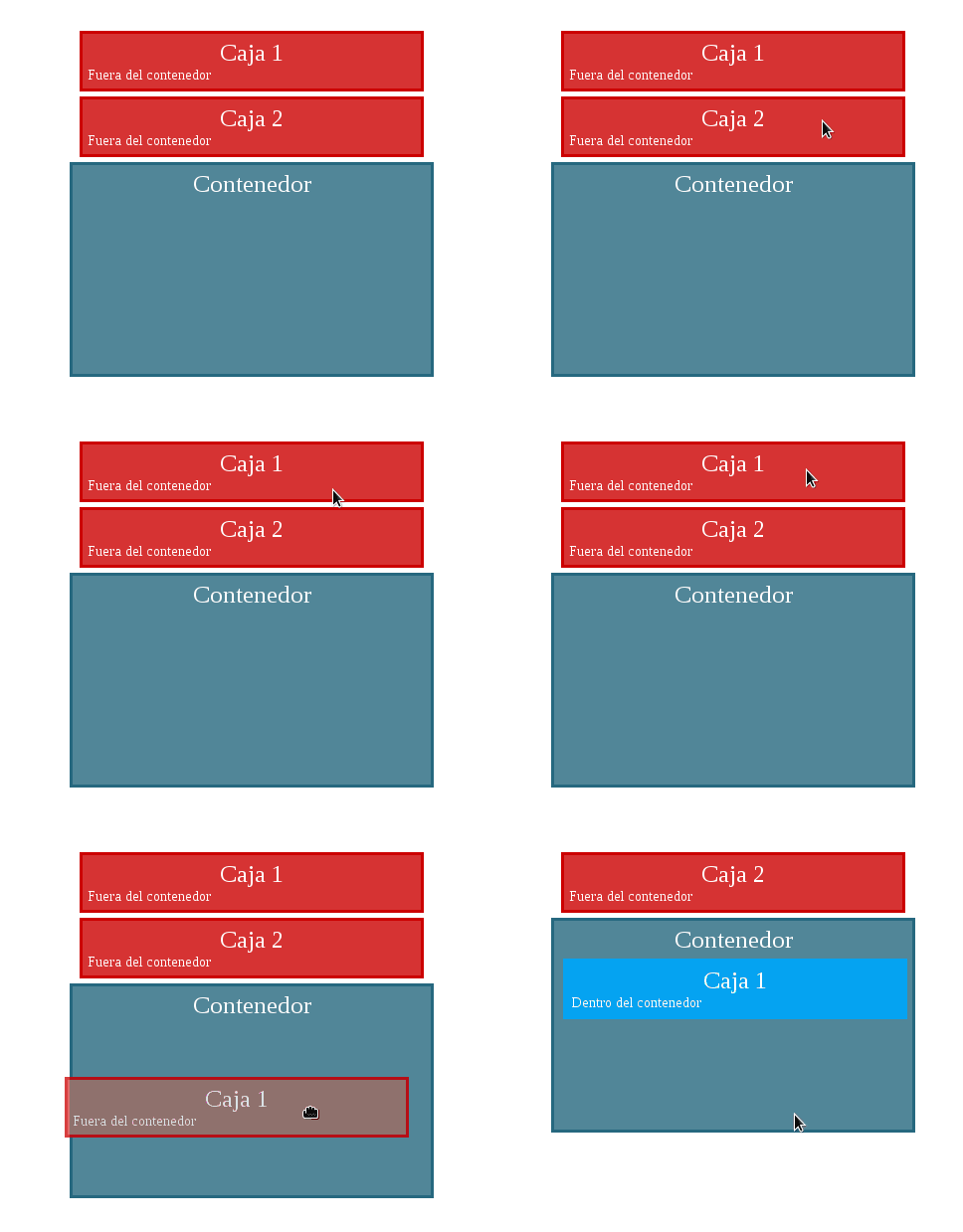
One of the major features added to HTML5 was native support for drag and drop. It can be applied to any DOM element: <div> containers, <textarea> elements, <p> paragraphs, headings, images, etc.
It is a powerful tool that takes user interaction to another level, and it is particularly attractive when combined with touch screens on tablets and smartphones.
What exactly is the drag and drop feature?
With Drag and Drop, we simply move an element from A to B by "dragging" it across. The concept isn't exclusive to HTML: technologies like Android or iOS use the exact same idea, which helps users understand it immediately.
However, while the concept is simple, the HTML5 API exposes a significant number of methods, events, and properties that allow you to take full advantage of this technology. Don't worry: you'll explore them one by one through concrete examples.
Getting started with Drag and Drop in HTML5
In this guide, we'll cover key definitions of how this technology works, its components, methods, attributes, and several practical examples that will surely prove useful in day-to-day work.
Drag and Drop events in JavaScript — Drag (draggable element)
The draggable elements trigger three events during their lifecycle:
1.0 dragstart
This event fires the moment the user starts dragging an element. This is where you specify what you're dragging and set the corresponding values using the setData() method. It is invoked only once per drag operation.
2.0 drag
This event fires immediately after dragstart and continues firing while the user keeps holding the element. The exact frequency with which it fires depends on the browser.
3.0 dragend
Occurs when the user finishes dragging the element, whether by dropping it into a valid container or simply releasing the mouse button anywhere else. It executes only once and is the ideal spot to reset styles or state.
ondragstart, ondrag, and ondragend.Drag and Drop events in JavaScript — Drop (target zone)
The container or drop target triggers four events:
1.0 dragenter
Fires when the dragged element enters the drop zone, but hasn't been dropped yet.
In this event, you can also inspect the transferred data (dataTransfer) and the data type initialized via setData().
2.0 dragleave
Fires when a dragged element leaves the target drop zone without being dropped.
dragenter.3.0 dragover
Fires continuously while the dragged element moves inside the drop target container, and stops only when the element is dropped or leaves the zone. Its firing frequency depends on the browser.
Similar to drag, it's useful for tracking the exact position of the element inside the container. Always remember to call event.preventDefault() here; otherwise, the drop event will never fire.
4.0 drop
Fires when the dragged element is dropped inside the container. In this event, you retrieve the transferred data using the getData() method and execute the relevant logic.
ondragenter, ondragleave, ondragover, and ondrop.Drag and Drop attributes in HTML5
Handling events alone isn't enough. To make a DOM element draggable, you must add the attribute draggable="true".
<div>, <img>, <p>, <li>, etc.So far, we've seen what events occur during the Drag and Drop lifecycle and how draggable elements interact with their containers. But one key question remains:
That is: how do we determine what information the element "carries with it" during the drag? The following object handles that.
The dataTransfer object in HTML5 Drag and Drop
Dragging and dropping elements without associated data has limited usefulness. The dataTransfer object acts as the brain of the operation: it allows setting information in the dragstart() event and retrieving it in the drop() event. Let's look at its most important methods:
.setData(format, data)Use this method to store data from the dragged element. You must specify the data type (MIME format) to ensure cross-browser compatibility:
- For plain text:
"text/plain". - For a URL:
"text/uri-list". - For structured HTML:
"text/html".
You should set this data in the dragstart event using event.dataTransfer.setData(type, data).
.getData(format)Returns the data previously stored with setData(). It can only be retrieved successfully during the drop event, using event.dataTransfer.getData(type).
.clearData()Clears all data set by setData(format, data) using event.dataTransfer.clearData(type). Useful for resetting state between operations.
setData / getData — quick example
// In dragstart:
event.dataTransfer.setData("text/plain", element.id);

// In drop:
const id = event.dataTransfer.getData("text/plain");
Supported MIME types
"text/plain"— unformatted text (most compatible)"text/html"— structured HTML"text/uri-list"— URLs
Custom drag image (ghost image)
By default, the browser displays a semi-transparent copy of the element while dragging. You can replace it with a custom image:
event.dataTransfer.setDragImage(myImage, 10, 10);The last two parameters define the cursor offset (in pixels) relative to the image.
Step-by-step practical examples (ready-to-use code)
Let's go over a progressive series of examples to help you understand how to use HTML5 Drag and Drop and adapt it to your projects.
1.0 Basic HTML5 Drag and Drop example using the :after pseudo-element
This is the simplest example: it uses the minimal set of events needed for dragging to work. It serves as an ideal starting point before adding complexity.
Complete code (HTML and JavaScript)
function dragstart(box, event) {
    // Store the ID of the dragged element
    event.dataTransfer.setData('Data', box.id);
}
function drop(target, event) {
    // Retrieve the ID stored in dragstart
    var box = event.dataTransfer.getData('Data');
    // Move the element to the new container
    target.appendChild(document.getElementById(box));
}
When dragging begins (dragstart event), we specify which data to transfer via setData(). When the element is dropped into the container, the drop event retrieves that data with getData() and re-inserts the node into the DOM.
You can check the full example at:
As you can see, we use the CSS selector :after to dynamically change the text of the draggable element (the box) depending on whether it is inside or outside the target container.
Customizing the drop zone using CSS
You can provide visual feedback for the drop zone by combining JavaScript events with CSS classes:
.drop-zone { transition: background 0.2s ease; }
.drop-zone.over { background: #e0f7fa; border: 2px dashed #0097a7; }
2.0 Drag and Drop example with all events in action
To better understand how all events interact, this example extends the previous one by registering every event supported by the API and logging a message in the browser console for each one:
Complete JavaScript code
function dragstart(box, event) {
    event.dataTransfer.setData('Data', box.id);
}
function drag(target, event) {
    console.log("drag");
    return false;
}
function dragend(target, event) {
    console.log("dragend");
    return false;
}
function dragenter(target, event) {
    console.log("dragenter");
    return false;
}
function dragleave(target, event) {
    console.log("dragleave");
    return false;
}
function dragover(event) {
    console.log("dragover");
    event.preventDefault(); // Required to allow drop
    return false;
}
function drop(target, event) {
    var box = event.dataTransfer.getData('Data');
    target.appendChild(document.getElementById(box));
}
The core logic is identical to the previous example. The difference is that now you will see multiple events executing in the Developer Console (F12) as you position the draggable element. It's a great way to grasp the order and execution frequency of each event.
You can check the full example at:
3.0 Dragging and dropping files from the desktop
You've likely attached files by dragging them directly into Gmail. With HTML5, this behavior is surprisingly easy to replicate:

The secret lies in the fact that when a drop event occurs with OS files, the event.dataTransfer.files property contains the list of dragged files. From there, you can read them using the FileReader API or upload them directly to the server via fetch or XMLHttpRequest.
Complete JavaScript code
var MAX_BYTES = 102400; // 100 KB

function dragenter(event) {
    event.stopPropagation();
    event.preventDefault();
}
function dragover(event) {
    event.stopPropagation();
    event.preventDefault();
}
function drop(event) {
    console.log('drop', event);
    event.stopPropagation();
    event.preventDefault();

    var data = event.dataTransfer;
    var files = data.files;
    var file;
    var reader;

    for (var i = 0; i < files.length; i++) {
        file = files[i];
        reader = new FileReader();
        reader.onloadend = onFileLoaded;
        reader.readAsBinaryString(file);
    }
}
function onFileLoaded(event) {
    document.getElementById("resultado").value = event.currentTarget.result.substr(0, MAX_BYTES);
}

var container = document.getElementById("contenedor");
container.addEventListener("dragenter", dragenter, false);
container.addEventListener("dragover", dragover, false);
container.addEventListener("drop", drop, false);
The File API in JavaScript is a subject of its own; you can find more details in the link at the top of this article.
You can check the full example at:
4.0 Styling elements dynamically with Drag and Drop events
In this example, we see how to dynamically adjust element styles using each event in the DnD lifecycle. This technique is essential for providing clear visual feedback to the user:
Complete JavaScript code
function dragstart(box, event) {
    document.getElementById(box.id).className = "in";
    event.dataTransfer.setData('Data', box.id);
}
function drag(box, event) {
    return false;
}
function dragend(box, event) {
    document.getElementById(box.id).className = "out";
    return false;
}
function dragenter(target, event) {
    document.getElementById("contenedor").className = "inContainer";
    return false;
}
function dragleave(target, event) {
    document.getElementById("contenedor").className = "outContainer";
    return false;
}
function dragover(event) {
    event.preventDefault();
    return false;
}
function drop(target, event) {
    var box = event.dataTransfer.getData('Data');
    document.getElementById("contenedor").className = "outContainer";
    target.appendChild(document.getElementById(box));
}
You can check the full example at:
5.0 Basic Drag and Drop with ES6+ (Arrow Functions)
The same logic using modern syntax with arrow functions. This pattern is the cleanest choice for new projects:
<div id="origen" draggable="true">A</div>
<div id="destino"></div>

<script>
origen.addEventListener("dragstart", e => {
    e.dataTransfer.setData("text/plain", e.target.id);
});

destino.addEventListener("dragover", e => e.preventDefault());

destino.addEventListener("drop", e => {
    e.preventDefault();
    const id = e.dataTransfer.getData("text/plain");
    destino.appendChild(document.getElementById(id));
});
</script>
6.0 File upload via desktop dragging (modern version)
This is one of the most practical applications. When a drop event fires with a file from the operating system, you can capture it and send it to the server using fetch:
container.addEventListener("dragover", e => e.preventDefault());

container.addEventListener("drop", e => {
    e.preventDefault();
    const files = e.dataTransfer.files;

    for (const file of files) {
        console.log("File:", file.name, "Size:", file.size, "bytes");
        // Validate MIME type and size here before uploading
        // Upload file via fetch or XMLHttpRequest
    }
});
How to improve the user visual experience
- Dynamic styles using
dragenter/dragleavezone.addEventListener("dragenter", () => zone.classList.add("over")); zone.addEventListener("dragleave", () => zone.classList.remove("over"));
- Visual indicators
- Dashed borders, background highlighting, action icons. Use the
.overclass to indicate that the zone is ready to receive the element.
- Dashed borders, background highlighting, action icons. Use the
- Microinteractions
- 100–200 ms CSS transitions make a massive difference in perceived smoothness. Less is more.
Drag and Drop on mobile and touchscreens: limitations and solutions
Here comes one of the most searched topics in Search Console data, and for good reason: native HTML5 DnD does not work the same way on mobile devices.
- Mobile limitations
- The
drag,dragover, anddropevents don't always fire in mobile browsers. - The browser-generated ghost image does not appear on iOS/Android.
- Movement relies on the OS touch system rather than the browser.
- The attribute
draggable="true"is ignored by iOS Safari and many Android browsers.
- The
- Solutions
- Combine with native touch events:
touchstart,touchmove,touchend. - Use specialized libraries that bridge both worlds: SortableJS, InteractJS, Dragula.
- Combine with native touch events:
- Maintaining a smooth experience across both environments is key to good design.
In projects where I use Laravel or Django as the backend, I usually combine touch events with native DnD to keep a unified workflow across desktop and mobile without duplicating logic.
To detect if the user is on a touch device and issue a warning or adapt the interface:
const isTouch = 'ontouchstart' in window;
if (isTouch) {
    console.warn("Native DnD has limitations on mobile. Consider using SortableJS.");
}
Optimization and performance in drag operations
Optimization and Performance in Drag Operations
- Minimize Repaints
- Avoid modifying styles or the DOM directly inside
dragover. Since this event can trigger dozens of times per second, any expensive operation here will ruin the experience.
- Avoid modifying styles or the DOM directly inside
- Event Delegation
- Instead of attaching individual listeners to each draggable element, handle events from a single listener on the parent container. This is especially useful when elements are added dynamically to the DOM.
- Other Real-World Recommendations
- Apply throttling to high-frequency callbacks using
requestAnimationFrame. - Avoid overly deep or heavy DOM trees inside draggable elements.
- Use CSS transforms (
transform: translate()) to move elements visually instead of modifying their position properties, as transforms do not trigger reflows.
- Apply throttling to high-frequency callbacks using
Security and Safe Data Handling in DnD
The dataTransfer object is powerful, but there are security considerations you shouldn't ignore:
- HTML Sanitization
- If you transfer HTML via
dataTransferand insert it into the DOM usinginnerHTML, always sanitize the content beforehand. An attacker could inject malicious scripts (XSS).
- If you transfer HTML via
- Prevention of Data Leaks
- Never transfer session tokens, passwords, API keys, or other sensitive data via
dataTransfer. Use opaque identifiers or indices instead.
- Never transfer session tokens, passwords, API keys, or other sensitive data via
- DnD and File Uploads
- Always validate files before processing or sending them to the server:
- Size: check
file.sizebefore uploading. - Extension: filter by extension using an allowlist.
- MIME Type: validate
file.type, though keep in mind that the client can tamper with it; final validation must take place on the server.
- Size: check
- Always validate files before processing or sending them to the server:
In my file upload implementations with Laravel, I always validate the size and MIME type on the client side to provide immediate feedback, and re-validate them on the server before persisting anything.
Conclusion
In this guide on Drag and Drop with HTML5, we explored how to build your own drag-and-drop system from scratch, going over the seven lifecycle events, the dataTransfer object, and a series of progressive examples ranging from the most basic use case to uploading files directly from the desktop.
The number of events managed by the API might seem overwhelming at first, but it is actually quite the opposite: that granularity is what gives you total control over the state of both the draggable element and the container at any given moment, allowing you to customize the experience nearly 100%.
Native Drag and Drop in HTML5 and JavaScript remains a powerful, flexible tool without external dependencies. With just a few events, you can build advanced interfaces, from Trello-style boards to file upload modules. And when your project demands it—whether due to needing robust mobile support or complex reordering—you now know when to make the leap to a library.
When should you use a library instead of the native API?
- Large projects or those with many draggable elements that change dynamically.
- Complex reordering with insertion animations between elements.
- Need for mobile/touch support without manually managing
touchstart/touchmoveevents.
Learn now how to copy and paste with vanilla JavaScript using the Clipboard API.