
Content Index
When you work with lists in Flutter, there comes a time when you need to allow quick actions: delete, archive, edit... And that's where Dismissible comes into play, a widget that, honestly, I use a lot. The typical CRUDs that we always have to implement, in mobile apps instead of placing buttons, which is complicated since designing for a mobile app is not the same as a web app, because mobile apps have small screens and many types of events like swipe are usually used, and this widget is perfect for this.
Join me step-by-step: what it is, how it works, what errors to avoid, and a final code you can copy and adapt today.
Remember that we previously left off with the Slider type Widget in Flutter.
What the Dismissible widget is and what it's used for
The Dismissible widget allows you to wrap an element (usually a list item) and enable swipe gestures on it to delete it or execute actions. That is, it allows the user to "swipe to delete" or "swipe to edit".
A widget that we can drag in the specified direction, usually from right to left or left to right, is also known as the swipe effect.
This widget wraps another widget, which can be any type of widget, and *voilà*, it already has these behaviors we mentioned before.
In one of my implementations—the same one I show in my YouTube video—I use it for simple lists where each item disappears upon swiping it, and Flutter takes care of animating and removing it without complications.
✅ Basic implementation of the Dismissible widget
Here I show you the minimum structure:
Dismissible(
 key: UniqueKey(),
 background: Container(color: Colors.green),
 secondaryBackground: Container(color: Colors.red),
 onDismissed: (direction) {
   // acción al eliminar
 },
 child: ListTile(
   title: Text("Item"),
 ),
);
The most important thing at first is to remember that Dismissible needs a unique key, otherwise it won't work.
Simple step-by-step example
A basic use with direct deletion would look like this:
Dismissible(
 key: Key(items[index]),
 onDismissed: (direction) {
   setState(() {
     items.removeAt(index);
   });
 },
 background: Container(color: Colors.red),
 child: ListTile(title: Text(items[index])),
);
Correct use of keys and common errors
One of the most common errors (I suffered from it too) is:
“A dismissed Dismissible widget is still part of the tree.”
This happens when we visually dismiss the widget but don't remove it from the internal list, causing Flutter to detect an orphaned Dismissible.
Solution: remove the item inside onDismissed.
ListView and Dismissible
This example shows the typical use of a ListView and Dismissible:
ListView.builder(
        itemCount: data.length,
        itemBuilder: (BuildContext context, int index) {
          return Dismissible(
            onDismissed: (DismissDirection direction) {
              setState(() {
                data.removeAt(index);
              });
            },
            secondaryBackground: Container(
              child: Center(
                child: Text(
                  'Borrar',
                  style: TextStyle(color: Colors.white),
                ),
              ),
              color: Colors.red,
            ),
            background: Container(),
            child: _card(item: data[index]),
            key: UniqueKey(),
            direction: DismissDirection.endToStart,
          );
        },
      ),
As a parent element, we have our StatefulWidget and a Scaffold.
On this screen, we have a list of elements that we made with the ItemBuilder method. And in this, we have used the Flutter Dismissible widget. It receives a method in onDismissed along with DismissDirection:
ListView.builder(
        itemCount: data.length,
        itemBuilder: (BuildContext context, int index) {
          return Dismissible(
            onDismissed: (DismissDirection direction) {
              setState(() {
                data.removeAt(index);
              });
            },
            secondaryBackground: Container(
              child: Center(
                child: Text(
                  'Borrar',
                  style: TextStyle(color: Colors.white),
                ),
              ),
              color: Colors.red,
            ),
            background: Container(),
            child: _card(item: data[index]),
            key: UniqueKey(),
            direction: DismissDirection.endToStart,
          );
        },
      ),
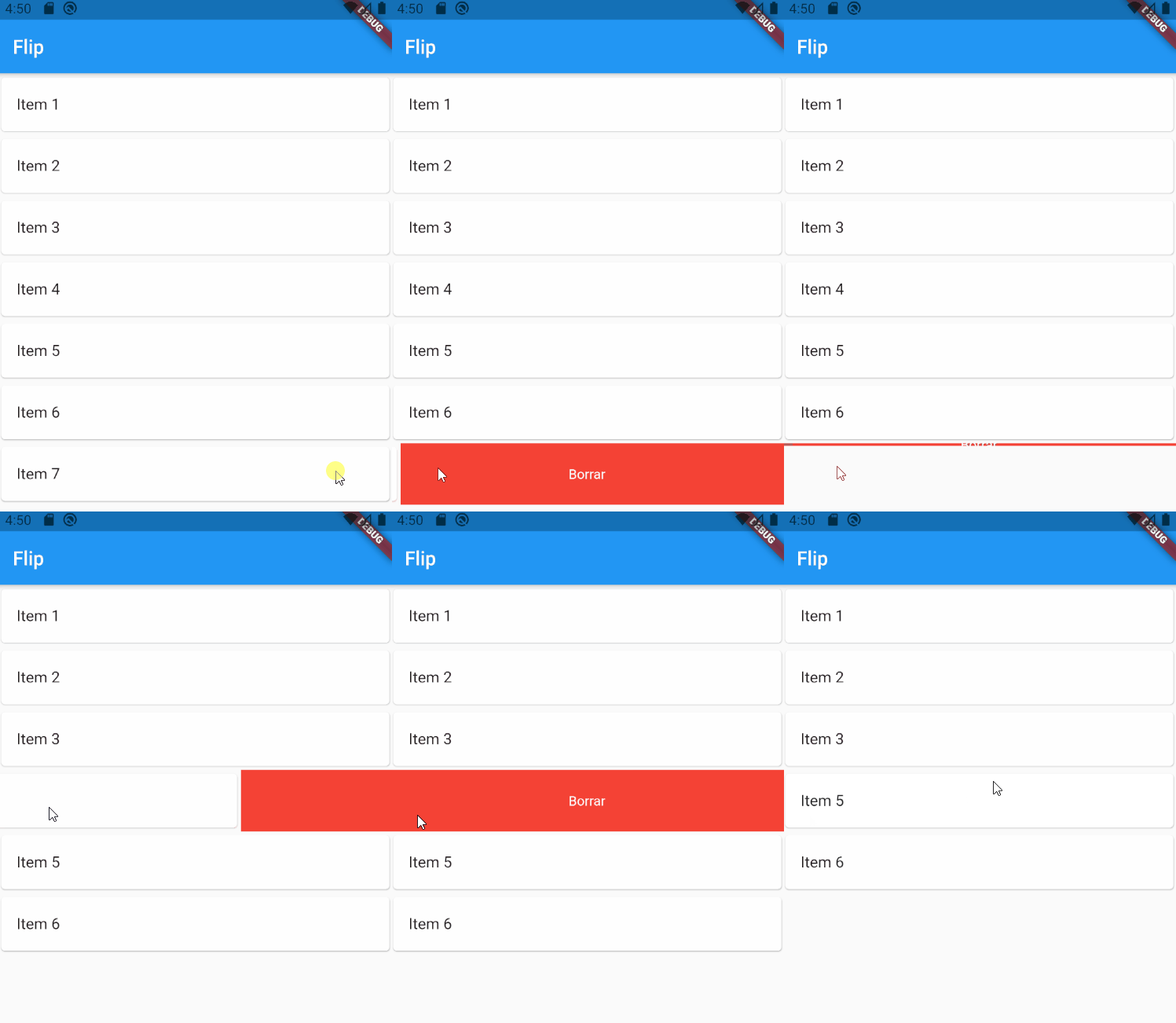
We have set the background color. The item is red-colored visible at dismissal time.
Dismissible(
                onDismissed: (DismissDirection direction) {
                  setState(() {
                    data.removeAt(index);
                  });
                },
                secondaryBackground: Container(
                  child: Center(
                    child: Text(
                      'Borrar',
                      style: TextStyle(color: Colors.white),
                    ),
                  ),
                  color: Colors.red,
                ),
                background: Container(),
                child: _card(item: data[index]),
                key: UniqueKey(),
                direction: DismissDirection.endToStart,
              )
When we run the application, we should get the screen result as the screenshot below.
Points to consider
The data can be anything, in this case, it's a String array, but it can be an object, integers, or whatever your application needs; the full app code:
import 'package:flutter/material.dart'; void main() { runApp(MyApp()); } class MyApp extends StatefulWidget { @override _MyAppState createState() => _MyAppState(); } class _MyAppState extends State<MyApp> { final data = [ "Item 1", "Item 2", "Item 3", "Item 4", "Item 5", "Item 6", "Item 7" ]; @override Widget build(BuildContext context) { return MaterialApp( title: 'Flip', home: Scaffold( appBar: AppBar( title: Text("Flip"), ), body: ListView.builder( itemCount: data.length, itemBuilder: (BuildContext context, int index) { return Dismissible( onDismissed: (DismissDirection direction) { setState(() { data.removeAt(index); }); }, secondaryBackground: Container( child: Center( child: Text( 'Delete', style: TextStyle(color: Colors.white), ), ), color: Colors.red, ), background: Container(), child: _card(item: data[index]), key: UniqueKey(), direction: DismissDirection.endToStart, ); }, ), )); } Widget _card({String item}) { return Card( child: ListTile( title: Text(item), ), ); } } ✅ Advanced Swipe: actions different from left and right
If you want to offer more functions (delete, edit, archive, etc.), the ideal is to show a different background on each side and execute different actions.
When I needed to offer "edit" and "delete" from the same item, I used this approach:
- Swipe for edit vs swipe for delete
- background: slideRightBackground(), // Edit
- secondaryBackground: slideLeftBackground(), // Delete
Confirmation with confirmDismiss
If the action is destructive (e.g., delete), the ideal is to ask for confirmation.
import 'package:flutter/material.dart';

void main() {
  runApp(MyApp());
}

class MyApp extends StatefulWidget {
  @override
  _MyAppState createState() => _MyAppState();
}

class _MyAppState extends State<MyApp> {
  final data = [
    "Item 1",
    "Item 2",
    "Item 3",
    "Item 4",
    "Item 5",
    "Item 6",
    "Item 7"
  ];
  @override
  Widget build(BuildContext context) {
    return MaterialApp(
        title: 'Flip',
        home: Scaffold(
          appBar: AppBar(
            title: Text("Flip"),
          ),
          body: ListView.builder(
            itemCount: data.length,
            itemBuilder: (BuildContext context, int index) {
              return Dismissible(
                onDismissed: (DismissDirection direction) {
                  setState(() {
                    data.removeAt(index);
                  });
                },
                secondaryBackground: Container(
                  child: Center(
                    child: Text(
                      'Borrar',
                      style: TextStyle(color: Colors.white),
                    ),
                  ),
                  color: Colors.red,
                ),
                background: Container(),
                child: _card(item: data[index]),
                key: UniqueKey(),
                direction: DismissDirection.endToStart,
              );
            },
          ),
        ));
  }

  Widget _card({String item}) {
    return Card(
      child: ListTile(
        title: Text(item),
      ),
    );
  }
}
✅ Conclusion
The Dismissible widget is a key tool when you seek to improve the user experience in lists. It allows for quick, intuitive, and visual actions. With good use of background, secondaryBackground, confirmDismiss, and unique keys, you can create modern interfaces like Gmail or any productivity app.
Furthermore, by integrating swipe in both directions, the interaction becomes much richer. Personally, it's one of those widgets I make appear in my projects more than I admit.
❓ Quick FAQs
- Is it mandatory to use UniqueKey()?
- No, but you do need a unique key per item to avoid issues.
- Can I prevent an item from actually being deleted?
- Yes: use confirmDismiss and return false.
- Can I use it outside of a ListView?
- Yes, but that's where it makes the most sense.
The next widget we're going to review is how to create a side menu or Drawer in Flutter.