
HTML lists have always been there, almost invisible, fulfilling their basic function. However, with the evolution of CSS, lists have gone from being simple blocks of text to becoming authentic design elements. In my case, when I started experimenting with styles and animations, I discovered that many interfaces could be solved purely with well-crafted lists, without resorting to tables or JavaScript.
Lists are a fundamental element for displaying information in an organized manner; due to the great evolution that CSS has had in recent years, simple lists have somewhat gained ground on tables and are increasingly being used.
In this guide, we will see how to create elegant lists in CSS, starting with a solid and usable foundation, and moving towards visual effects and animations that add personality without breaking the user experience.
Technical Base: How HTML Lists Work
Therefore, we must know how to work with them; in this post, we will see how to work with lists and some interesting effects, but before that, we will see how to create a basic list:
<ul>
<li>One</li>
 <li>Two</li>
 <li>Three</li>
 <li>Four</li>
 <li>Five</li>
</ul>
And we would have:
- One
- Two
- Three
- Four
- Five
What We Mean by Elegant Lists in CSS
When we talk about elegant CSS lists, we're not just referring to changing the bullet point. An elegant list meets three principles:
- Visual Clarity: the content is read quickly.
- Consistency: coherent spacing, alignment, and hierarchy.
- Personality: small visual details or subtle animations.
Over time, I've confirmed that, even in small projects, a well-designed list conveys more professionalism than an over-the-top design.
The list-style-type Property: Types of Bullet Points in CSS
To change this type of bullet, we have the list-style-type property, which I personally think is a somewhat long name for such a simple property, but it is quite descriptive and allows control over the type of bullet point displayed; this property is applied to list elements and its values are the following:
disc | circle | square | decimal | decimal-leading-zero | georgian | lower-roman | upper-roman| lower-alpha | upper-alpha | lower-greek | lower-latin | upper-latin | armenian | none | inheritYou can try each of them if you like in your CSS and you will see the results; the initial or default value is disc; none allows you to specify that no bullet point will be displayed in the list.
We can define everything in one line:
ul { list-style: square inside url(icon.png); }The order does not matter, and if the image fails, the browser will use the defined type as a fallback.
Examples of list-style-type Property Usage
<ul>
<li>One</li>
 <li>Two</li>
 <li>Three</li>
 <li>Four</li>
 <li>Five</li>
</ul>
And we would have:
- One
- Two
- Three
- Four
- Five
<ul>
<li>One</li>
<li>Two</li>
<li>Three</li>
<li>Four</li>
<li>Five</li>
</ul> And we would have:
- One
- Two
- Three
- Four
- Five
In many elegant designs, the first step is to remove the bullet point:
ul { list-style-type: none; }From there, we can build something cleaner and more controlled.
The list-style-position Property
This property allows you to indicate whether the bullet points are inside or outside the list content; for this, the values outside and inside are used respectively:
<ul style="list-style-position: inside"> <li>Lorem ipsum dolor sit amet, consectetur adipiscing elit, sed do eiusmod tempor incididunt ut labore et dolore magna aliqua. Ut enim ad minim veniam, quis nostrud exercitation ullamco laboris nisi ut aliquip ex ea commodo consequat. </li> <li>Lorem ipsum dolor sit amet, consectetur adipiscing elit, sed do eiusmod tempor incididunt ut labore et dolore magna aliqua. Ut enim ad minim veniam, quis nostrud exercitation ullamco laboris nisi ut aliquip ex ea commodo consequat. </li> <li>Lorem ipsum dolor sit amet, consectetur adipiscing elit, sed do eiusmod tempor incididunt ut labore et dolore magna aliqua. Ut enim ad minim veniam, quis nostrud exercitation ullamco laboris nisi ut aliquip ex ea commodo consequat. </li> </ul> <ul style="list-style-position: outside"> <li>Lorem ipsum dolor sit amet, consectetur adipiscing elit, sed do eiusmod tempor incididunt ut labore et dolore magna aliqua. Ut enim ad minim veniam, quis nostrud exercitation ullamco laboris nisi ut aliquip ex ea commodo consequat. </li> <li>Lorem ipsum dolor sit amet, consectetur adipiscing elit, sed do eiusmod tempor incididunt ut labore et dolore magna aliqua. Ut enim ad minim veniam, quis nostrud exercitation ullamco laboris nisi ut aliquip ex ea commodo consequat. </li> <li>Lorem ipsum dolor sit amet, consectetur adipiscing elit, sed do eiusmod tempor incididunt ut labore et dolore magna aliqua. Ut enim ad minim veniam, quis nostrud exercitation ullamco laboris nisi ut aliquip ex ea commodo consequat. </li> </ul>And we get:
- Lorem ipsum dolor sit amet, consectetur adipiscing elit, sed do eiusmod tempor incididunt ut labore et dolore magna aliqua. Ut enim ad minim veniam, quis nostrud exercitation ullamco laboris nisi ut aliquip ex ea commodo consequat.
- Lorem ipsum dolor sit amet, consectetur adipiscing elit, sed do eiusmod tempor incididunt ut labore et dolore magna aliqua. Ut enim ad minim veniam, quis nostrud exercitation ullamco laboris nisi ut aliquip ex ea commodo consequat.
- Lorem ipsum dolor sit amet, consectetur adipiscing elit, sed do eiusmod tempor incididunt ut labore et dolore magna aliqua. Ut enim ad minim veniam, quis nostrud exercitation ullamco laboris nisi ut aliquip ex ea commodo consequat.
- Lorem ipsum dolor sit amet, consectetur adipiscing elit, sed do eiusmod tempor incididunt ut labore et dolore magna aliqua. Ut enim ad minim veniam, quis nostrud exercitation ullamco laboris nisi ut aliquip ex ea commodo consequat.
- Lorem ipsum dolor sit amet, consectetur adipiscing elit, sed do eiusmod tempor incididunt ut labore et dolore magna aliqua. Ut enim ad minim veniam, quis nostrud exercitation ullamco laboris nisi ut aliquip ex ea commodo consequat.
- Lorem ipsum dolor sit amet, consectetur adipiscing elit, sed do eiusmod tempor incididunt ut labore et dolore magna aliqua. Ut enim ad minim veniam, quis nostrud exercitation ullamco laboris nisi ut aliquip ex ea commodo consequat.
As you can see, this property allows you to add a margin to the list to place the bullet point or not; its behavior is evident when there are lists with a lot of content like the previous examples.
The list-style-image Property
This property allows you to add a custom image using a URL to our lists; below is an example of its use:
ul.img { list-style-image: url("assets/img/img.png"); } All for One: The list-style Property
Finally, using the list-style property, we can define the 3 previous properties in a single CSS rule:
ul.li { list-style: list-style-image list-style-type } ul.li { list-style: list-style-type list-style-position list-style-image } These are some examples of the use of the list-style property which, as we mentioned earlier, allows us to define all the other properties in a single one:
ul.img { list-style-image: url("assets/img/img.png") disc; } Creating Menus Based on Lists with CSS: Vertical Menu
A very common use that you surely already know is the use of lists to create menus; the default menu would be the vertical one, where we would only have to add the links and other CSS to create a vertical menu:
As you can appreciate, the fundamental steps are to remove the bullet points from the menu, in addition to placing a color on each menu item; this would be the essential part; the HTML and CSS can be seen here:
<style>
    ul.menu_1 {
        margin: 20px;
        padding: 0;
    }

    ul.menu_1 li {
        list-style-type: none;
        line-height: 1.6;
        background: #CCC;
        margin: 0 0 10px 0;
        padding: 4px 8px;
        border: 1px solid #666;
    }
    ul.menu_1 li a{
        color: #FFF !important;
    }
</style>

<ul class="menu_1">
	<li><a href="#">Uno</a></li>
	<li><a href="#">Dos</a></li>
	<li><a href="#">Tres</a></li>
	<li><a href="#">Cuatro</a></li>
	<li><a href="#">Cinco</a></li>
</ul>
Bullet point position: list-style-position
This property defines whether the bullet point is inside or outside the content:
ul {
 list-style-position: inside;
}- outside (default): better for long texts.
- inside: useful when looking for compact alignments.
In lists with a lot of content, this detail makes a difference in readability, something I learned after testing different layouts with extensive texts.
Custom Bullets with ::marker
One of the most interesting improvements in modern CSS is the ::marker pseudo-element, ideal for elegant lists without hacks:
ul {
 list-style-type: upper-roman;
}
li::marker {
 color: #6c63ff;
 font-weight: bold;
}
Advantages:
- Clean code
- Accessible
- No images or additional pseudo-elements
Limitation: not all properties are compatible, but for elegant design, it is usually sufficient.
Elegant Lists without Images (Recommended)
Although list-style-image exists, in practice, it is more flexible to use backgrounds:
ul {
 list-style: none;
 padding-left: 2rem;
}
ul li {
 padding-left: 2rem;
 background-image: url(star.svg);
 background-repeat: no-repeat;
 background-position: 0 0.2rem;
 background-size: 1.2rem;
}
This approach allows for:
- Total size control
- Better alignment
- More modern designs
In my tests, this method always ends up being more maintainable than using direct images as bullet points.
Elegant Menus Based on Lists
One of the most common uses of lists is the creation of vertical menus:
ul.menu {
 margin: 20px;
 padding: 0;
}
ul.menu li {
 list-style: none;
 background: #eaeaea;
 margin-bottom: 10px;
 padding: 8px 12px;
 border-radius: 6px;
 transition: background 0.3s ease;
}
ul.menu li:hover {
 background: #dcdcdc;
}
This type of menu is:
- Semantic
- Accessible
- Easy to animate
With very little CSS, we already get a clean and professional result.
Animating Lists with CSS
The next point we are going to cover, having learned the basics of CSS lists, is to give it a little more CSS to animate it through rotations, translations, and much more; as we specified before, by default, lists are displayed with a small black dot or a small black circle as a bullet point, these lists are called unordered as they do not have any numbering and therefore no order; we create the lists by defining an ul as the parent element, followed by one or more items that are the list elements themselves using li:
As mentioned in subsequent posts, transitions and animations in CSS are great tools that allow you to create smooth changes between one state and another without major complications; in this post, we will see some curious effects on ul lists (some with 3D effects):
Defining the Base CSS for Our Animation
First things first, defining the basic or common CSS that we will use in all the lists:
ul {
  margin: 20px;
  padding: 0;
  list-style-type: decimal;
  transition: all 1s;
}

li {
  line-height: 1.6;
  background: rgba(0,0,0,0.1);
  margin: 0 0 10px 0;
  padding: 4px 8px;
  transition: all 1s;
}
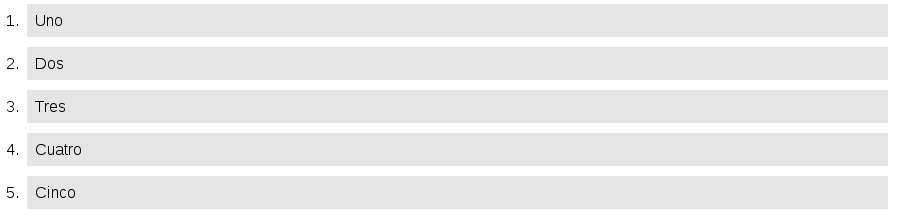
In the CSS shown above, there isn't much to explain; a light gray background color and other properties for spacing and little else; with this, we get the following list:
1. Accordion Effect on the X-axis
This first, somewhat modest, effect simply inverts the order of our list on the X-axis as if it were an accordion; but it will serve as a guide to more easily understand the rest of the effects:
Position the cursor over it.
ul:hover {transform: rotateX(180deg);}
ul:hover li {transform: rotateX(-180deg);}
An important detail you will notice in the other effects is that the parent element ul is rotated at the same time as its children lis but in the opposite direction (an effect achieved with a positive/negative value).
2. Effect of Spinning on its Axis on the Z-axis
This effect is a little more visual than the previous one because we enter the "3D world" by not using the X and Y axes and getting involved in rotations directly with the Z-axis:
Position the cursor over it.
ul:hover {transform: rotateZ(180deg);}
ul:hover li {transform: rotateZ(-180deg);}
Although the principle is the same as the previous experiment (performing rotations of the parent and its children (ul and its children li but in opposite directions), we see a detail that we may have overlooked in the first example, and that is that all the elements have their position altered except for the central one (or the li number three) and this effect is achieved because of how the rotations are performed simultaneously but in opposite directions.
3. Effect of Horizontally Overlapping Lists
Although it may not seem like it, the following experiment is composed of li lists that, when we position ourselves over them, return to their original position:
Position the cursor over it.
ul {
/*other properties*/
  transform: rotateZ(90deg);
}

li {
/*demas propiedades*/
  transform: rotateZ(-90deg);
}

ul:hover {
  transform: rotateZ(0deg);

}
ul:hover li {
  color:#000;
  transform: rotateZ(0deg);
}
It is somewhat similar to the previous one, but this time the lists (lis) and their parent (ul) start rotated on the Z-axis by +/-90 degrees and position themselves correctly for visualization when the cursor is passed over them.
4. Effect of Horizontally Overlapping Lists -Double Turn-
Unlike the second experiment; here the lists perform two turns until they obtain their complete visualization:
Position the cursor over it.
ul {
  transform: rotateZ(270deg);
}

li {
  transform: rotateZ(-270deg);
}

ul:hover {
  transform: rotateZ(0deg);

}
ul:hover li {
  color:#000;
  transform: rotateZ(0deg);
}
5. Effect of Vertically Overlapping Lists
Well, why only limit yourself to positioning the lists horizontally if we can put them vertically!!!; for this, we use rotations on the Y-axis:
Position the cursor over it.
li { /*demas propiedades*/ transform: rotateZ(90deg); } body:hover ul { transform: rotateY(0deg); } body:hover ul li { color:#000; transform: rotateY(0deg); }You will notice that we use the selector:
body:hover ul {} body:hover ul li {} Instead of:
ul:hover {} ul:hover li {} Simply because a smoother handling is obtained when starting the transition on the entire document rather than on a section of it (ul).
Subtle Animations: Elegance Over Spectacle
Not everything is extreme rotations. An elegant list can be animated with small details:
li {
 transition: transform 0.3s ease, box-shadow 0.3s ease;
}
li:hover {
 transform: translateX(6px);
 box-shadow: 0 4px 10px rgba(0,0,0,0.15);
}
These types of animations are the ones I use most in real projects: they provide feedback without distracting.
Animated Lists with 3D Effects (When You Want to Stand Out)
When the objective is more visual or experimental, we can go further. In my tests with CSS 3D, I discovered that rotating the container and the items in opposite directions generates very striking effects.
Accordion Effect on the X-axis
ul {
 transition: transform 1s;
}
li {
 transition: transform 1s;
}
ul:hover {
 transform: rotateX(180deg);
}
ul:hover li {
 transform: rotateX(-180deg);
}
Rotación en el eje Z
ul:hover {
 transform: rotateZ(180deg);
}
ul:hover li {
 transform: rotateZ(-180deg);
}
These effects work especially well in:
- Demos
- Creative landing pages
- Experimental interfaces
Of course, I wouldn't use them in all contexts; elegance is also about knowing when to stop.
When to Use Animated Lists and When Not To
My recommendation after experimenting quite a bit:
✔️ Use them when:
- You want to highlight specific sections
- You are looking for visual impact
- The content is short
❌ Avoid them when:
- The list is very long
- It is critical content
- The animation makes reading difficult
FAQs about Elegant CSS Lists
- How to remove bullet points from a list in CSS?
- With list-style-type: none.
- Is it better to use ::marker or ::before?
- For elegant and accessible lists, ::marker is preferable.
- Can lists be animated with CSS alone?
- Yes, using transition and transform.
- Do 3D animations affect performance?
- If used in moderation, no. Avoid them in long lists.
Conclusions
Once again, we saw some examples that we could consider interesting and the great versatility of CSS that is achieved with just a few lines of code for animations and transitions; we can apply the colors we want with CSS, we can vary the size of the lists which essentially results in animating our list, creating an animated list with CSS.
HTML lists are no longer just simple data structures. With modern CSS, we can create elegant, modern, and animated lists, combining usability and design without relying on JavaScript.
In my experience, a well-designed list can replace tables, complex menus, and entire components, with less code and greater clarity. The key is to start with a solid foundation and only add effects when they provide real value.