
Hamburger menus are nothing more than small buttons made up of the classic three horizontal lines that we have all seen hundreds of times, especially in mobile applications. In Android, for example, this icon is used to show the Navigation Drawer or side menu, and today it is almost a standard in responsive interfaces.
In my case, I have always seen the hamburger menu not just as a navigation trigger, but as an animatable and reusable icon, capable of transforming into an X, an arrow, or other shapes with very little code. In this article, I am going to show you how to create an animated hamburger button or menu with CSS, starting from a minimal structure and making the most of transform, transition, and pseudo-elements.
Of course, we also used CSS transitions for smooth changes in this experiment.
What is a hamburger button or menu and when to use it
Difference between hamburger icon and navigation menu
It is worth clarifying something from the beginning:
the hamburger button is just the icon (the three lines), while the hamburger menu is the complete system that unfolds when interacting with it.
Here we are going to focus mainly on the icon, since it is the part that actually animates and transforms with CSS.
Advantages and disadvantages of the hamburger menu in UX
This type of menu:
- Cleans up the design significantly
- Reduces visual noise
- Works especially well on mobile
But it is also less intuitive than a visible menu. That is why it is best to use it when space is limited or when the design calls for it, not by default.
How to create a hamburger button with minimal HTML
Hamburger menus are nothing more than small buttons with the typical 3 lines on top, as we can see in the following image:
In my experience, that approach ends up generating more "patch" adjustments than real solutions.
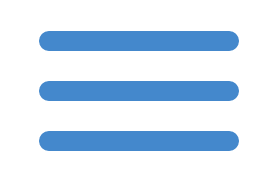
These hamburger buttons are widely used today, especially in mobile applications like Android, where the 3 parallel horizontal lines are used to show a Navigation Drawer (side menu) in Android among other systems or applications.
Making this button is simple with HTML, using three containers such as divs or spans, or using extra containers starting from a single container (div, span, etc.) that we can create with the after and before selectors on the same container; in this post, we will see how to create a hamburger menu by animating it with a bit of CSS when interacting with it.
Referring to the title of this post, we will only need a couple of divs and a few CSS rules to get the following button:
Reusable base HTML structure
One of the patterns I use the most is reducing the HTML to the bare minimum. In this case, two containers are enough:
<div class="hamburger">
    <div class="hamburger-inner"></div>
</div>
Why use a single container and pseudo-elements
It consists of using multiple containers stemming from a single one with the help of the before and after selectors.
Instead of creating three divs or spans, I prefer to generate the extra lines with ::before and ::after. I have reused this trick many times in other CSS effects because:
- It reduces markup
- It makes the component cleaner
- It facilitates joint transformations
Building the menu lines with CSS (::before and ::after)
Positioning and dimensions of the lines
We start from a base container and create the three lines from it:
.hamburger {
    min-height: 30px;
    max-width: 50px;
}
.hamburger-inner, .hamburger-inner:after, .hamburger-inner:before {
    background-color: blue;
    position: absolute;
    width: 40px;
    height: 4px;
    border-radius: 5px;
    content: '';
    transition-timing-function: ease;
    transition-duration: .2s;
    transition-property: transform,opacity;
}
.hamburger-inner:before {
    top: 10px;
}
.hamburger-inner:after {
    top: 20px;
}
Here we are simply creating three thin lines and shifting them so they do not overlap.
Avoiding overlaps and keeping the code clean
The secret is to think of the icon as a small geometric system. Each line has its position and then, when animating, we only modify those coordinates.
Animating the hamburger button with CSS
Use of transform, translate, and rotate
To animate the button we need a state, usually an .open class. In my case, I usually add it with minimal JavaScript.
As you can see, we only create some thin lines and shift them so they don't overlap; now we need to animate it; for this, we will first use JavaScript to include/remove the open class that indicates if the button is open or closed:
// Select the element
const hamburger = document.querySelector('.hamburger');

// Add the click
hamburger.addEventListener('click', function() {
    this.classList.toggle('open');
});toggleClass function does exactly what was mentioned: if the class specified as a parameter exists, it removes it from the element; otherwise, it adds the class to the element.Transitions and timing functions for smooth animations
From here on, it's all CSS. When the button is open, we modify the transformations:
Demo 1
With the open class, we can define specific CSS to take effect when the hamburger menu is clicked and thus changes state; the CSS is:
.hamburger.open .hamburger-inner {
    transform: translate3d(0,10px,0) rotate(45deg);
}
.hamburger.open .hamburger-inner:after {
    transform: translate3d(0,-20px,0) rotate(-90deg);
}
.hamburger.open .hamburger-inner:before {
    transform: translate3d(0,-20px,0) rotate(90deg);
}
With this, we get the following button:
Demo 2
Here we have another animation using cubic-bezier which allows defining the speed of a CSS animation in a more personalized way from its start to the end; you can see more about Bézier curves in a later post and we use transformations to rotate, translate, and scale the hamburger menu wherever we want:
.hamburger.open .hamburger-inner:after {
	top: 0;
	transform: translate3d(-10px, -9px, 0) rotate(-45deg) scale(0.7, 1);
	transition: top 0.1s ease, transform 0.1s 0.1s cubic-bezier(0.895, 0.03, 0.685, 0.22);
}
.hamburger.open .hamburger-inner:before {
	bottom: 0;
	transform: translate3d(-9px, 20px, 0) rotate(45deg) scale(0.7, 1);
	transition: bottom 0.1s ease, transform 0.1s 0.1s cubic-bezier(0.895, 0.03, 0.685, 0.22);
}Converting a hamburger menu to an arrow
Now with the previous base code, we can adapt other shapes like the famous arrow to return to a previous section.
Demo 1
A simple animation, which we can adapt as we want (for example) into an arrow; notice that now the rotation is 45 degrees on its positive and negative axis:
.hamburger.open .hamburger-inner:after {
    transform: translate3d(-8px,-2px,0) rotate(45deg) scaleX(.7);
    width: 35px;
}
.hamburger.open .hamburger-inner:before {
    transform: translate3d(-8px,2px,0) rotate(-45deg) scaleX(.7);
    width: 35px;
}
And we get:
Fine-tuning scale and displacement
This is where experimentation comes in. In my experience, slightly changing the scale or horizontal displacement can make the difference between a "forced" arrow and one that feels natural.
Demo 2
The last demo we will perform is another variation of the one presented previously:
.hamburger.open .hamburger-inner {transform: rotate(-180deg);}.hamburger.open .hamburger-inner:after {transform: translate3d(8px, 0, 0) rotate(-45deg) scale(0.7, 1);}.hamburger.open .hamburger-inner:before {transform: translate3d(8px, 0, 0) rotate(45deg) scale(0.7, 1);}As you can see, the logic is simple: with the translate3d property we apply a series of geometric operations to each of the lines that make up the hamburger menu, specifically affecting the lines created by the extra containers made using the before and after selectors; we also rotate the entire hamburger menu with the .hamburger.open .hamburger-inner selector, which gives an interesting effect.
Customizing animations with cubic-bezier
What is cubic-bezier and when to use it
When we want more control over the animation speed, cubic-bezier is a powerful tool. It allows defining how the movement starts and ends.
Example of custom animation
.hamburger.open .hamburger-inner {
	transform: rotate(-180deg);
}
.hamburger.open .hamburger-inner:after {
	transform: translate3d(8px, 0, 0) rotate(-45deg) scale(0.7, 1);
}
.hamburger.open .hamburger-inner:before {
	transform: translate3d(8px, 0, 0) rotate(45deg) scale(0.7, 1);
}
This type of curves gives animations that are much more "organic" than the default transitions.
Best practices when creating animated hamburger buttons
- Performance and CSS simplicity
- Less HTML = better maintenance
- Avoid animating expensive properties
- transform and opacity are your allies
- Whenever I can, I reuse the same component and only change the CSS rules.
- Accessibility and button states
- Don't forget:
- Change the visual state
- Indicate if the menu is open or closed
- Add cursor: pointer and, if applicable, ARIA attributes
FAQs
- Can a hamburger menu be animated without JavaScript?
- Yes, the animation can be done 100% in CSS; JavaScript is only necessary to change the state.
- Is it better to use three divs or pseudo-elements?
- Pseudo-elements allow for cleaner HTML and are usually easier to maintain.
- What CSS properties are used for these animations?
- Mainly transform, transition, opacity, and cubic-bezier.
Conclusion
Creating an animated hamburger button or menu with CSS is much simpler than it seems if you understand how geometric transformations work. With minimal HTML, pseudo-elements, and a few well-thought-out rules, you can get clean, reusable, and very visual animations.
This approach has allowed me to reuse the same icon in different projects, simply by changing a couple of transformations.