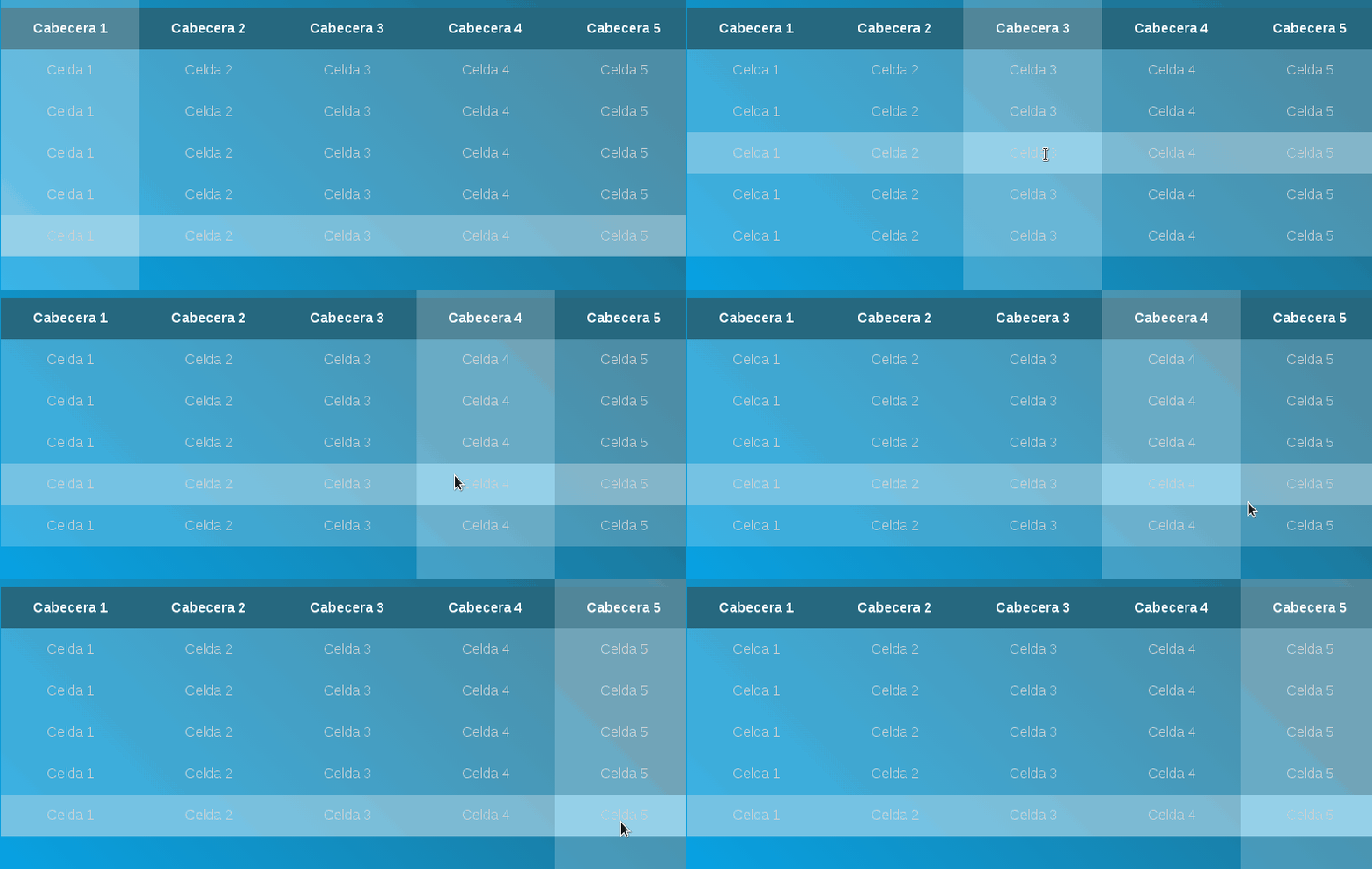
When working with HTML tables, making them readable and pleasant is not always trivial. In my case, one of the first improvements I usually apply is highlighting on hover, because it helps immensely in interpreting the data. Highlighting rows is simple, but when you want to highlight rows and columns at the same time, things get interesting.
In this article, I will show you, step by step, how to create a table with horizontal and vertical highlighting using only CSS, explaining not only the "how" but also the "why" of each technique.
In this post, we will see how to create a simple table with highlighting where, when hovering over the different cells that make up the table, the horizontal and vertical sections (columns and rows) of the table are activated (highlighted):
Taking the idea explained above, we can divide the development into two parts:
- Highlighting columns
- Highlighting rows
Highlighting rows in an HTML table with CSS
Let's start with the easy part. When I first tried this effect, row highlighting was almost immediate: rows do exist as an element (tr), so CSS makes it very easy.
It is enough to apply the :hover pseudo-class to the rows of the table body:
tbody tr:hover { background-color: rgba(255, 255, 255, 0.3);}And with this, we get the following effect:
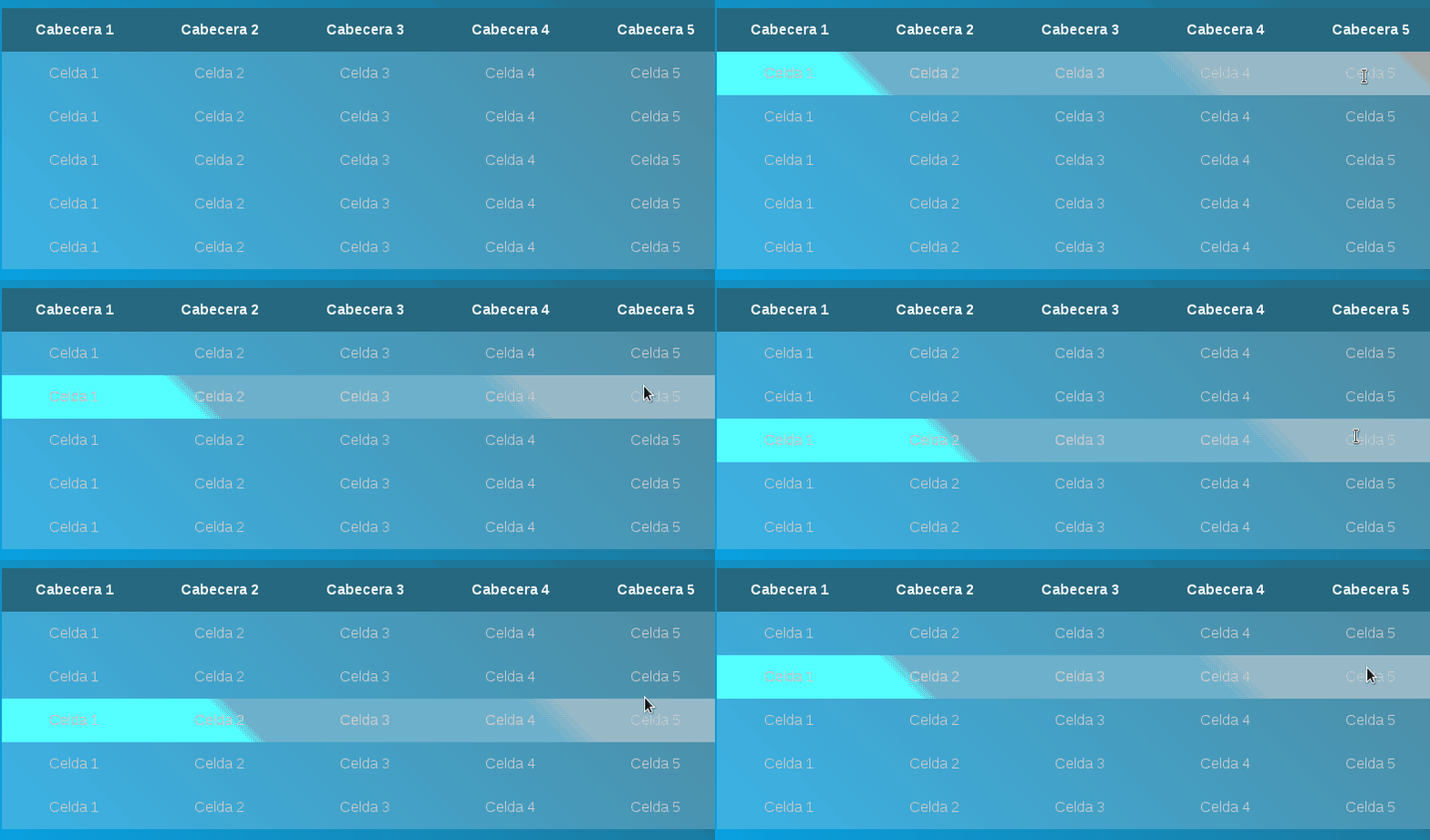
With this, we achieve that when hovering over a row, the entire line is visually highlighted. It is simple, clean, and works in all modern browsers.
This is always my first step because it improves readability immediately and has no side effects.
Highlighting columns
Here, things are not so direct since there is no element that defines a column; instead, we must create an "extra" container dynamically when positioning ourselves over the cell; it sounds complicated, but it isn't, and we have done it before :).
Why highlighting columns is more complicated
The problem is that HTML does not have an element that represents a complete column. We have rows (tr) and cells (td, th), but no columns as such.
Therefore, there is no such thing as:
col:hover { ... }So we have to think a bit differently. The solution that has given me the best results consists of creating an "extra" container dynamically when the cursor passes over a cell.
Creating an extra container from the before selector
As mentioned before, this "trick" has been done before, and it consists of creating a kind of "shadow" or "extra" container from an element using the before or after selector (which is the same trick we used in How to make a simple cloud in CSS) that acts as an elongated shadow.
In summary, with the following CSS:
.cuadro{
 width: 50px;
 height: 50px;
 background: #F00;
}

.cuadro:before {
 content: "";
 width: 50px;
 height: 50px;
 position:absolute;
 top: 100px;
 background-color: rgba(0, 255, 255, 0.2);
 z-index: -1;
}
The important thing is that this pseudo-element:
- Is position: absolute
- Is much taller than the table
- Stays behind the content
Before applying it to the table, this is the base concept:
We get:

Highlighting columns on hover
With this idea clear, we can modify it in the following way to work on the cells; the position: absolute in conjunction with negative positions allows generating an elongated container over the cell where we place the cursor:
tbody td:hover:before {
  content: "";
  position: absolute;
  left: 0;
  right: 0;
  top: -9999px;
  bottom: -9999px;
  background-color: rgba(255, 255, 255, 0.2);
  z-index: -1;
}
The technique of using large negative values (-9999px) might seem crude, but it is tremendously effective. In practice, the pseudo-element covers the entire visible column, regardless of the actual height of the table.
This approach is much more robust than trying to calculate exact heights.
content property is essential for generating the "extra" container.The "extra" container is only defined when the cursor is positioned over the cell (hence the chaining of the hover and before selectors) and with this we get:
The rest of the CSS is easy to interpret; the source resource can be found at the following link:
Combining horizontal and vertical highlighting
Once you have both effects defined, it's best to combine them. To make it work correctly, there is an important detail that I always apply:
td, th { position: relative;}table { overflow: hidden;}This ensures that:
- The pseudo-elements are positioned correctly
- The highlighting does not go outside the table
The result is a very clear cross effect: when hovering over a cell, its row and column are highlighted at the same time.
Visual details and best practices
Over time I have learned that less is more. Some practical tips:
- Use colors with rgba() and low opacity
- Avoid overly aggressive contrasts
- Combine this effect with zebra stripes (nth-child) if the table is large
Example of horizontal stripes:
tbody tr:nth-child(even) { background-color: #f2f2f2;}This greatly improves reading when there is a lot of data.
Limitations and important considerations
It is useful to be clear about a few things before using this trick in production:
- The use of z-index: -1 can cause problems if the table is inside containers with a background
- :hover does not work the same on touch devices
- It is not a good idea to nest tables with this effect
In real projects, when I need full touch support, I usually complement this with :focus or directly with JavaScript.
Is it possible to do it without JavaScript?
Yes, and this article is the proof. On desktop, it works perfectly with just CSS. For mobile, the behavior depends on the browser, but it remains a very valid solution for most cases.
Frequently Asked Questions
- Can a full column be highlighted with only CSS?
- Yes, using pseudo-elements (::before or ::after) on the cells.
- Why is there no column selector in CSS?
- Because columns are not real nodes in the DOM of an HTML table.
- Does this effect work on mobile?
- Partially. :hover is not ideal on touch screens, although it can be adapted with :focus.
- Is it better to use JavaScript?
- Only if you need more complex interactions or perfect touch support.
Conclusion
Highlighting rows and columns in an HTML table is entirely possible using only CSS, as long as you understand the limitations of the language. In my case, this trick with pseudo-elements has become a standard resource when I want to improve the user experience without adding unnecessary JavaScript.
If you understand the concept of the "extra container," the rest fits together on its own.