Fonts are a necessary instrument when designing our web pages; we need to know which font to choose and ensuring it fits our website; if only there were a repository to see different fonts, compare them, and customize them; well, it does exist and it is called Google Fonts; for a long time now, since CSS3 was invented and implemented, we no longer have to be extremely limited when using typographies on our web; we can forget about the overused fonts like Times New Roman, Georgia, Arial, Verdana, etc.; having to layout including texts followed by images and those layout methods that were so tedious and cumbersome, and the super slow loading times we had due to this practice because of the extra weight the web page gained.
Having explained what Google Fonts is and what its advantages are—which basically boils down to the enormous amount of fonts at our disposal—to use these standardized, high-quality typographic fonts, we simply have to reference them using @font-face, and we have multiple typography formats that we can cascade so the browser selects which one to use, allowing us to forget about browser compatibility.
Typographies are a key piece in any web project. For years, when I started designing my first pages, we were practically condemned to always use the same system fonts: Times New Roman, Arial, Verdana, or Georgia. If you wanted something different, the usual solution was to convert text into images, with the resulting problems of weight, maintenance, and extremely slow loading times.
Essential Google Fonts for a web page or application
Google Fonts is a free repository of web typographies maintained by Google. It includes hundreds of font families ready to be used in both personal and commercial projects.
Main advantages of Google Fonts
- Free access to hundreds of high-quality typographies.
- Guaranteed compatibility between browsers.
- Optimized loading via CDN.
- Possibility to download fonts and host them locally.
- Support for alphabets from all over the world.
- Variable fonts that reduce the number of loaded files.
All of this directly impacts UX, performance, and SEO.
Google has more than 1500 fonts available that we can use for free for our web development; we can download them and include them directly in our project instead of just referencing them from the Google Fonts website.
The arrival of CSS3 and services like Google Fonts completely changed this landscape. Today we can use professional, optimized, and compatible typographies with all browsers without complications. In this guide, I explain how to add Google Fonts to our website, step by step, with real-world performance and SEO best practices.
The best Google Fonts
1. Karla

2. Spectral

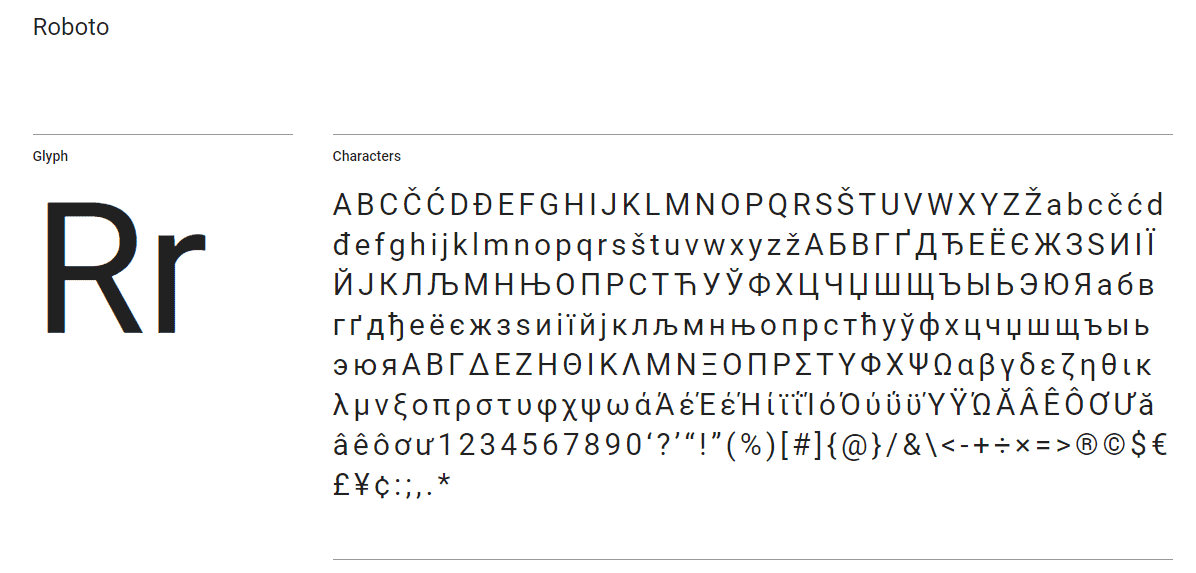
3. Roboto
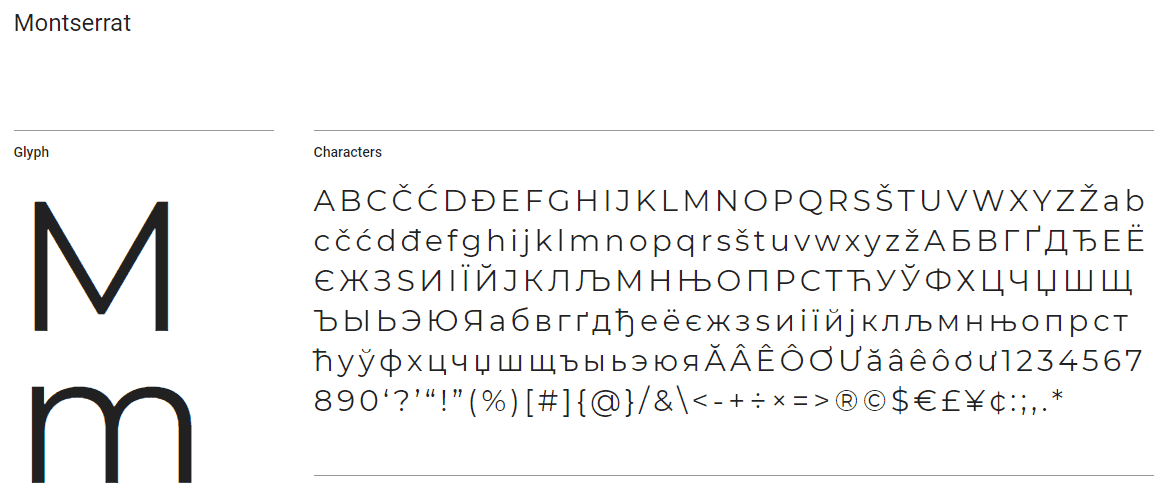
4. Montserrat
5. Rubik

6. Cardo

7. Crimson

8. Oswald

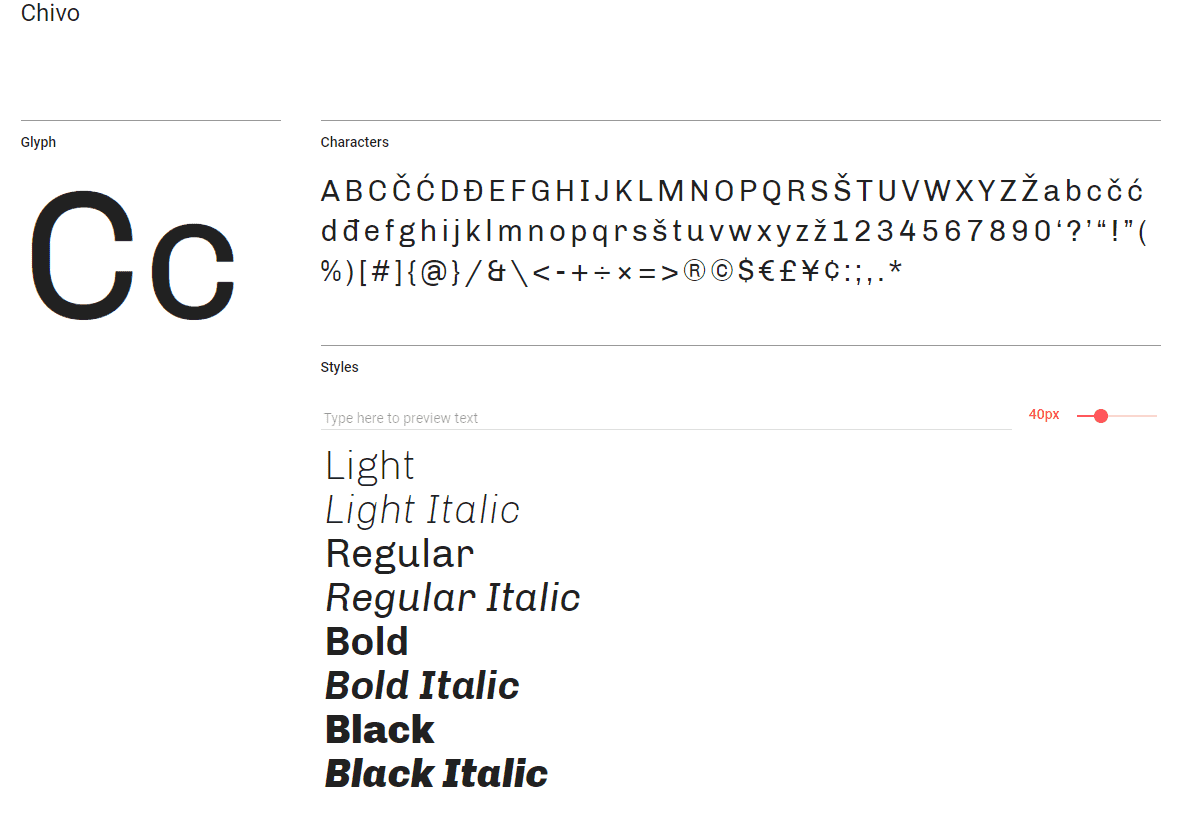
9. Chivo
10. Nunito

10. Exo

Installing and using Google Fonts
To use the font, we simply must place its name as a parameter of the family as you can see in the following example:
<link rel="preconnect" href="https://fonts.googleapis.com">
<link rel="preconnect" href="https://fonts.gstatic.com" crossorigin>
<link href="https://fonts.googleapis.com/css2?family=Nunito&display=swap" rel="stylesheet">
This must go inside the <head> tag of your HTML.
The display=swap parameter is key to avoiding CLS (Cumulative Layout Shift) problems.
Then to use the font, the following CSS code is enough:
body {font-family: 'Nunito', serif;font-size: 35px;}In Summary:
- Go to Google Fonts.
- Search for the typography you want to use.
- Select the necessary weights and styles (do not check them all).
A common mistake I made at the beginning was loading too many variants "just in case." Over time I learned that this can ruin a website's speed.
Effects with Google Fonts
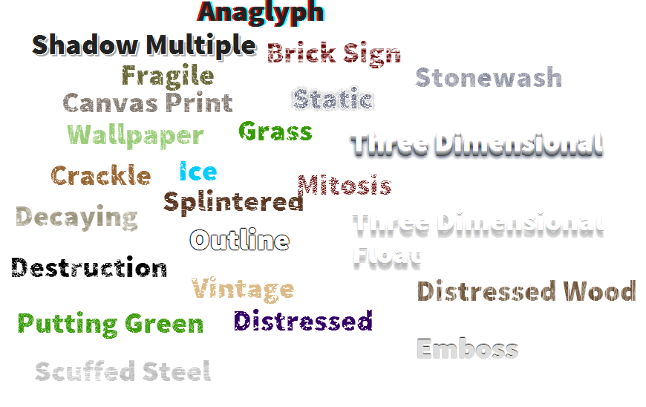
In this section, we will see how to create effects with Google Fonts; as the name implies, the Google Fonts API allows adding fonts to our website without many complications; in this article, we will focus mainly on how to use Google's effect fonts.
To import Google fonts into our website, we only need to include:
<link rel="stylesheet" type="text/css" href="http://fonts.googleapis.com/css" />Followed by the family parameter (preceded by the '?' character) and indicating the name of the font we want to use.
<link rel="stylesheet" type="text/css" href="http://fonts.googleapis.com/css?family=Rancho" />So far we have only loaded one particular font on our website; to use the effects we have to add the effect parameter to the end of the URL (preceded by the '&' character) with its respective value (the name of the effect).
<link rel="stylesheet" type="text/css" href="http://fonts.googleapis.com/css?family=Rancho&effect=fire-animation" />To use the previous effect, you just have to add the corresponding class name to our HTML elements:
<p class="font-effect-fire-animation">Fire Animation </p>Fire Animation
All effect class names come with the prefix font-effect- followed by the API name; additionally, we can load multiple effects in the same URL by separating each effect with the pipe character ('|').
List of all effects
| Effect | API Name | Class Name | Support |
|---|---|---|---|
| Anaglyph | anaglyph | font-effect-anaglyph | Chrome, Firefox, Opera, Safari |
| Brick Sign | brick-sign | font-effect-brick-sign | Chrome, Safari |
| Canvas Print | canvas-print | font-effect-canvas-print | Chrome, Safari |
| Crackle | crackle | font-effect-crackle | Chrome, Safari |
decaying | font-effect-decaying | Chrome, Safari | |
| Destruction | destruction | font-effect-destruction | Chrome, Safari |
| Distressed | distressed | font-effect-distressed | Chrome, Safari |
| Distressed Wood | distressed-wood | font-effect-distressed-wood | Chrome, Safari |
| Emboss | emboss | font-effect-emboss | Chrome, Firefox, Opera, Safari |
| Fire | fire | font-effect-fire | Chrome, Firefox, Opera, Safari |
| Fire Animation | fire-animation | font-effect-fire-animation | Chrome, Firefox, Opera, Safari |
| Fragile | fragile | font-effect-fragile | Chrome, Safari |
| Grass | grass | font-effect-grass | Chrome, Safari |
| Ice | ice | font-effect-ice | Chrome, Safari |
| Mitosis | mitosis | font-effect-mitosis | Chrome, Safari |
| Neon | neon | font-effect-neon | Chrome, Firefox, Opera, Safari |
| Outline | outline | font-effect-outline | Chrome, Firefox, Opera, Safari |
| Putting Green | putting-green | font-effect-putting-green | Chrome, Safari |
| Scuffed Steel | scuffed-steel | font-effect-scuffed-steel | Chrome, Safari |
| Shadow Multiple | shadow-multiple | font-effect-shadow-multiple | Chrome, Firefox, Opera, Safari |
| Splintered | splintered | font-effect-splintered | Chrome, Safari |
| Static | static | font-effect-static | Chrome, Safari |
| Stonewash | stonewash | font-effect-stonewash | Chrome, Safari |
| Three Dimensional | 3d | font-effect-3d | Chrome, Firefox, Opera, Safari |
| Three Dimensional Float | 3d-float | font-effect-3d-float | Chrome, Firefox, Opera, Safari |
| Vintage | vintage | font-effect-vintage | Chrome, Safari |
| Wallpaper | wallpaper | font-effect-wallpaper | Chrome, Safari |
Table with the list of all effects.
Source: https://developers.google.com/fonts/docs/getting_started?hl=es-419#Effects
How to add Google Fonts using @font-face (Total Control)
If you want more control or prefer to host the fonts on your own server, this method is ideal.
In larger projects, using a well-configured @font-face allowed me to completely forget about browser compatibility issues.
@font-face { font-family: 'Barlow'; src: url('../fonts/Barlow-Regular.woff2') format('woff2'), url('../fonts/Barlow-Regular.woff') format('woff'); font-weight: normal; font-style: normal; font-display: swap;}Then you apply the font as usual:
body { font-family: 'Barlow', sans-serif;}CDN vs local fonts: which is better?
There is no single answer, but these are the keys:
- Using Google Fonts via CDN
- Faster to implement.
- Shared cache between sites.
- Ideal for small or medium projects.
- Hosting fonts locally
- Fewer external requests.
- Greater control over privacy.
- Better option for projects optimized to the millimeter.
On websites where performance is critical, loading fonts locally is usually the best decision.
Best practices for using Google Fonts without affecting performance
This is where many articles fall short.
- Use only 2 or 3 font families.
- Limit weights (regular, medium, bold is usually enough).
- Always activate font-display: swap.
- Take advantage of variable fonts if available.
- Avoid loading fonts that are not actually used.
- Test performance with PageSpeed Insights.
Over time I learned that poor typography management can make a "pretty" website slow and uncomfortable to use.
Advanced use: typographic effects with Google Fonts
A little-known aspect is that Google Fonts allows applying typographic effects directly from its API.
Example of loading with effect:
<link rel="stylesheet" href="https://fonts.googleapis.com/css?family=Rancho&effect=fire-animation">And then in HTML:
<p class="font-effect-fire-animation">Fire Animation</p>These effects can add personality, but it is advisable to use them in moderation.
Common errors when adding Google Fonts
- Loading too many variants.
- Not using display=swap.
- Choosing fonts with poor readability for long texts.
- Abusing decorative fonts.
- Not testing final performance.
I have seen visually attractive websites lose positions on Google simply due to poor typographic management.
Frequently Asked Questions about Google Fonts
- Does Google Fonts affect SEO?
- Yes, indirectly. Poor font loading can affect speed and CLS, factors that Google takes into account.
- How many fonts are recommended to use?
- The ideal is 2 or 3 at most.
- Can I use Google Fonts offline?
- Yes, by downloading the fonts and hosting them locally.
- What is font-display: swap?
It allows showing a system font while the web typography is loading, avoiding visual jumps.
Conclusion
Knowing how to add Google Fonts to our website is no longer just an aesthetic issue, but a technical decision that affects performance, UX, and SEO. From my first projects to today, the difference between using "default" fonts and managing typography well has been enormous.
If you choose fonts well, load only what is necessary, and apply best practices, Google Fonts becomes a very powerful tool for any web project.