If you ever tried to put a “transparent” border in CSS and found that it looked gray or totally opaque, don't worry: it has happened to all of us. The good news is that the trick to achieving truly transparent borders is simple... when you know the secret ingredient.
I had to learn it while designing a custom button, one of those where you want the interface to look modern without overloading it. That's when I discovered that the border's transparency doesn't just depend on rgba(), but on how the background behaves underneath.
In this guide, I'll tell you exactly how to do it, why it works, and how to apply useful variations in buttons, cards, and UI components.
What are transparent borders in CSS and what are they for
In CSS, a transparent border is simply a border whose color includes an opacity value. This is achieved with rgba() or hsla().
The trick is that the container "lets you see" what is underneath it: it can be a color, an image, or a gradient.
They are used to:
- Create softer and more modern components.
- Buttons with a crystalline effect (I use them a lot in minimalist designs).
- Cards where you want a visible but discreet border.
- “Glassmorphism” style UI effects.
But for the border to truly look transparent —and not gray or dirty— you need to understand a detail of the box model...
We will see a small trick that allows the borders of the containers of our elements or HTML tags to look transparent.
The main method: RGBA + background-clip
This is the method that always works and the one used by the 3 competitors we analyzed.
.contenedor {
 background-color: white;
 border: 20px solid rgba(0, 0, 0, 0.5);
 background-clip: padding-box;
}
Why the border looks opaque even if you use rgba
This happens because, by default, the background extends beneath the border.
When the background is white, for example, that white mixes with the border's transparency and makes it look gray.
This is exactly what I discovered the first time I tried to add transparency to a button: instead of an elegant border, I got an ugly gray. I thought the rgba was wrong... but no: it was the background getting where it shouldn't.
How background-clip: padding-box works, explained simply
The key property that solves all this is:
background-clip: padding-box;In simple words:
- border-box (default value): the background touches the border → transparency ruined.
- padding-box: the background does not invade the border → the border looks as it should.
If you want transparent borders, always use background-clip: padding-box.
Practical examples of transparent borders
Basic transparent borders with rgba
.caja {
 background-color: white;
 border: 15px solid rgba(0, 0, 0, 0.5);
 background-clip: padding-box;
 padding: 20px;
}
Semi-transparent borders with rounded corners
.caja-redonda {
 background-color: white;
 border: 10px solid rgba(255, 0, 0, 0.4);
 background-clip: padding-box;
 border-radius: 12px;
 padding: 15px;
}
The trick works the same with border-radius, regardless of the value.
Custom buttons with transparent border (my experience)
I usually use transparent borders on buttons when I want a "lighter" effect. For example:
.boton-transparente {
 padding: 12px 20px;
 background-color: white;
 border: 2px solid rgba(0, 0, 0, 0.3);
 background-clip: padding-box;
 border-radius: 8px;
 font-weight: bold;
 cursor: pointer;
 transition: 0.3s;
}
.boton-transparente:hover {
 border-color: rgba(0, 0, 0, 0.6);
}
I use it a lot when I want a custom button without resorting to the classic "outline" style; the transparency softens everything and makes it more elegant.
Alternative techniques to achieve borders with transparency
These variants allow playing with more advanced styles or animations.
1. Use box-shadow as if it were a border
 background: white;
 padding: 20px;
 box-shadow: 0 0 0 5px rgba(0,0,0,0.3);
}
Advantages:
- You can make softer borders.
- Ideal for glassmorphism effects.
2. Use border-image with gradients
.caja-degradada {
 border: 6px solid transparent;
 border-image: linear-gradient(to right, transparent, rgba(0,0,0,0.4)) 1;
}
Perfect for "glowing" or stylized borders.
3. Transparency + hover with animation
.efecto-hover {
 border: 4px solid rgba(0,0,0,0.2);
 background-clip: padding-box;
 transition: border-color 0.3s ease;
}
.efecto-hover:hover {
 border-color: rgba(0,0,0,0.6);
}
I use it on buttons when I want the border to seem to "materialize" when the mouse hovers over it.
Transparent Borders
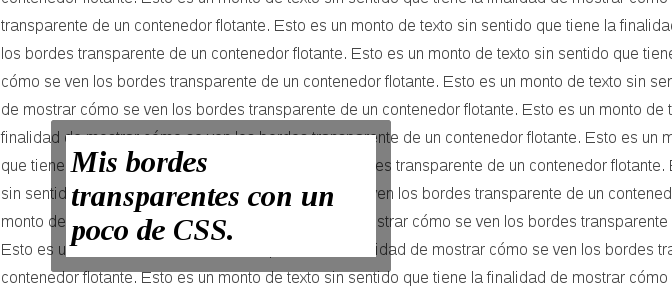
This trick is really simple; if we want to have transparent borders like the following on our boxes:
This is a bunch of meaningless text that aims to show how the transparent borders of a floating container look. This is a bunch of meaningless text that aims to show how the transparent borders of a floating container look. This is a bunch of meaningless text that aims to show how the transparent borders of a floating container look. This is a bunch of meaningless text that aims to show how the transparent borders of a floating container look. This is a bunch of meaningless text that aims to show how the transparent borders of a floating container look. This is a bunch of meaningless text that aims to show how the transparent borders of a floating container look. This is a bunch of meaningless text that aims to show how the transparent borders of a floating container look. This is a bunch of meaningless text that aims to show how the transparent borders of a floating container look. This is a bunch of meaningless text that aims to show how the transparent borders of a floating container look. This is a bunch of meaningless text that aims to show how the transparent borders of a floating container look. This is a bunch of meaningless text that aims to show how the transparent borders of a floating container look.
We must do two things
- Select a color with transparency by using an RGBA color instead of RGB or hexadecimal ones, which are perfect in these situations, as they allow easily varying the color's opacity through the 4th parameter of the RGBA color.
- Apply the property
background-clipwith the valuepadding-box, this way the background color is not shown behind the border; the use of thebackground-clipproperty is a topic we covered in the previous post.
Creating transparent borders
If we want to create a black border that has 50% transparency, we must apply the following RBGA color to our border:
rgba(0, 0, 0, 0.5); And for the background-clip property, we use this property precisely to prevent the background color from showing behind the border and ruining the effect:
background-clip: padding-box; Part of our CSS rule is thus defined as:
border: 20px solid rgba(0, 0, 0, 0.5); background-clip: padding-box; Finally, we get the following effect:
This is a bunch of meaningless text that aims to show how the transparent borders of a floating container look. This is a bunch of meaningless text that aims to show how the transparent borders of a floating container look. This is a bunch of meaningless text that aims to show how the transparent borders of a floating container look. This is a bunch of meaningless text that aims to show how the transparent borders of a floating container look. This is a bunch of meaningless text that aims to show how the transparent borders of a floating container look. This is a bunch of meaningless text that aims to show how the transparent borders of a floating container look. This is a bunch of meaningless text that aims to show how the transparent borders of a floating container look. This is a bunch of meaningless text that aims to show how the transparent borders of a floating container look. This is a bunch of meaningless text that aims to show how the transparent borders of a floating container look. This is a bunch of meaningless text that aims to show how the transparent borders of a floating container look. This is a bunch of meaningless text that aims to show how the transparent borders of a floating container look.
Assuming we want a red color for the border:
border: 20px solid rgba(255, 0, 0, 0.5); And we get:
This is a bunch of meaningless text that aims to show how the transparent borders of a floating container look. This is a bunch of meaningless text that aims to show how the transparent borders of a floating container look. This is a bunch of meaningless text that aims to show how the transparent borders of a floating container look. This is a bunch of meaningless text that aims to show how the transparent borders of a floating container look. This is a bunch of meaningless text that aims to show how the transparent borders of a floating container look. This is a bunch of meaningless text that aims to show how the transparent borders of a floating container look. This is a bunch of meaningless text that aims to show how the transparent borders of a floating container look. This is a bunch of meaningless text that aims to show how the transparent borders of a floating container look. This is a bunch of meaningless text that aims to show how the transparent borders of a floating container look. This is a bunch of meaningless text that aims to show how the transparent borders of a floating container look. This is a bunch of meaningless text that aims to show how the transparent borders of a floating container look. This is a bunch of meaningless text that aims to show how the transparent borders of a floating container look.
And that would be all, as you see, by using the same border property we can vary the thickness or size of the border, which in these examples is 20px.
Frequently Asked Questions (FAQs)
- Can I make completely invisible borders?
- Yes:
border: 10px solid transparent;- Useful for layout tricks and pseudo-elements.
- Does it work with background images?
- Yes, as long as you use background-clip: padding-box.
- Can I use hsla() instead of rgba()?
- Absolutely.
border: 10px solid hsla(0, 0%, 0%, 0.3);
Conclusion
Transparent borders in CSS are easy to create when you know the key trick: combining rgba() with background-clip: padding-box.
This allows you to build more modern interfaces, cleaner buttons (I use them a lot in my own developments), and visual effects that don't over-saturate the design.
If you want to take them further, try variants like box-shadow or border-image to achieve advanced styles without getting complicated.