
Before starting to show some very useful commands to start working with Git, let's get into context and explain what Git is.
What is Git?
Git is an open-source version control system under the GPLv2 license that we can use freely. It was designed by the creator of Linux himself, Linus Torvalds, and it allows us to store, change, and collaborate on code with other users; that is, by using Git, we can have complete control over the code.
As a disclaimer, I would like to point out that Git is a huge topic. Books have been written about Git, and blog posts that could also be mistaken for academic articles. That is not what I am looking for here. I am not a Git expert. My goal here is to write the post on Git fundamentals that I wish I had when learning Git.
As developers, our daily routine revolves around reading, writing, and reviewing code. Git is arguably one of the most important tools we use. Mastering the features and functionalities that Git offers is one of the best investments you can make in yourself as a developer.
Setting up Git for the First Time
If you are a software developer, chances are you have heard of version control. This practice is essential for managing changes to your code over time. One of the most popular version control systems is Git, widely used by developers all over the world. In this guide, we will explore how to set up Git for the first time and some tips to make the most of it.
Git is a fundamental tool when developing our applications; any package you want to use today or any project you want to look at for reference probably uses Git to handle its versioning and is hosted on some repository on the Internet like GitHub.
What is Version Control?
Version control is the management of changes to documents, files, or any other type of data. In software development, it is essential for tracking and managing changes to code, ensuring its quality, reducing errors, and improving collaboration among team members. Without version control, managing and tracking changes in code would be a difficult and error-prone task.
What is Git?
Git is a version control system widely used by developers to manage changes in code. As mentioned earlier, it is widely used with GitHub or similar platforms because, in this way, we can have a reference and an order when developing our projects. If we did some development two years ago and want to review something, we can perfectly see the history in Git or checkout to the moment that change was made to our project and review it.
Ultimately, Git is your best ally for developing applications; there are countless reasons to use it, whether you develop in a team or alone, you should always have a copy of your work and a log, and that is what Git is for, and much more.
Initial Git Configuration
1. Download Git
To get started, download Git from the official Git website. Choose the appropriate version for your operating system.
2. Install Git
Follow the installation instructions for your operating system, but you can go to the official Git page and see what the options are according to your operating system; usually, it is either a console command or simply running an executable.
Once installed, verify that Git is available on the command line by running:
git --version
It should return a number indicating the version of Git installed on your computer.
3. Configure Your Name and Email Address
Configure your name and email address so that Git can correctly identify your changes:
git config --global user.name "Your Name"
git config --global user.email "your@email.com"
This is indispensable if you later want to use a system like GitHub to store your work.
4. Create a Repository
Finally, with the previous steps, you can now use Git. The first thing we do is initialize some project, whether it is empty or not; there are no excuses for not starting a new project in Git.
- New Repository:
Create a folder for your project and run:
git init
- Clone Existing Repository:
Run:
git clone <Repository URL>
Basic Git Commands
Git has an infinite number of commands you can use, but among the main ones we have the following:
git add <file>: Adds changes to the staging area.git commit -m "Commit Message": Performs a commit with a descriptive message.git push: Sends changes to the remote repository.git pull: Gets changes from the remote repository.
Best Practices with Git
- Atomic Commits: Make small and specific commits.
- Write Descriptive Messages: Clearly describe the changes made in each commit.
- Use Branches: Create branches for new features and fix bugs outside the main branch.
- Collaborate: Work with other developers and use tools like GitHub or GitLab.
Fundamentals
The fundamentals of Git are repositories, which are nothing more than a folder or box where our code is located, and Git is the one that maintains control over our files based on some guidelines, which are the following:
- Modified:
- Represents files that have undergone changes in the working directory but have not yet been marked to be committed.
- These changes have not been recorded in the repository.
- Staged:
- Refers to files that have been modified in the working directory and have been marked as ready to be committed to the local repository.
- These files are in a transient temporary area before being definitively committed.
- The action of marking files as staged is called "add" (this is a command we will see later).
- Committed:
- Indicates that the file has been recorded in the local repository.
- The action of committing changes is called "commit".
- Once committed, the file becomes part of the repository's version history.
These 3 states are key and form part of the life cycle of files in a repository.
These are nothing more than states in which our files can be when we use Git in a project.
Branches
A branch in Git is simply a pointer that points to a state of our application in a repository, which points to a specific commit within the version history. We can navigate through this pointer to see previous states or to move to new states based on the commits we make in our project using Git.
In a Git repository, you will find a main line of development, usually called "main" or "master" (deprecated), from which several branches diverge. These branches represent simultaneous workflows, allowing developers to address multiple features or fixes simultaneously within the same project.
Commits
Git commits serve as packages of updated code, capturing a snapshot of the project code at a specific point in time. Each commit records the changes made since the last commit was recorded, and together they create a complete history of the project's development journey.
When referencing commits, you will generally use their uniquely identified cryptographic hash.
git show abc123def456789Tags
Git tags serve as reference points within Git history and typically mark important milestones in a project's development, such as releases, versions, or prominent commits. These tags are invaluable for marking specific points in time and often represent the starting points or major achievements in a project's journey.
HEAD
The HEAD indicates the most recent commit on the currently checked-out branch, and serves as a pointer to any reference within the repository. When you are on a specific branch, HEAD points to the last commit on that branch. Sometimes, instead of pointing to the tip of a branch, HEAD can point directly to a specific commit (detached HEAD state).
In Git, HEAD is a pointer that references the current point in the repository's change history that you are working with. Usually, it points to the last commit in the branch you are currently on. However, since you can also move between commits, there are cases where HEAD does not necessarily point to the last commit.
And why is it called HEAD? Well, each change recorded in the repository is identified by a unique hash (which we will talk about later). Referring to a specific commit by its hash would be quite awkward.
Imagine the following: you have the ability to travel through time and space. In that scenario, HEAD would always point to your current location, no matter when or where you are.
Stages
Understanding the Git stage is crucial for navigating your Git workflow. They represent the logical transitions where changes to your files occur before they are pushed to the repository. Let's dive deeper into the concept of Git stages:
Working directory
The working directory is where you edit, modify, and create files for your project. It represents the current state of your files on your local machine.
Staging area
The Staging area is like a waiting area or a pre-commit zone where you prepare your changes before sending them to the repository.
Useful command here: git add. You can also use git rm to cancel changes.
Local repository
The local repository is where Git permanently stores committed changes. It allows you to review your project history, revert to previous states, and collaborate with others on the same codebase.
You can commit changes that are ready in the staging area with: git commit
How to know if you have Git installed:
Many systems already come with Git installed by default and ready to use, although it is likely an old version, so you could update it. In any case, to determine if we have Git installed, we can run a command:
git --versionRemote repository
The remote repository is a centralized location, typically hosted on a server (like GitHub, GitLab, or Bitbucket), where you can share and collaborate with others on your project.
You can use commands like git push and git pull to send/pull committed changes from your local repository to the remote repository.
Getting Started with Git
Well, you have to start somewhere, and in Git that is your workspace. You can fork or clone an existing repository and have a copy of that workspace, or if you are starting completely from scratch in a new local folder on your machine, you must turn it into a git repository with:
git init The next step, which should not be overlooked, is to configure your credentials.
Configure credentials
When you run push and pull to a remote repository, you don't want to have to type your username and password every time; avoid this simply by running the following command:
git config --global credential.helper storeThe first time you interact with the remote repository, Git will ask you to enter your username and password. And after that, you won't be asked again.
It is important to note that credentials are stored in plain text format inside a .git-credentials file.
To verify the configured credentials, you can use the following command:
git config --global credential.helperWorking with branches
When working locally, it is critical to know which branch you are currently on. These commands are useful:
# Will show the changes in the local repository
git branch
# Or create a branch directly with
git branch feature-branch-name
To transition between branches use:
git switch
In addition to transitioning between them, you can also use:
git checkout
# A shortcut to switch to a branch that is yet to be created with the -b flag
git checkout -b feature-branch-name
To check the status of the repository, use:
git statusA great way to always have a clear view of your current branch is to see it directly in the terminal. Many terminal plugins can help with this. Here is one.
Working with commits
When working with commits, use git commit -m to record changes, git amend to modify the most recent commit, and do your best to adhere to commit message conventions.
# Make sure to add a message to each commit
git commit -m "meaningful message"
If you have changes for your last commit, you don't have to create another commit entirely; you can use the --amend flag to modify the most recent commit with your staged changes.
# make your changes
git add .
git commit --amend
# This will open your default text editor to modify the commit message if needed.
git push origin your_branch --force
Be careful when using --force, as it has the potential to overwrite the history of the target branch. In general, its application on the main/master branch should be avoided.
As a general rule, it is better to commit more frequently to avoid losing progress or accidentally resetting uncommitted changes. History can be rewritten later by squashing multiple commits or performing an interactive rebase.
Use git log to display a chronological list of commits, starting from the most recent commit and going back in time.
Manipulating history
Manipulating history involves some powerful commands. Rebase rewrites commit history, Squashing combines multiple commits into one, and Cherry-picking selects specific commits.
How can I undo my changes?
It is possible to undo the last commit if it has not yet been published to the repository, which is quite useful if you made a mistake when defining it. To do this:
git reset --soft HEAD~1The reset parameter allows you to go back to another revision, in this case, the one pointed to by HEAD minus one. Remember that HEAD points to the current state, so if we subtract 1, it would point to the previous one.
Finally, the --soft parameter is what will cause the changes configured in the commit to be kept in the repository without deleting them. If you do not want to keep the changes, use the --hard option instead:
git reset --hard HEAD~1Rebasing and merging
It makes sense to compare rebasing with merging, as their goal is the same but they achieve it in different ways. The crucial difference is that rebasing rewrites the project history. A desired choice for projects that value a clear and easily understandable project history. On the other hand, merging maintains the histories of both branches by generating a new merge commit.
During a rebase, the commit history of the feature branch is restructured as it is moved to the HEAD of the main branch.
The workflow here is quite straightforward.
Make sure you are on the branch you want to change and fetch the latest changes from the remote repository:
git checkout your_branch
git fetch
Now choose the branch you want to rebase onto and run this command:
git rebase upstream_branchAfter rebasing, you may need to force push the changes if the branch has already been pushed to a remote repository:
git push origin your_branch --forceSquashing
Git squashing is used to condense multiple commits into a single cohesive commit.
The concept is easy to understand and especially useful if the code unification method used is rebasing, since the history will be altered, it is important to consider the effects on the project history. There have been times when I have struggled to perform a squash, especially using interactive rebase, fortunately we have some tools that can help us. This is my preferred squashing method, which involves moving the HEAD pointer back X number of commits while keeping the changes staged.
# Change to the number after HEAD~ depending on the commits you want to squash
git reset --soft HEAD~X
git commit -m "Your squashed commit message"
git push origin your_branch --force
Cherry-picking
Cherry-picking is useful for selectively incorporating changes from one branch to another, especially when merging entire branches is not desirable or feasible. However, it is important to use cherry-picking wisely, as it can lead to duplicate commits and divergent histories if applied incorrectly.
To perform this, you must first identify the commit hash of the commit you want to select; you can do this with git log. Once you have identified the commit hash, you can run:
git checkout target_branch
git cherry-pick <commit-hash> # Do this multiple times if multiple commits are wanted
git push origin target_branch
Advanced Git Commands
Signing commits
Signing commits is a way to verify the authenticity and integrity of your commits in Git. It allows you to cryptographically sign your commits using your GPG (GNU Privacy Guard) key, assuring Git that you are indeed the author of the commit. You can do this by creating a GPG key and configuring Git to use the key when making the commit. Here are the steps:
# Generate a GPG key
gpg --gen-key
# Configure Git to Use Your GPG Key
git config --global user.signingkey <your-gpg-key-id>
# Add the public key to your GitHub account
# Signing your commits with the -S flag
git commit -S -m "Your commit message"
# View signed commits
git log --show-signature
Git reflog
A topic we haven't explored is Git references; they are pointers to various objects within the repository, primarily commits, but also tags and branches. They serve as named points in Git history, allowing users to navigate through the repository timeline and access specific project snapshots. Knowing how to navigate git references can be very useful, and you can use git reflog to do just that. Here are some of the benefits:
- Recover lost commits or branches
- Debugging and troubleshooting
- Undo mistakes
Interactive rebase
Interactive rebase is a powerful Git feature that allows you to rewrite commit history interactively. It allows you to modify, reorder, combine, or delete commits before applying them to a branch.
In order to use it, you need to familiarize yourself with the possible actions such as:
- Pick (“p“)
- Reword (“r“)
- Edit (“e“)
- Squash (“s“)
- Drop (“d“)
Conflicts
Do not panic; when you try to merge or rebase a branch and conflicts are detected, it only means that there are conflicting changes between different versions of the same file or files in your repository, and they can be easily resolved (most of the time).
They are usually indicated within the affected files, where Git inserts conflict markers <<<<<<<, =======, and >>>>>>> to highlight the conflicting sections. Decide which changes to keep, modify, or remove, ensuring that the resulting code makes sense and preserves the intended functionality.
After manually resolving conflicts in the conflicting files, remove the conflict markers <<<<<<<, =======, and >>>>>>> and adjust the code as needed.
Save the changes to the conflicting files once you are satisfied with the resolution.
Git Cheat Sheet
# Clone a Repository
git clone <repository_url>

# Stage Changes for Commit
git add <file(s)>

# Commit Changes
git commit -m "Commit message"

# Push Changes to the Remote Repository
git push

# Force Push Changes (use with caution)
git push --force

# Reset Working Directory to Last Commit
git reset --hard

# Create a New Branch
git branch <branch_name>

# Switch to a Different Branch
git checkout <branch_name>

# Merge Changes from Another Branch
git merge <branch_name>

# Rebase Changes onto Another Branch (use with caution)
git rebase <base_branch>

# View Status of Working Directory
git status

# View Commit History
git log

# Undo Last Commit (use with caution)
git reset --soft HEAD^

# Discard Changes in Working Directory
git restore <file(s)>

# Retrieve Lost Commit References
git reflog

# Interactive Rebase to Rearrange Commits
git rebase --interactive HEAD~3
Essential Commands in Git
We are going to learn about some essential commands for working with Git, taking as a case study the communication between Git and GitHub to connect these two systems; therefore, we will see the commands we use most for this purpose.
Initialize a Repository
For that, the command is:
git initGet the Remote URL
The first thing you need to know if you are working with an existing repository is whether you already have a remote URL assigned: for that:
git remote -vIf we see an output like the following:
origin  https://libredesarrollo:password@github.com/libredesarrollo/laradesarrollolibre.git (fetch)
origin  https://libredesarrollo:password@github.com/libredesarrollo/laradesarrollolibre.git (push)
You already have a remote assigned. If we don't see anything, we generally call this remote origin, which happens to be the repository on GitHub, and we can set it up.
Set the Remote URL
To connect to a repository that already exists but we DO NOT have a remote assigned on GitHub (or another platform):
git remote add origin <repo>For example:
git remote add origin <repo>For example:
git remote add origin https://github.com/libredesarrollo/vue-native-ruteo-base.gitAnd if the origin exists and we want to change it (a remote that you already have assigned), we modify it with the following command:
git remote set-url origin https://github.com/libredesarrollo/vue-native-ruteo-baseYou can run remote -v again to see where you are positioned now.
Creating a tag/release
To create a tag and generate a release on GitHub with the current state of the repository, we have the following command:
git tag -a V0.1 -m "Connections to ApiRest, listing and routing"And then push the changes:
git push --tagsA tag is ideal when we want to save a copy or mirror of what we currently have.
Renaming a branch:
This is useful if you are using an old version of Git in which the main branch is called master by default; now it is advised to name it main:
git branch -M mainAdding the changes of our project
If we want to add them all:
git add .If we want to add files one by one:
git add miarchivo.htmlIf we want to add only files of a certain type:
git *.htmlStaging the changes we are going to upload
Once we have the changes added to our local repository using the git add command, the next thing we would want to do is publish them to our remote repository; but before that, we have to prepare the changes we want to upload:
git commit -m "first commit"Where the "m" option is used to specify the message.
Publishing changes to the repository
Now finally, with our repository, the next thing we do is publish the changes:
git pushIf it gives you an error like the following:
cfd4d28..0b746ef  main       -> origin/main
There is no tracking information for the current branch.
Please specify which branch you want to merge with.
See git-pull(1) for details.

    git pull <remote> <branch>

If you wish to set tracking information for this branch you can do so with:

    git branch --set-upstream-to=origin/<branch> main
You must specify which remote and local branches you are going to work with:
git push origin mainInitializing and configuring a new repository
git init
git add README.md
git commit -m "first commit"
git branch -M main
git remote add origin git@github.com:libredesarrollo/vue-native-ruteo-base.git
git push -u origin main
These commands are the ones most used by myself when working with Git and a remote repository like those offered by GitHub.
Git add, commit, and push
git add: staging area
The area called staging is a transient and temporary area, where we can move modified files
from our workspace to the staged state: for this operation we use:
git add tuarchivosgit commit: Save to the local repo
We use commits to record changes that have occurred in the local repository.
git push: Publish to a remote repo
With git push, we can finally send our changes to a remote repository or on the internet (or on an intranet, if you have a repository at your local network level).
git status
Every time you add something to the staging area, you can use:
git statusTo check which files are there.
How to Save Username and Password in Git
Credential handling in Git is crucial to smooth your workflow and ensure the security of your repositories. In this guide, we will explore how to safely save your username and password in Git.
1. Initial Configuration
Before starting, make sure you have Git installed on your system. Then, follow these steps:
- Configure Your Name and Email Address:
Open a terminal and run the following commands:
git config --global user.name "Your Name" git config --global user.email "your@email.com"- Replace “Your Name” and “your@email.com” with your actual details.
- Save Your Credentials:
Run:
git config --global credential.helper store- This will store your credentials in a file on your local disk.
2. Security Considerations
It is important to keep the following in mind:
- Plain Text Storage: Credentials are saved in a plain text file on your computer. Make sure nobody else has access to this file.
- More Secure Alternatives:
- If you want a more secure solution, consider using SSH or personal access tokens instead of saving passwords in plain text.
- You can configure Git to use OAuth authentication via Git Credential Manager.
3. Test and Document
- Test Your Configuration: Perform some Git operations (like pull or push) to verify that your credentials are saved correctly.
- Document Your Changes: Add comments in your code or in a README file to explain how you configured your credentials. This will be helpful for you and other developers working on the project.
First Steps with GitHub: The Version Control System

Git is an excellent Version Control System that, in other words, allows controlling changes over time for any type of program under development.
GitHub is a sort of hosting service for Git where a large number of projects, both public and private, are hosted (for the latter, you need a paid account); it has been highly successful and is used by all kinds of companies or successful corporations like Google to upload different projects.
1.0 Installing Git
Before installing Git, it is recommended to create an account on the official GitHub page Join GitHub which we will use a bit later to configure Git and in subsequent entries to synchronize our project.
Now we will see how to install Git on our machine; to install Git on Fedora, we run in our terminal:
sudo yum install git
If on the contrary we use a Linux distribution like Ubuntu, Debian, or derivatives, try with:
sudo apt-get install git
2. First Steps with GitHub
2.1 Configuring our account
One of the first things we should do before working with Git on our projects is to add our account and email address to our Git installation, which we used to register on GitHub, using the git config command:
git config --global user.name "account"
git config --global user.email "email@gmail.com"
To view the configurations we made in the previous step, we can use the following command:
git config --list
user.name=account
user.email=email@gmail.com
core.repositoryformatversion=0
core.filemode=true
core.bare=false
core.logallrefupdates=true
3 Managing projects
Once Git is installed and configured, we have two possible scenarios if we want to integrate Git into our projects:
3.1 Initializing a new or existing project
For this, we must initialize the project with the following commands:
$ git init
Initialized empty Git repository in /home/andres/gittest/.git/
As we will see in the output of the command, this will create a hidden folder named .git (you can view hidden folders and files in Linux using the keyboard combination: Control + h) which contains all the necessary data to synchronize the project.
gittest folder contains our project, which can be an Android project, PHP, or anything else that doesn't necessarily have to have a particular structure.3.2 Getting a project from GitHub repositories (cloning)
If we want to work with an existing project hosted in a GitHub repository, we can clone it or copy it to our machine to work on it with:
git clone https://github.com/libredesarrollo/android.git
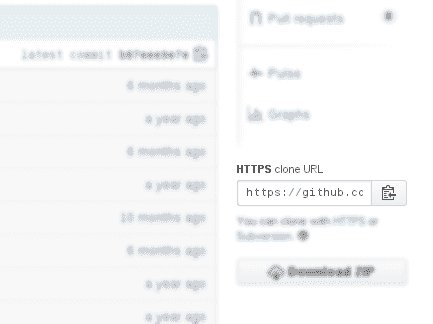
To get the project URL from GitHub, copy it from:
4 Getting Started with the Git Version Control System
At this point, we have completed the following tasks:
- Installed Git
- Configured Git
- Initialized a project with Git
Now we can start working with the Version Control System, which in other words means adding the various scripts that make up our program; for example, let's add the typical README.txt file:
echo "Some text" > README.txt
For now, we have a simple file that we want Git to track:
ls
README.txt
If we want to know what the status of our project is so far or to determine the status of the files, we must use the git status command and we would see:
git status
Initial commit

Untracked files:
  (use "git add <file>..." to include in what will be committed)

	README.txt

nothing added to commit but untracked files present (use "git add" to track)
Which means we are clean and Git doesn't have anything to track yet until we add our file with git add.
git add.So we must specify that the previous file named README.txt be traced by Git or, what is the same, that Git tracks it; for this, we use the command git add <file>.
To add the file created previously:
git add README.txt
We could also have used:
git add *.txt
To add all new or modified files whose extension is txt.
or
git add --all
To add all files in the project that are new or modified.
Whichever command you execute, the result will be the same for our example.
If we check the status of our project again:
git status
On branch master

Initial commit

Changes to be committed:
  (use "git rm --cached <file>..." to unstage)

	new file:   README.txt
Which means that the file README.txt is ready for Git to track it and is waiting to be confirmed with the git commit command.
Confirming changes with git commit
Now, to confirm that we want the previous file to be tracked:
git commit -m "our first project with git"
[master (root-commit) 99cf1ee] our first project with git
 1 file changed, 1 insertion(+)
 create mode 100644 README.txt
-m option is used along with the commit command.View the history of project confirmations
In other words, the log or history of all the commits that have been made:
[andres@localhost gittest]$ git log
commit 99cf1eef86a66b45f540212a4869c97af245330b
Author: XXX
Date:   Thu Aug 20 11:00:01 2015 -0430

    our first project with git
In our example, we have only made one confirmation or commit.
Conclusions
In this entry, we saw a brief introduction to Git and learned what GitHub is; we also saw how to configure an account, use it in our projects, and indicated Git to track some of our files; but there are still several components left that we will see in the next entries.