
Generating PDFs with JavaScript is a very common need in modern web applications. In my case, I have encountered this need time and again when building reporting systems, administrative panels, or data export modules, where users expect to be able to download PDF reports with a single click.
The good news is that today there are several JavaScript libraries that allow you to create, modify, and view PDF files directly from the browser, without depending on other languages or a complex backend. In this guide, I explain what options exist, when to use each one, and how to generate custom PDFs step-by-step with real examples.
Why generate PDFs with JavaScript in web applications
The PDF format remains the standard for professional documents such as invoices, reports, contracts, or briefings. The main advantage is that it keeps the design intact on any device, which is key when talking about official documents.
From a web development perspective, generating PDFs with JavaScript has clear advantages:
- Immediate response to the user, without server calls.
- Lower backend load.
- Ability to work even without an internet connection.
- Greater visual control over the final result.
Main JavaScript libraries for working with PDFs
Not all libraries serve the same purpose. This is where many developers make mistakes.
Reporting is a fundamental task that must be carried out in any system; wanting to import data from a web page to another format like PDF is a very common task that can be easily performed through JavaScript libraries such as the following:
- JavaScript reporting server
- jsPDF
- ByteScout
On Google, you can find a large number of libraries that perform PDF conversions; however, this is one of the libraries I liked the most due to its simplicity when creating a PDF.
jsPDF: creating PDFs from scratch easily
jsPDF is undoubtedly one of the most popular libraries for generating PDFs with JavaScript. Personally, it is one of the ones I liked the most for its simplicity and speed when creating documents from scratch.
It is ideal when you need to:
- Generate PDF reports.
- Export tabular data.
- Create custom documents with text, images, and graphics.
PDF.js: viewing PDFs in the browser
PDF.js, developed by Mozilla, is not intended to generate PDFs, but rather to view them directly in the browser using HTML5 and canvas.
It is perfect if your goal is:
- Display PDF documents embedded in a website.
- Add zoom, navigation, or text search.
But if you are looking to create or modify PDFs, PDF.js is not the right tool.
pdf-lib: creating and modifying existing PDFs
pdf-lib is a very powerful alternative when you need to modify existing PDFs, fill out forms, or merge documents.
It works in both the browser and Node.js and allows you to:
- Edit existing PDFs.
- Create forms.
- Manipulate pages and custom fonts.
Creating a PDF with jsPDF: Generating PDF files
jsPDF is a free JavaScript library for any type of project that allows generating PDFs with JavaScript very simply and without depending on other languages; jsPDF is lightweight and fast when generating PDFs; with a few lines of JavaScript code, we can generate our PDF reports from scratch.
The first thing we should do is download the JavaScript library.
Next, we unzip it and place the dependency in our web project:
<script src="dist/jspdf.min.js"></script>Once the library is imported, we can now use all the functionalities offered by this API to create PDFs; the first thing we must do is create an object or instance of type jsPDF:
var doc = new jsPDF();Create a basic PDF with text and images
From here, the library provides a series of functions to perform the most common operations:
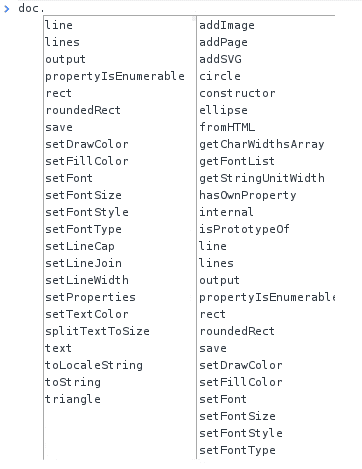
Basically, the library is equipped to draw:
- Lines.
- Texts.
- Images.
- Geometric shapes.
If we wanted to create a PDF; if we wanted to add a title followed by an image like this:

It will be enough to apply the following lines of code:
var doc = new jsPDF();

doc.setFontSize(40);
doc.text(40, 20, "Octocat loves jsPDF");

var imgData = 'data:image/jpeg;base64,...';
doc.addImage(imgData, 'JPEG', 10, 40, 180, 180);

doc.save('ejemplo.pdf');
Where:
- The variable
imgDatarefers to the image. - The
setFontSize()function specifies the font size. - The
text()function adds text at the specified position. - The
addImage()function adds an image at the specified position.
Customizing PDFs: fonts, colors, and sizes
Placing the full code:
var doc = new jsPDF();
var imgData = 'data:image/jpeg;base64,/ …;
doc.setFontSize(40);
doc.text(40, 20, "Octocat loves jsPDF");
doc.addImage(imgData, 'JPEG', 10, 40, 180, 180);
And we obtain the following PDF:
Orientation, metadata, and text alignment: in landscape format
Another code we can use is to indicate that the PDF sheet should be in landscape; to do this:
var doc = new jsPDF();
doc.setFontSize(40);
doc.text(40, 20, "Octocat loves jsPDF");
var imgData = 'data:image/jpeg;base64,...';
doc.addImage(imgData, 'JPEG', 10, 40, 180, 180);
doc.save('ejemplo.pdf');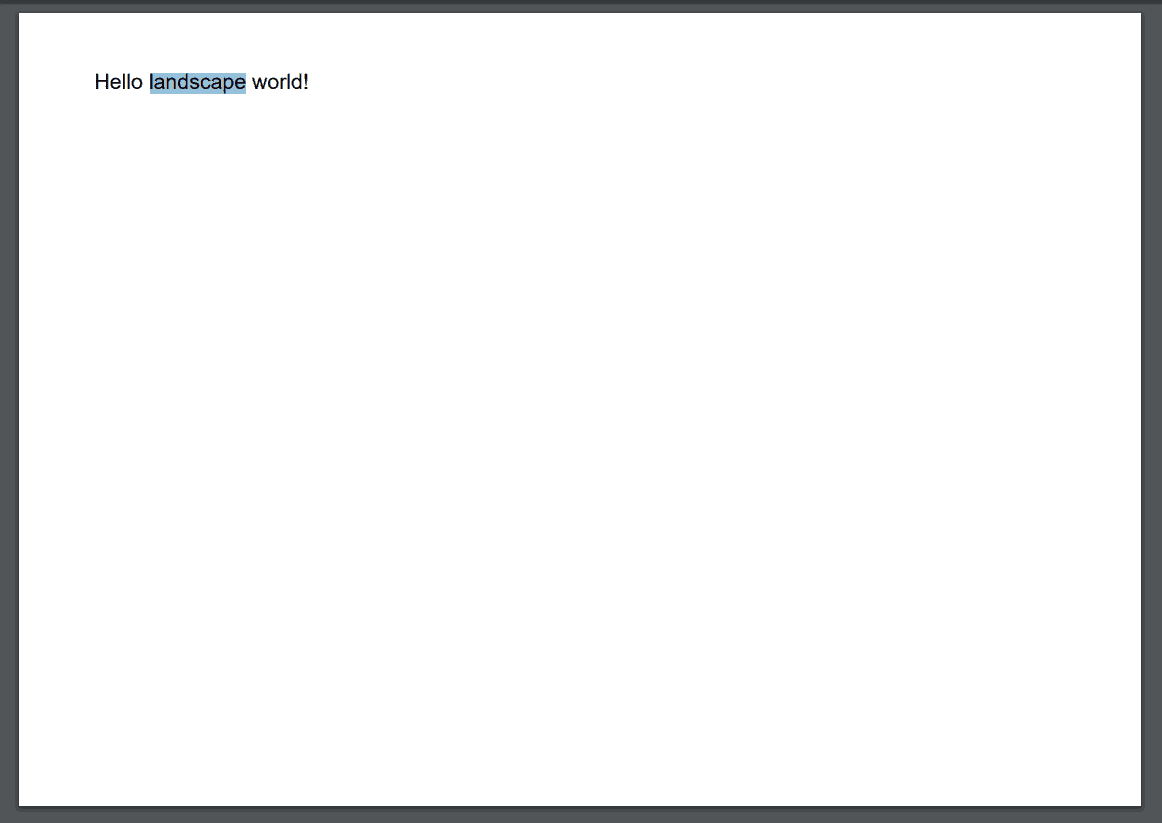
Metadata of the generated PDF
var doc = new jsPDF();
var imgData = 'data:image/jpeg;base64,/ …;
doc.setFontSize(40);
doc.text(40, 20, "Octocat loves jsPDF");
doc.addImage(imgData, 'JPEG', 10, 40, 180, 180);
PDF text size
To change the text size of the PDF we have the setFontSize function:
var doc = new jsPDF('landscape');
doc.text(20, 20, 'Hello landscape world!');
doc.setProperties({
  title: 'Reporte',
  subject: 'Exportación de datos',
  author: 'Mi aplicación'
});
PDF font type
We can also change the font type and its format with the setFont and setFontType methods respectively:
var doc = new jsPDF();
doc.text(20, 20, 'This PDF has a title, subject, author, keywords and a creator.');
// Optional - set properties on the document
doc.setProperties({
    title: 'Title',
    subject: 'This is the subject',
    author: 'James Hall',
    keywords: 'generated, javascript, web 2.0, ajax',
    creator: 'MEEE'
});
// Output as Data URI
doc.save('Test.pdf');
Coloring the PDF texts
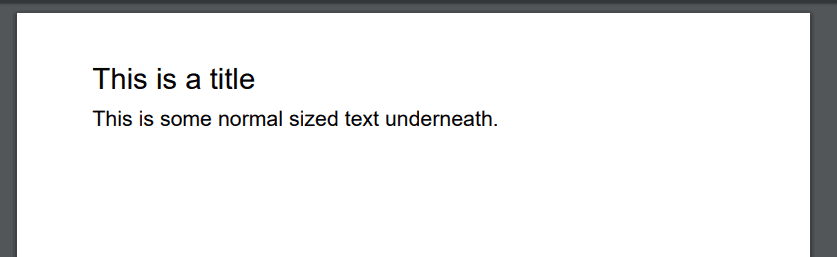
We can also color the texts of our PDF as shown below:
var doc = new jsPDF();
doc.setFontSize(22);
doc.text(20, 20, 'This is a title');
doc.setFontSize(16);
doc.text(20, 30, 'This is some normal sized text underneath.');
doc.save('Test.pdf');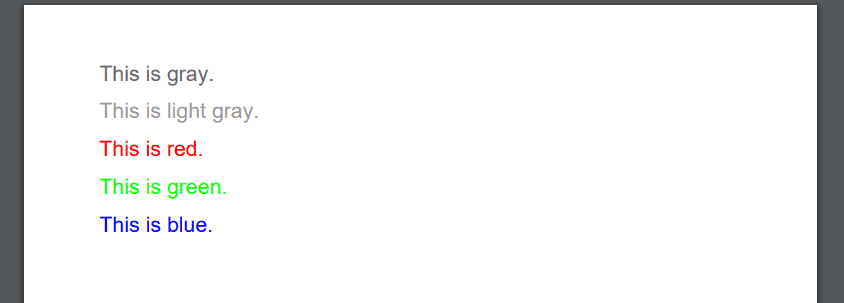
Alignment of PDF texts
Of course, we can also align our texts using the same text method:
var doc = new jsPDF();
doc.text(20, 20, 'This is the default font.');
doc.setFont("courier");
doc.text(20, 30, 'This is courier normal.');
doc.setFont("times");
doc.setFontType("italic");
doc.text(20, 40, 'This is times italic.');
doc.setFont("helvetica");
doc.setFontType("bold");
doc.text(20, 50, 'This is helvetica bold.');
doc.setFont("courier");
doc.setFontType("bolditalic");
doc.text(20, 60, 'This is courier bolditalic.');
doc.save('Test.pdf');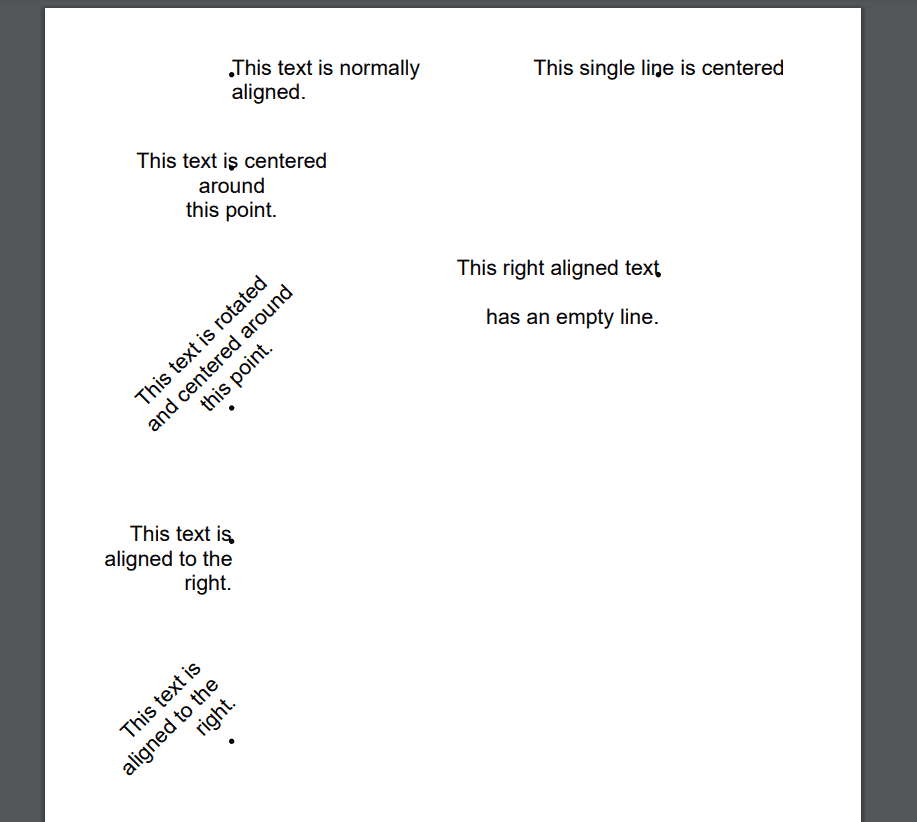
Drawing geometric shapes in the PDF
In all cases, common functions are used such as the setDrawColor method to indicate the stroke color and the setFillColor method for the fill color; the others are methods for drawing each type of geometric figure as you can analyze:
Squares and rectangles
var doc = new jsPDF();
doc.rect(20, 20, 10, 10); // empty square
doc.rect(40, 20, 10, 10, 'F'); // filled square
doc.setDrawColor(255,0,0);
doc.rect(60, 20, 10, 10); // empty red square
doc.setDrawColor(255,0,0);
doc.rect(80, 20, 10, 10, 'FD'); // filled square with red borders
doc.setDrawColor(0);
doc.setFillColor(255,0,0);
doc.rect(100, 20, 10, 10, 'F'); // filled red square
doc.setDrawColor(0);
doc.setFillColor(255,0,0);
doc.rect(120, 20, 10, 10, 'FD'); // filled red square with black borders
doc.setDrawColor(0);
doc.setFillColor(255, 255, 255);
doc.roundedRect(140, 20, 10, 10, 3, 3, 'FD'); //  Black square with rounded corners
doc.save('Test.pdf');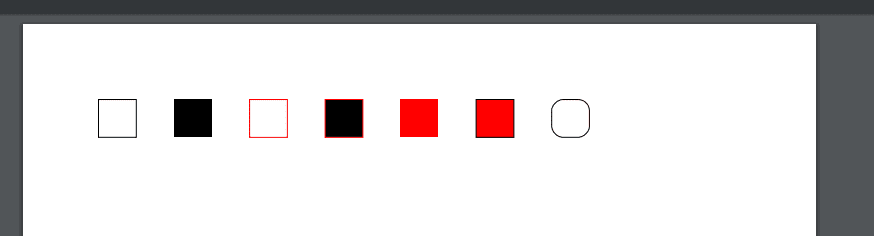
Lines
var doc = new jsPDF();
doc.line(20, 20, 60, 20); // horizontal line
doc.setLineWidth(0.5);
doc.line(20, 25, 60, 25);
doc.setLineWidth(1);
doc.line(20, 30, 60, 30);
doc.setLineWidth(1.5);
doc.line(20, 35, 60, 35);
doc.setDrawColor(255,0,0); // draw red lines
doc.setLineWidth(0.1);
doc.line(100, 20, 100, 60); // vertical line
doc.setLineWidth(0.5);
doc.line(105, 20, 105, 60);
doc.setLineWidth(1);
doc.line(110, 20, 110, 60);
doc.setLineWidth(1.5);
doc.line(115, 20, 115, 60);
doc.save('Test.pdf');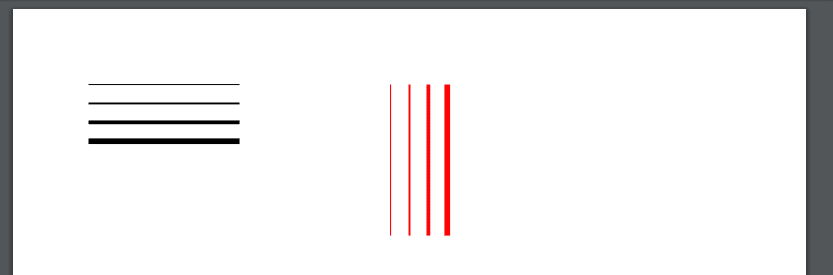
Circles and ellipses
var doc = new jsPDF();
doc.ellipse(40, 20, 10, 5);
doc.setFillColor(0,0,255);
doc.ellipse(80, 20, 10, 5, 'F');
doc.setLineWidth(1);
doc.setDrawColor(0);
doc.setFillColor(255,0,0);
doc.circle(120, 20, 5, 'FD');
doc.save('Test.pdf');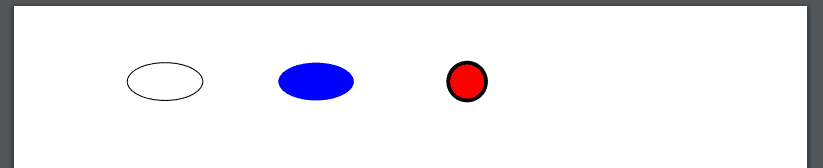
Triangles
var doc = new jsPDF();
doc.triangle(60, 100, 60, 120, 80, 110, 'FD');
doc.setLineWidth(1);
doc.setDrawColor(255,0,0);
doc.setFillColor(0,0,255);
doc.triangle(100, 100, 110, 100, 120, 130, 'FD');
doc.save('My file.pdf');
All these examples were obtained from the official documentation; you can download one of the examples at the following link:
When to use jsPDF, PDF.js or pdf-lib (real comparison)
After having tried several options, this is my clear recommendation:
- Use jsPDF if you need to generate PDFs from scratch on the frontend.
- Use PDF.js if you only need to display PDFs in the browser.
- Use pdf-lib if you must modify existing PDFs or work with complex forms.
Choosing the right library from the start will save you a lot of time and unnecessary refactoring.
Real-world use cases: reports, invoices, and data export
In real systems, generating PDFs with JavaScript is usually applied to:
- Exporting administrative reports.
- Downloadable invoices.
- Custom reports per user.
- Data summaries from dashboards.
jsPDF fits perfectly in these scenarios for its simplicity and visual control.
Common errors when generating PDFs with JavaScript and how to avoid them
Some frequent mistakes I've seen (and made):
- Using PDF.js to generate PDFs (it's not its purpose).
- Not optimizing base64 images.
- Not properly controlling content positions.
- Forgetting to define page sizes and orientation.
Avoiding these points greatly improves the final result.
Frequently asked questions about PDFs with JavaScript
- How to generate a PDF with JavaScript?
- By using libraries like jsPDF or pdf-lib, which allow creating PDF files directly from the browser.
- Which JavaScript library is best for creating PDFs?
- For generating from scratch, jsPDF is the simplest option. For modifying existing PDFs, pdf-lib is more powerful.
- Can a PDF be generated only with the frontend?
- Yes, absolutely. jsPDF and pdf-lib work perfectly without a backend.
Conclusion
Generating PDFs with JavaScript is a practical, powerful, and increasingly common solution in modern web applications. After testing several libraries, my recommendation is clear: choose the tool according to your real need, not by trend.
If you are looking for simplicity and speed to generate reports, jsPDF is a safe bet. If you need something more advanced, pdf-lib can take your documents to the next level.