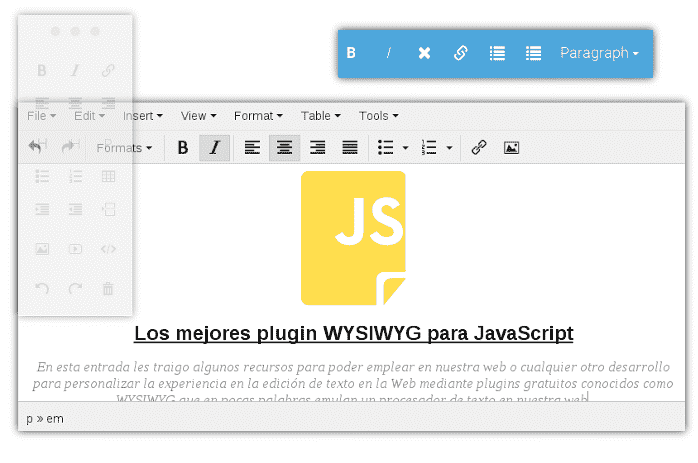
In this post, I bring you some resources to use on our website or any other development to customize the text editing experience on the Web using free plugins known as WYSIWYG, which in short, emulate a word processor on our site.
When working with web projects that need content editing —blogs, custom CMS, administration panels, or even simple rich forms— sooner or later the same need arises: allowing the user to edit text without touching HTML. That is where WYSIWYG plugins for JavaScript come into play.
In this article, I am going to tell you what they are, what they are for, and above all, which are the best WYSIWYG editors in JavaScript, with an honest comparison based on both technical features and real-world usage experience.
WYSIWYG is an acronym for "What You See Is What You Get"; it is nothing more than an interface that allows formatting the text entered via HTML; essentially, it allows enriching the text entered through a word processor.
What is a WYSIWYG editor and what is it for in JavaScript?
A WYSIWYG (What You See Is What You Get) editor is an interface that allows editing content visually, showing the final result in real-time, as if you were using a word processor.
In essence, these editors:
- Transform text into structured HTML
- Hide the complexity of the markup
- Facilitate the creation of rich content
In my experience, a WYSIWYG is nothing more than a visual layer that works over HTML and contentEditable, allowing the application of tags such as:
- Titles h1–h6
- Paragraphs p
- Lists ul and ol
- Links, images, and tables
Additionally, most allow applying styles such as:
- Bold
- Underline
- Strikethrough
- Colors
Custom styles through CSS
This opens up many possibilities for feeding a blog, a custom CMS, or easily replacing a traditional <textarea> with an advanced editor, something I have used many times in projects with PHP, Python Web, Node with JavaScript with Electron for example, and frameworks like Django, Laravel, or CodeIgniter.
What are WYSIWYG plugins for?
WYSIWYG plugins in HTML generally allow adding the following tags:
- For main titles and subtitles
h1-h6. - For paragraphs (
p). - For listings (
ul).
Furthermore, they allow adding our own stylesheet over the content; generally, at least the following styles are applied:
- Change text color.
- Bold.
- Underline.
- Strikethrough.
And any other styles we want.
A word processor of this level opens many possibilities for text editing to feed a Blog like Wordpress does or any other system like Evernote which has its own WYSIWYG, etc.
They allow adding rich content; they allow inserting text editors into a web page; they are excellent for growing our website; we can easily replace a TEXTAREA with one of these plugins; they are ideal for adding rich content to a web app as if it were Word or Google Docs.
Using a WYSIWYG editor in JavaScript has clear advantages:
- Improves user experience: not everyone knows HTML
- Speeds up content creation
- Reduces markup errors
- Allows rich content without complications
When I have had to develop administration panels or publishing systems, a good WYSIWYG makes the difference between a usable system and a frustrating one.
What to consider before choosing a WYSIWYG editor
Before jumping into installing the first one you find, it is worth evaluating several key points:
- Weight and performance
- Some editors are very complete but also heavy. In projects where performance matters, this can be critical.
- Dependencies
- Does it need Bootstrap?
- Does it work in Vanilla JS?
- Licenses (very important)
- One of the biggest current problems is the false “free”. Many editors advertise themselves as free but limit key functions or require a license as soon as you move beyond basic use.
- Level of customization
- Can you modify the toolbar, add your own buttons, or control the generated HTML?
- Real use case
- A simple blog is not the same as a collaborative editor or a complex CMS.
The best WYSIWYG plugins in JavaScript
In this section, we will see a series of WYSIWYG plugins for JavaScript; some have more features than others, support for more or fewer languages, less weight, better usability, more or fewer options, but all are equally effective and fulfill their purpose, and the use of some depends on our requirements.
ContentTools

This tool is built based on multiple libraries for text selection, converting text to HTML, etc., and presents the following features:
The best
- Allows dragging and dropping (Drag and Drop) to position the different elements.
- Offers a collection of libraries.
- Full documentation.
- Redo/undo support.
- Support for interrupting changes.
- Minimalist interface.
- 49 Kb compressed.
- The MIT License (MIT).
The less good
- Many advanced features are paid
- Can be heavy for simple projects
Aloha Editor

Aloha editor is a bit heavier compared to other plugins and has the disadvantage of not supporting image insertion.
Pros:
- Very customizable
- Compatible with MS Word
- Has few options for customizing content.
- Very complete documentation.
- Does not require the presence of the
contentEditableattribute.
Cons
- Does not support native image insertion
- Somewhat heavy
TinyMCE
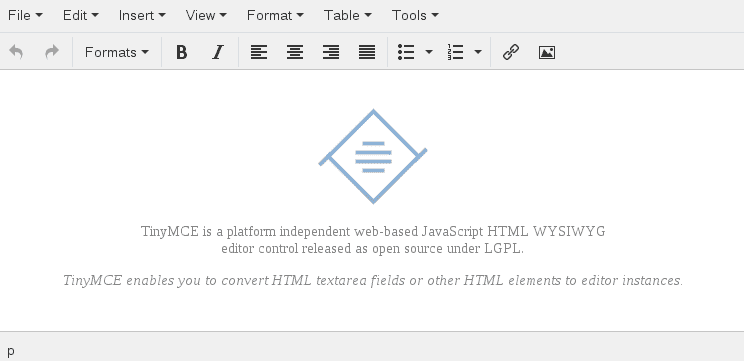
TinyMCE is one of the most used plugins today; it has multi-language support, you can upload files directly from Google Drive, DropBox, and other online storage; it has a free and a paid version.
The best:
- Allows image insertion.
- Allows adding custom elements to the Toolbar.
- More than 80 languages available.
- Very complete and customizable Toolbar.
- Does not require additional files.
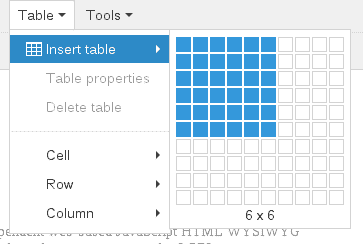
- Has very interesting options like adding tables as you would in Excel:
- Has a simple image editor where you can rotate, crop, scale, change color, and other advanced options:

- Great support for old browsers:

- Customizable at the theme level.
- Translated into more than 40 languages.
- We can customize it through its API.
The less good
Many advanced functions are paid
It can be heavy for simple projects
Summernote
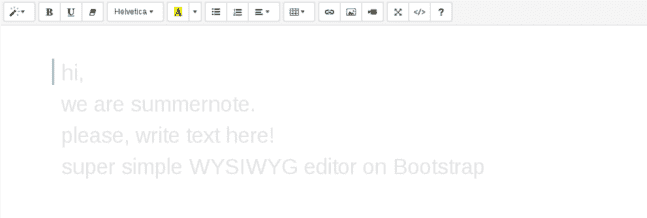
This is an editor that uses Bootstrap and therefore has several themes you can install; it is a simple and very nice editor that has a good level of integration with your applications by using Bootstrap as its core.
- Easy to install.
- Compatible with Bootstrap.
- Multiple themes to customize.
- Open Source.
- Allows using multiple instances easily.
TipTap (headless editor)
TipTap deserves a special mention.
It is not a classic WYSIWYG, but an editor builder based on ProseMirror.
The best
- Total control over the markup
- Modern architecture
- Ideal for React, Vue, and modern frameworks
The bad
- Higher learning curve
- In projects where you need absolute control, TipTap is amazing.
CKEditor
This is one of the most used plugins at the moment for making our HTML text processors; it has multiple modes, many ways to customize, allows image selection from the server, is configurable and ideal for use with other programming languages like PHP.

Advantages:
- Extremely configurable
- Ideal for long content (blogs, news)
- Support for MS Word
- Read mode.
- Hotkeys.
- Many customization options (although the toolbar can get quite overloaded).
- Configurable toolbar.
- Multiple plugins.
- Multiple themes to customize (You can even change the interface color).
- 67 languages available.
Disadvantages
- The toolbar can get overloaded
- Licenses can be confusing: some functions "look" free until you use them
Trumbowyg

- Extensible with plugins.
- HTML5 support.
- Lightweight 16Kb.
- Customizable through options.
- Fairly simple in options and interface.
Froala
Froala is an exceptional WYSIWYG style editor plugin; easy to integrate and easy to use like the others, it is a very beautiful text editor for our browser; as important features we have:
Advantages
- Extremely configurable
- Ideal for long content (blogs, news)
- Support for MS Word
- Multiple plugins and themes
Strengths:
- 34 Kb download file.
- Optimized for mobile.
- Multi-language support.
Weak point:
- It is a premium editor
Quill
Quill is a modern and open source editor.
Advantages
- Lightweight
- Clear API
- Good performance
Limitation
- More oriented towards text than complex design
Jodit
Jodit is one of the truly free editors that is gaining the most popularity.
Why it stands out
- Open source
- Very complete
- No license surprises
- Good experience out-of-the-box
Many developers are choosing it precisely to avoid legal issues and hidden limitations.
Comparison table of JavaScript WYSIWYG editors
| Editor | Approx. Weight | jQuery | License | Ideal for |
|---|---|---|---|---|
| TinyMCE | Medium | No | Freemium | Large CMS |
| CKEditor | Medium | No | Freemium | Long content |
| Froala | Low | Yes | Paid | Premium projects |
| Summernote | Medium | Yes | Open Source | Bootstrap |
| Trumbowyg | Very low | Yes | Open Source | Lightweight projects |
| ContentTools | Low | No | MIT | Inline editing |
| TipTap | Variable | No | Open Source | Total control |
| Quill | Low | No | Open Source | Rich text |
| Jodit | Medium | No | Open Source | Truly free |
Which WYSIWYG editor to choose based on your project?
- Traditional Blog or CMS → TinyMCE / CKEditor
- Lightweight project → Trumbowyg / Quill
- Total HTML control → TipTap
- Non-technical users → Froala / Summernote
- Avoid misleading licenses → Jodit / Quill
Frequently asked questions about WYSIWYG editors in JavaScript
- Which is the lightest WYSIWYG editor?
- Trumbowyg, with barely 16 KB.
- Which editor is truly free?
- Quill, Jodit, Trumbowyg, and ContentTools.
- Is TipTap a WYSIWYG?
- Not exactly; it is a headless editor that allows you to build a custom one.
- Do they affect performance?
- Yes, especially heavier editors or those with many dependencies.
Conclusion
WYSIWYG plugins for JavaScript remain a key piece in modern web development. The key is not in choosing "the most famous one", but the one that best fits your project, your budget, and your desired level of control.
In my case, I have ended up using different editors depending on the context: from minimalist options to complete solutions. Choosing well from the start saves you time, licensing issues, and headaches in the long run.