
Changing the app icon in Flutter is one of those tasks that seem simple, but if you don't follow the exact process, they can turn into a headache: icons that don't change, blurry resources, strange errors on iOS... Luckily, there is a standardized and widely used way: the package:
flutter_launcher_icons
When I created my first project, Flutter came with its classic blue icon by default. And of course, to publish on Google Play or the App Store I needed my own. That's when I started using this package for the first time, and since then I always use it because it avoids a good amount of manual configuration.
Previously we saw how to detect the internet connection in Flutter
Below I explain step by step how to change the launcher icon on both Android and iOS, with practical tips, common errors, and configurations that I use in my projects.
When we create a Flutter project, it comes with the default Flutter icon. In order for the application to be published on stores such as Google Play Store, Apple App Store, etc., the default icon can be changed.
The package explains itself
A command-line tool that simplifies the task of updating your Flutter app's launcher icon. Fully flexible, allowing you to choose the platform for which you want to update the launcher icon, and optionally, the ability to keep your old launcher icon in case you want to revert in the future.
Why Change the Default Flutter Icon?
The app icon is the **first impression** the user will have when looking for your app. If you don't change it, they will see the same blue icon that all newly created apps with Flutter have.
Furthermore:
- App stores require a final and valid icon.
- Default icons are not accepted in production.
- It helps the visual identity of your brand or project.
- In my case, the first thing I noticed was that having the default icon not only gave a bad image, but also complicated internal testing for me because I had several apps with the same icon.
Prerequisites and Icon File Preparation
Before touching code, prepare your image:
- Recommended format: PNG.
- Background: iOS requires it to occupy the entire image (avoid transparencies).
- Minimum suggested size: 512×512 px.
- Avoid thin borders or overly fine details, because Android uses very small versions (36–192 px).
In several projects, I found that the icon looked blurry on budget Android devices. The cause was almost always a low-resolution PNG. Prioritize a large, sharp file.
Install flutter_launcher_icons in your project
Using the package is quite simple.
First let's add the package to pubspec.yaml:
dependencies:
  flutter_launcher_icons: ^0.9.2
Then all you need to do is provide the path to your icon as shown and that's it. You can also provide different paths for Android and IOS.
flutter_icons:
 android: true
 ios: true
 image_path: "assets/tiger.png"
 #adaptive_icon_background: "assets/logo.png"
 #adaptive_icon_foreground: "assets/logo.png"
Below is the complete list of attributes you can specify within the Flutter Launcher icons configuration.
android: and iOS:
- true: overrides the existing default Flutter launcher icon for the specified platform
- false: ignore creating launcher icons for this platform
- icon/path/here.png: this will generate a new application icon for the platform with the name you specify, without deleting the old default Flutter launcher icon.
- image_path:
Considerations on Icon Sizes and Formats
Flutter Launcher Icons is responsible for automatically generating all dimensions, but you must provide a high-quality base image.
- Use uncompressed PNG.
- Avoid transparent backgrounds for iOS.
- You can have different images for each platform if you need to.
The location of the icon image file you want to use as the app launcher icon
image_path_android: the location of the icon image file specific to the Android platform (optional; if not defined, image_path is used)
image_path_ios: the location of the icon image file specific to the IOS platform (optional; if not defined, image_path is used)
Note: iOS icons must occupy the entire image and contain no transparent borders.
Adaptive Icons in Android: Background and Foreground
The following two attributes are only used when generating the Android launcher icon
- adaptive_icon_background: the color (e.g., "#ffffff") or image resource (e.g., "assets/logo.png") to be used to fill the background of the adaptive icon.
- adaptive_icon_foreground: the image resource to be used for the foreground icon of the adaptive icon
adaptive_icon_background: "#ffffff" adaptive_icon_foreground: "assets/logo.png"After editing the pubspec.yaml file like this, all you need to do is go to your terminal and run this code.
run flutter pub flutter_launcher_icons:main
And that is all.
In my case, I used the following image:

And I obtained:
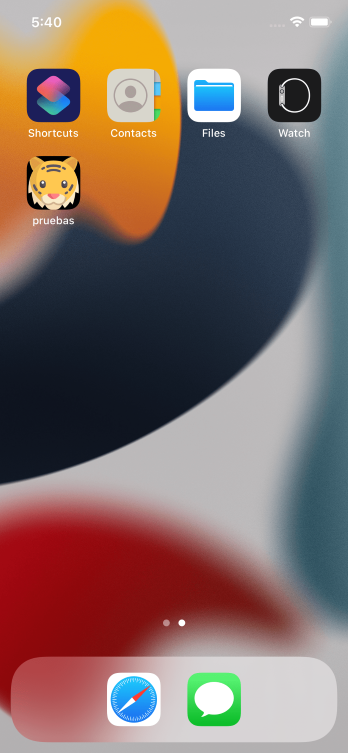
Special Considerations for iOS (No Transparent Borders)
iOS is stricter:
- The image must occupy the entire canvas.
- Do not use transparencies.
- Avoid the "circle inside square" style, because it will be cropped.
When I used my first image, I had to adjust it because it had a small transparent border that made the icon look shrunken on the home screen.
Run the command to generate the new icon
Once you have the pubspec.yaml ready, run:
$ flutter pub run flutter_launcher_icons:mainI always check the console to make sure it generated the resources correctly. If you see warnings about sizes, change them before compiling.
When I did this the first time, I was reassured to see the successful generation message because it means that Flutter created all the variants for Android and iOS without conflict.
Common Problems and How to Solve Them
The icon doesn't change on Android
- Delete the build/ folder.
- Run flutter clean.
- Run the package command again.
Sometimes Android Studio caches old icons.
The icon doesn't appear on iOS
- Open the project in Xcode.
- Check Assets.xcassets → AppIcon.
- Clean and rebuild: flutter clean.
The iOS simulator is known for caching icons, so test on a physical device if you have doubts.
Blurry or Cropped Icons
The base image has low resolution.
- The border is too thin and is lost when scaling.
- On iOS it may be cropped due to unintentional padding.
In my case, most of the problems were due to using a PNG that was too small. Since then, I never use less than 1024×1024 px.
Conclusion
Changing the app icon in Flutter is very easy if you follow the process in order:
- You prepare a good icon,
- You configure the package,
- You run the correct command.
Thanks to flutter_launcher_icons, you don't have to manually modify Android or iOS folders, and you can maintain visual coherence without headaches.
If you want a professional result from the first attempt, use a good quality file, avoid transparencies on iOS, and don't forget to clean the project if the icon doesn't change.
Frequently Asked Questions
- What size should the icon for Flutter be?
- Ideally 512×512 or 1024×1024 px, always in PNG.
- Can I use SVG?
- Not directly. You must export it to PNG.
- How do I regenerate the icons if I change the image?
- Modify the source file and run again:
- flutter pub run flutter_launcher_icons:main
- Can I use different icons for Android and iOS?
- Yes, by using image_path_android and image_path_ios.
Learn how to generate your app for production on Google Play using Flutter.