
Content Index
- Why Generate a PDF in Django?
- Common Use Cases
- Advantages of Converting HTML Templates to PDF
- Installing WeasyPrint and Dependencies According to Your Operating System
- Installation on Windows
- Installation on MacOS and Linux
- Install pip
- Creating a View to Generate a PDF in Django
- Basic Configuration in views.py
- Generate PDF with an HTML Template
- Saving and Viewing the Generated PDF File
- Customizing the PDF with CSS and Advanced Options
- Recommendations for Complex Templates
- Alternatives to WeasyPrint: xhtml2pdf and ReportLab
- Common Errors and How to Solve Them
- Conclusion
- Frequently Asked Questions
Generating a PDF from an HTML template in Django is a common necessity in any project that needs to export reports, invoices, or certificates. In this guide, I'll show you how to do it easily using WeasyPrint, a powerful, cross-platform, and very well-documented library.
We left off with the fact that we already know how to write CSV files in Django.
Why Generate a PDF in Django?
Converting an HTML page to PDF from Django allows you to present information professionally and exportably without leaving your web application.
Common Use Cases
- Automatic invoices and quotes.
- User or sales reports.
- Downloadable certificates or receipts.
- Exporting dynamic content, such as forms or lists.
Advantages of Converting HTML Templates to PDF
- You can reuse your existing Django templates.
- You maintain full control over the design using CSS.
- The generated PDFs are compatible with any browser or system.
Installing WeasyPrint and Dependencies According to Your Operating System
WeasyPrint is an engine that converts HTML and CSS into PDF. Its installation varies depending on the operating system, as it requires some external libraries.
Installation on Windows
In the case of Windows, you must install the following program:
https://github.com/tschoonj/GTK-for-Windows-Runtime-Environment-Installer/releases
Installation on MacOS and Linux
On macOS, you can easily install the dependencies with Homebrew:
$ brew install python pango libffiOn the official website:
https://doc.courtbouillon.org/weasyprint/stable/
Install pip
Once the dependencies are installed, you can install the package as another dependency:
$ pip install weasyprintCreating a View to Generate a PDF in Django
With the dependencies ready, let's create a view that converts an HTML template into a downloadable PDF.
Basic Configuration in views.py
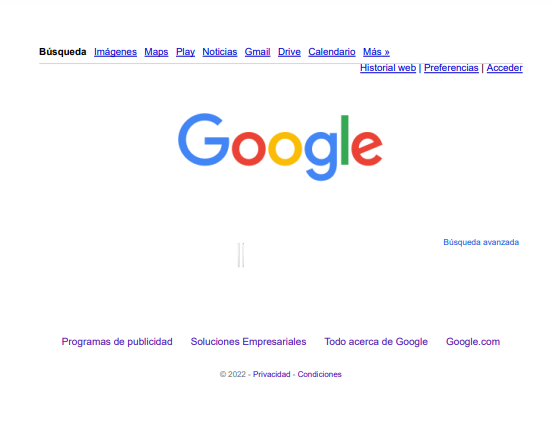
Its use is very simple; just use the HTML() function, indicating the URL you want to convert to HTML and where you want to write it using the write_pdf() function. In this example, the Google URL is the one we are going to convert to PDF:
pdfs\views.py
from weasyprint import HTML

def generate_pdf(request):
    filename="documents/archivo.pdf"
    HTML("https://www.google.com.ve/").write_pdf(filename)
    return render(request, 'csv.html')
And we will have:
Generate PDF with an HTML Template
Suppose you have a report.html template with dynamic data.
You could adapt the view like this:
from django.template.loader import render_to_string
from django.http import HttpResponse
from weasyprint import HTML
def generar_pdf(request):
   html_string = render_to_string('report.html', {'usuario': 'María', 'total': 125})
   html = HTML(string=html_string)
   response = HttpResponse(content_type='application/pdf')
   response['Content-Disposition'] = 'inline; filename="reporte.pdf"'
   html.write_pdf(target=response)
   return response
This package allows you to use other options, such as indicating the page size:
from weasyprint import HTML, CSS
***
HTML(string='''
<h1>The title</h1>
<p>Content goes here
''').write_pdf(filename)
CSS(string='@page { size: A3; margin: 1cm }')
Or defining CSS:
HTML('http://weasyprint.org/').write_pdf('/tmp/weasyprint-website.pdf',
    stylesheets=[CSS(string='body { font-family: serif !important }')])
All this and more can be seen in the official documentation; using this option is particularly useful if the PDF document you want to generate is simple and can be represented by an HTML document; however, many times this is not the case, and you need a pixel-by-pixel solution, as we will see below.
Saving and Viewing the Generated PDF File
If you prefer to save it on your server:
html.write_pdf(target='media/reportes/reporte.pdf')This way you can serve it from a URL or attach it to emails.
Customizing the PDF with CSS and Advanced Options
One of WeasyPrint's advantages is its compatibility with modern CSS.
- Define page size and margins
from weasyprint import HTML, CSS - HTML('reporte.html').write_pdf('reporte.pdf',
stylesheets=[CSS(string='@page { size: A4; margin: 1cm }')]) - Apply custom styles with CSS
CSS(string='body { font-family: "Helvetica"; color: #333; }')
In my case, I usually define specific CSS only for printing, with adjusted fonts and margins.
Recommendations for Complex Templates
If your design is very visual (for example, an invoice with logos and tables), make sure to:
Use absolute paths for images and styles (request.build_absolute_uri()).
Avoid dependencies on JS or frameworks like React in the rendered templates.
Test the result locally before deploying.
Alternatives to WeasyPrint: xhtml2pdf and ReportLab
Although WeasyPrint is my favorite, there are more options.
Library Advantages Limitations
WeasyPrint Accurate rendering, CSS3 support, cross-platform Requires external dependencies
xhtml2pdf Lightweight and easy to install Limited CSS support
ReportLab Very powerful for custom PDFs (graphics, coordinates) Does not directly convert HTML
Use xhtml2pdf if you only need something quick and without dependencies, or ReportLab if you require total layout control (e.g., pixel-perfect documents).
Common Errors and How to Solve Them
- Windows installation problems
- If you get "OSError: no library called cairo," make sure GTK is correctly installed and added to the PATH.
- Relative paths and static files
- WeasyPrint needs absolute paths to access images and styles.
Example:
- WeasyPrint needs absolute paths to access images and styles.
- HTML(string=html_string, base_url=request.build_absolute_uri())
- Debugging styles that don't apply
- WeasyPrint only interprets valid CSS. Verify stylesheets with tools like CSS Validator.
Conclusion
Generating an HTML PDF in Django is much easier than it seems if you use the right tools.
In my case, WeasyPrint has allowed me to generate stable, well-formatted, and cross-platform PDFs with minimal configuration.
If you need absolute precision (e.g., fiscal documents), you can explore alternatives like ReportLab, but for most Django projects, WeasyPrint is more than enough.
Frequently Asked Questions
- What is the best library for generating PDFs in Django?
- It depends on the case. WeasyPrint offers the best balance between power and simplicity.
- How to apply CSS styles to the generated PDF?
- By adding a stylesheet using the stylesheets parameter of write_pdf().
- Can a PDF be generated from an HTML template in Django?
- Yes, it's the most practical way: you render the template with render_to_string() and then convert it with WeasyPrint.
- What are the differences between WeasyPrint and xhtml2pdf?
- xhtml2pdf is simpler but with limited CSS support. WeasyPrint offers CSS3 compatibility and more faithful results.
Next step: how to integrate CKEditor 5 into Django 6