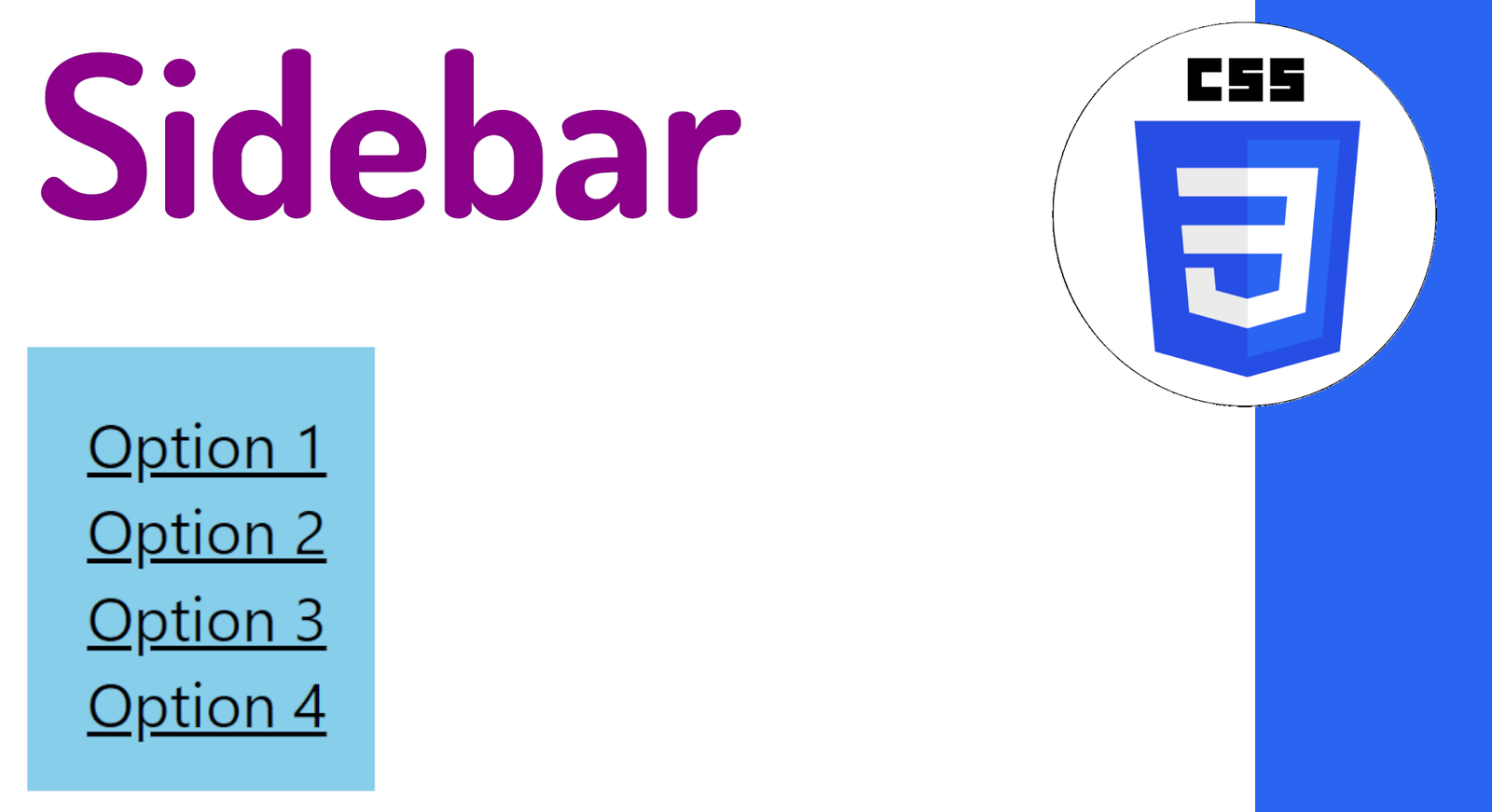
Creating a sidebar or lateral menu with CSS is a much more viable solution than many think. Although most examples you will find on the internet use JavaScript directly, for a simple side menu it is not necessary at all.
With a good combination of positioning, transformations and pseudo-classes, you can achieve a clean, functional and accessible result using only HTML and CSS. Without a single line of JavaScript.
In this article I show you how to create a side menu only with CSS, explaining each technical decision and the reason behind it, so that you don't limit yourself to copying code but rather understand it and can adapt it to your projects.
What is a sidebar or lateral menu and when to use it
A sidebar—also called sidebar either side menu— is a navigation element that is normally located on one side of the screen (left or right) and that groups together links, actions or secondary sections of a website. It is one of the most used UI patterns in dashboards, administration panels and complex web applications.
It is usually used when:
- There are many navigation options that don't fit comfortably in a top bar.
- You don't want to saturate the
headerwith too many links. - You need to keep the main content clean and with the visual prominence it deserves.
Difference between side menu and traditional navigation bar
While a horizontal navigation bar is usually always visible and takes up horizontal space, the side menu:
- It can be shown or hidden on demand, gaining space for content.
- Make better use of the vertical space on the screen.
- It works especially well in dashboard-type layouts or web applications with many sections.
Why create a sidebar only with CSS
Most of the tutorials you will find combine HTML + CSS + JavaScript, but that is not always necessary or the best option.
In this example I chose not to use JavaScript because the basic behavior of the menu—show and hide—can be perfectly solved with pure CSS, reducing complexity, dependencies and possible points of failure.
Advantages over solutions with JavaScript
- Less code and, consequently, less long-term maintenance.
- Better performance in animations: the browser manages them natively and optimized.
- You don't depend on JS events for something that is simply showing or hiding an element.
- It works even with JavaScript disabled in the user's browser.
Furthermore, when I tried this approach for the first time I found that for small or demonstrative menus it is more than enough and, above all, much more educational to understand how the layout works.
Limitations of a sidebar without JavaScript
Of course, it is advisable to be honest about the real limitations:
- You won't be able to handle complex or persistent states (for example, remembering whether the menu was open or closed).
- It is not ideal for menus with advanced logic, such as dynamic nested submenus.
- On mobile devices, the pseudo-class
:hoverIt has important limitations, since touch is not the same as mouse.
Later we will see when it is worth introducing JavaScript to complement this approach.
Basic HTML structure for a side menu
We start by defining a structure HTML simple. No unnecessary elements: a div container and a <nav> with the links. Clean and semantic.
<div class="container">
  <nav>
    <a href=".">Option 1</a>
    <a href=".">Option 2</a>
    <a href=".">Option 3</a>
    <a href=".">Option 4</a>
  </nav>
</div>
Main container and navigation links
He div.container acts as a visual frame and, most importantly, as reference point for absolute positioning from the side menu. When applying position: relative, any child element with position: absolute It will be positioned with respect to it and not with respect to the viewport. Inside, the element <nav> contains the navigation links, organized in columns using flex-direction: column.
Creating the sidebar with CSS step by step
Avoiding horizontal scrolling with overflow
One of the first problems that appear when hiding the menu outside the viewport is the unwanted horizontal scroll. The browser, upon detecting that there is content beyond the visible border, automatically activates the horizontal scroll bar. To fix it, just hide the overflow in the container:
  .container {
    overflow: hidden;
    position: relative;
    height: 15em;
    max-width: 25em;
    margin: auto;
    border: 0.2em solid black;
  }
The simple use of
overflow: hiddeneliminated any extraneous side shifting. It's one of those properties that seems obvious in retrospect, but isn't always taken into account when working with elements positioned outside the normal flow.
Positioning the menu outside the viewport
The side menu will be a hidden box to the left of the container, with a small "grip" visible inviting the user to interact. To achieve this we use position: absolute and we push it out of the visible area with right: 100%:
  nav {
    display: flex;
    flex-direction: column;
    position: absolute;
    right: 100%;
    padding: 1em;
    background-color: skyblue;

    transform: translateX(1em);
    transition: 0.2s transform;
  }
right: 100%place the<nav>completely out of the container, to the left. When combined withoverflow: hidden, remains invisible.- The little one
translateX(1em)shifts the menu slightly to the right, leaving a small "grip" visible on the left edge of the container. So the user knows that there is something there.
Smooth animations with transform and transition
Instead of animating the menu by modifying the properties left either right, I use transform: translateX(). This is no coincidence: is the most efficient way to animate movement in CSS.
transform: translateX()It offers more fluid animations because the browser can delegate them to the graphic composer (GPU), avoiding recalculating the entire layout in each frame. Properties likeleft,right,topeitherbottomThey do force that recalculation, which can lead to choppy animations on slow devices.
The property transition: 0.2s transform causes scrolling to animate smoothly in 200 milliseconds, giving that naturally "sliding" menu feel.
Show and hide the menu with :hover and :focus-within
By positioning yourself on the menu, we activate the effect :hover and we move the <nav> into the container through a translation on the X axis:
  nav:hover,
  nav:focus-within {
    transform: translateX(100%);
  }
This allows:
- The menu is displayed when you hover the mouse over it.
- It also works with a keyboard, thanks to the pseudo-class
:focus-within.
Accessibility and keyboard navigation
This is where this approach really outperforms many traditional examples. When using :focus-within, any user who navigates with the keyboard (using the key Tab) can access the menu without JavaScript. When the focus falls on any link within the <nav>, the pseudo-class is activated and the menu is displayed automatically. It's an accessibility detail that's rarely mentioned in other tutorials, and it doesn't cost anything to implement.
Complete sidebar code with CSS
Finally, the complete code so you can test and customize it:
<div class="container">
  <nav>
    <a href=".">Option 1</a>
    <a href=".">Option 2</a>
    <a href=".">Option 3</a>
    <a href=".">Option 4</a>
  </nav>
</div>

<style>
  .container {
    overflow: hidden;
    position: relative;
    height: 15em;
    max-width: 25em;
    margin: auto;
    border: 0.2em solid black;
  }

  nav {
    display: flex;
    flex-direction: column;
    position: absolute;
    right: 100%;
    padding: 1em;
    background-color: skyblue;

    transform: translateX(1em);
    transition: 0.2s transform;
  }

  nav:hover,
  nav:focus-within {
    transform: translateX(100%);
  }

  a {
    white-space: pre;
    color: black;
  }

  p {
    font-size: 2em;
    text-align: center;
  }
</style>
Tips to improve and adapt the sidebar
Responsive and mobile behavior
On mobile devices, the event :hover it does not exist in the same way as on desktop: touch does not activate this pseudo-class persistently. If you need full compatibility on mobile phones, you have two equally valid options:
- Combine this approach with the pseudo-class
:checkedand a<input type="checkbox">hidden. The checkbox acts as a status switch without the need for JavaScript: when checked, the menu appears; when not, it hides. - Use mobile-only JavaScript by adding or removing a CSS class using
classList.toggle(), and leaving the pure CSS behavior for desktop.
When does it make sense to use JavaScript
This example is an excellent foundation, but there are situations where JavaScript is the right tool:
- The menu depends on complex or variable states of the application.
- you need persistence: make the menu remember if it was open or closed when reloading the page.
- The sidebar controls or renders dynamic content that changes based on user interaction.
- You must manage multiple nested submenus with independent opening/closing logic.
Even in those cases, the structure HTML and CSS This example is still a solid foundation to build on.
CSS Sidebar FAQ
- Can you make a sidebar with just CSS?
- Yes, as long as the behavior is simple (show/hide on hover or receiving focus). For more complex or persistent behaviors, you'll need JavaScript or the
:checkedwith a hidden checkbox.
- Yes, as long as the behavior is simple (show/hide on hover or receiving focus). For more complex or persistent behaviors, you'll need JavaScript or the
- Is it better to use
transformthatleftto liven up the menu?
- Is it better to use
- For animations, definitely yes.
transform: translateX()It is more fluid and efficient because the browser can optimize it at the GPU level, without forcing a recalculation of the layout in each frame. Wearlefteitherrightmay cause choppy animations.
- For animations, definitely yes.
- Does this sidebar work on mobile devices?
- The menu works, but the
:hoverIt has limitations on touch screens. For mobile phones it is advisable to adapt it using the technique of:checkedwith a hidden checkbox, or add a small layer of JavaScript.
- The menu works, but the
- What is
:focus-withinand what is it for here?
- What is
:focus-withinis a CSS pseudo-class that is triggered when any descendant element of the selector has focus. In this case, when the user navigates with the keyboard and the focus reaches a link within the<nav>, the menu is displayed automatically. It is the key to the accessibility of this example.
- Can I make the sidebar be on the left side instead of the right?
- Yes. It changes
right: 100%byleft: 100%in it<nav>and adjust the value oftranslateX()accordingly (use a negative value liketranslateX(-1em)for visible grip).
- Yes. It changes
Conclusion
Creating a sidebar or lateral menu with CSS is perfectly possible without resorting to JavaScript. With good use of position, transform, transition and pseudo-classes like :hover and :focus-within, you can build a functional, accessible, and easy-to-maintain menu with very little code.
In my case, this approach has helped me demonstrate that many simple interactions—which most are resolved with JavaScript out of inertia—can be resolved directly with CSS, simplifying the code, reducing dependencies and improving the understanding of the layout. Next time you need a side menu, try pure CSS first – you might be surprised how far it goes.